Terminal
Access your IDE's terminal from your mobile device — run commands, interact with CLI tools, and manage terminal sessions remotely.
Overview
The Terminal feature gives you full remote access to your IDE's terminal. Send commands, view real-time output, interact with prompts from CLI tools, and switch between multiple terminal sessions — all from your phone. Whether you need to run a quick git status, kick off a build, or work with interactive tools like Claude Code, the terminal has you covered.
Prerequisites
Before using the Terminal:
- Your mobile device must be paired with your IDE
- Connections must be enabled in your IDE (status: "Open")
- Your mobile app must be connected
Accessing the Terminal
- Connect to your IDE from the mobile app
- From the IDE dashboard, tap Terminal
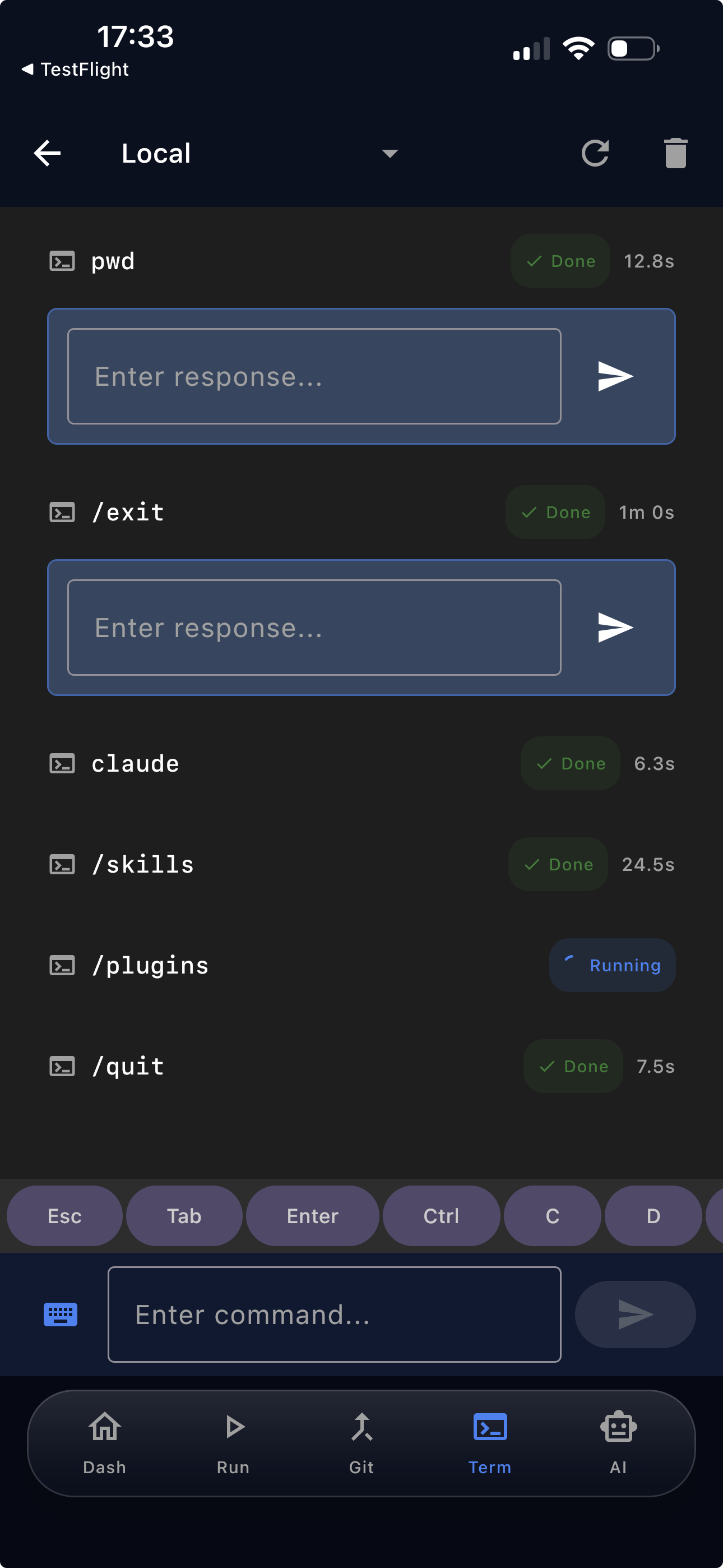
- The terminal screen opens showing your active sessions and output
Terminal Sessions
The terminal supports multiple sessions, just like your IDE.
- View active sessions — See a list of all terminal sessions open in your IDE, each with its name and status
- Create new sessions — Tap the add button to create a new terminal session directly from your phone
- Switch between sessions — Tap a session to view its output and send commands to it
- Bidirectional sync — Sessions stay in sync between your IDE and mobile. Opening or closing a session on either side is reflected on the other
Sending Commands
- Type your command in the input field at the bottom of the screen
- Tap the Send button (or press Enter)
- Output appears in the terminal view above as it streams from the IDE
Commands execute in the IDE's working directory for the selected terminal session.
Keyboard Toolbar
A special toolbar appears above the keyboard with keys commonly needed for terminal interaction:
| Key | Usage |
|---|---|
| Esc | Cancel menus, exit modes in CLI tools |
| Tab | Autocomplete commands and paths |
| Enter | Submit commands and confirm prompts |
| Ctrl | Modifier for control sequences (combine with other keys) |
| C | With Ctrl: interrupt a running command (Ctrl+C) |
| D | With Ctrl: send EOF / end input (Ctrl+D) |
| Z | With Ctrl: suspend a process (Ctrl+Z) |
These keys enable full interaction with tools that rely on control characters — no need for a physical keyboard.
Interactive Input
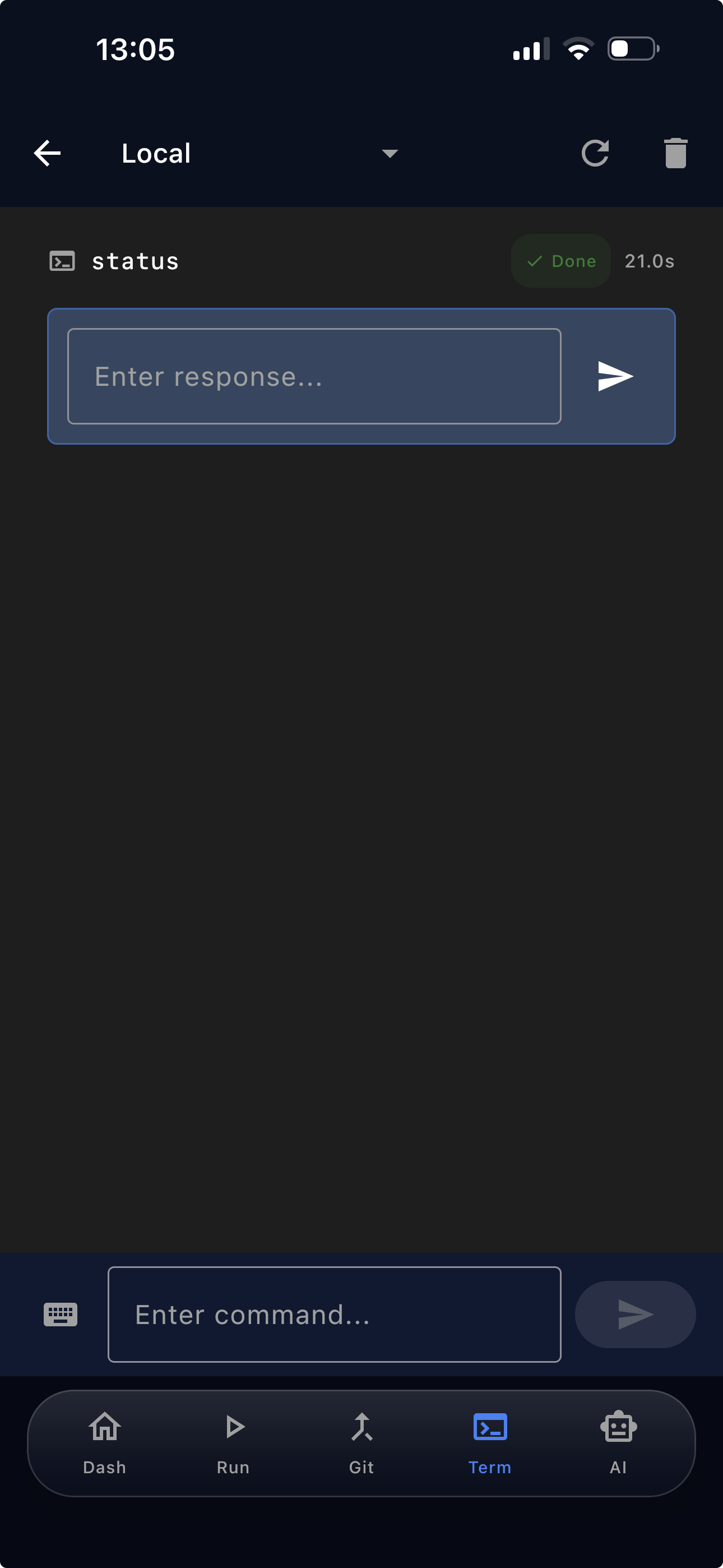
When a CLI tool prompts for input (for example, Claude Code asking "Do you trust this project?" or npm init asking for a package name), a dedicated input field appears on screen. Type your response and tap send to continue the interaction.
This works with any interactive CLI tool, including:
- Claude Code and other AI assistants
- npm init, yarn init, and project scaffolding tools
- git interactive rebase and other git prompts
- Any tool that reads from standard input
Output Filtering
The terminal offers two display modes for output, toggled from the terminal toolbar:
COMPACT Mode (Default)
Filters noisy terminal output for cleaner reading on a mobile screen. Control sequences, progress bars, spinner animations, and other visual noise are stripped out, leaving you with the meaningful content.
Best for most use cases — reading logs, checking command output, and general terminal work.
RAW Mode
Shows the full, unfiltered terminal output exactly as it appears. Useful when you need to see precise formatting, debug rendering issues, or inspect control sequences.
AI Assistant Integration
CLI-based AI tools like Claude Code work fully through the terminal. Streaming output, interactive prompts, and control characters are all supported, making it practical to run AI coding assistants directly from your phone.
A typical workflow:
- Open a terminal session
- Run
claude(or your preferred CLI tool) - Interact with prompts using the input field and keyboard toolbar
- Use Ctrl+C from the toolbar if you need to interrupt
This is one of the terminal's most powerful use cases — directing an AI assistant while away from your desk.
Tips
- Use COMPACT mode for everyday terminal work to keep output readable on a small screen
- Switch to RAW mode when you need to see exact output formatting
- Create dedicated terminal sessions for long-running processes so you can check on them later
- The keyboard toolbar gives you the control characters you need — no external keyboard required
- When your mobile connects, it receives a snapshot of existing terminal output, so you can pick up where you left off
Troubleshooting
Command not executing:
- Ensure you're connected to the IDE
- Check that you have a terminal session selected
- Verify the IDE terminal is not blocked by another process
Output not appearing:
- Check your connection status in the app
- Try switching to RAW mode to see if output is being filtered
- Clear the terminal and re-run the command
Interactive prompt not showing:
- Make sure the CLI tool is actually waiting for input (check the IDE terminal)
- Try sending input via the standard command field
Sessions not loading:
- Refresh the session list
- Verify the IDE has at least one terminal tab open
- Check that the plugin is running in your IDE