AI Integration
Use AI coding assistants from your phone — Claude Code, GitHub Copilot CLI, Aider, and other CLI tools run directly in your IDE terminal. JetWings gives you remote access to that terminal, so you can interact with your AI assistant from anywhere.
How It Works
AI CLI tools run as processes in your IDE's built-in terminal. JetWings streams that terminal session to your mobile device in real time, with full support for interactive input. When your AI assistant asks you a question or presents a prompt, you can type your response directly from your phone.
There's nothing special to configure — if the tool runs in your terminal, it works through JetWings.
What's Supported
- Interactive input — The terminal displays input prompts when the AI is waiting for your response. Type your reply and press Enter just as you would at your desk.
- Streaming output — See the AI's responses appear in real time as they're generated.
- Control characters — Use the keyboard toolbar to send Ctrl+C, Ctrl+D, and other control sequences. Ctrl+C is especially useful for canceling long-running AI operations.
- COMPACT mode — Filter out repetitive or noisy output for a cleaner view of AI responses on a small screen.
Getting Started
- Install your preferred AI CLI tool in the IDE terminal. For example, to use Claude Code:
npm install -g @anthropic-ai/claude-code - Connect your phone via the JetWings mobile app.
- Open the Terminal tab in the app.
- Run your AI tool:
claude - Interact using the on-screen keyboard and the input prompts that appear when the AI asks questions.
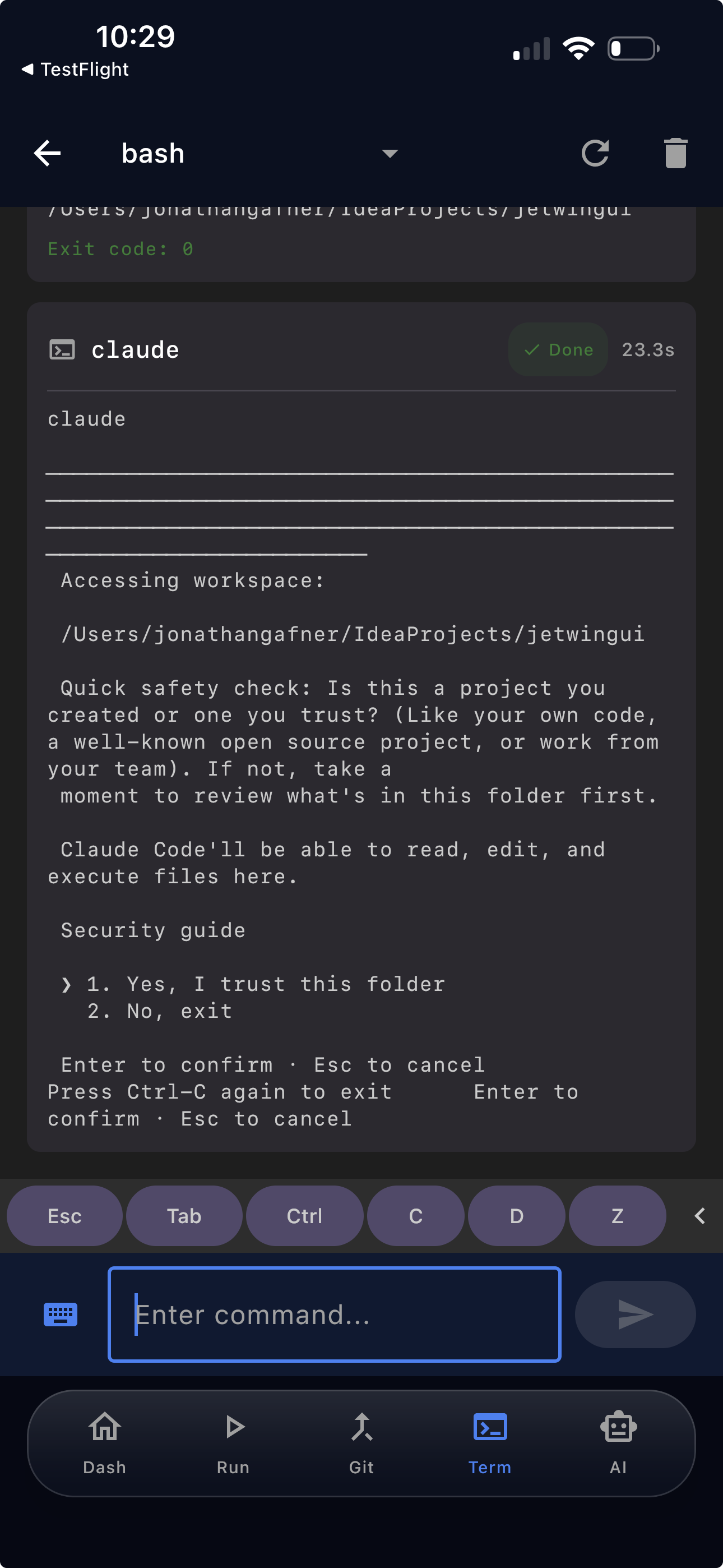
See Terminal for full documentation on the terminal tab, keyboard toolbar, and COMPACT mode.
Tips for Mobile Use
- Enable COMPACT mode to hide repetitive file-listing output and focus on the AI's actual responses. Tap the filter icon in the terminal toolbar to toggle it.
- Use Ctrl+C from the toolbar to cancel a long AI operation without having to wait for it to finish.
- Sessions persist — You can start an AI session on your desktop, walk away, and pick it up from your phone later. The terminal keeps running in the background.
- Longer tasks work well remotely — Ask your AI assistant to make a set of changes, then check back from your phone to review the output and respond to any follow-up questions.
Next Steps
- Terminal Guide — Full documentation on terminal sessions, keyboard toolbar, and output filtering
- Run Configurations — Trigger builds and tests remotely