Run Configurations
Execute your IDE's run configurations remotely from your mobile device.
Overview
Run Configurations let you trigger builds, tests, and other tasks defined in your IDE—without being at your desk. Perfect for starting a long build before heading back from lunch or re-running tests while troubleshooting remotely.
Prerequisites
Before using Run Configurations:
- Your mobile device must be paired with your IDE
- Connections must be enabled in your IDE (status: "Open")
- Your mobile app must be connected
Accessing Run Configurations
- Connect to your IDE from the mobile app
- From the IDE dashboard, tap Run Configurations
- The app fetches available configurations from your IDE
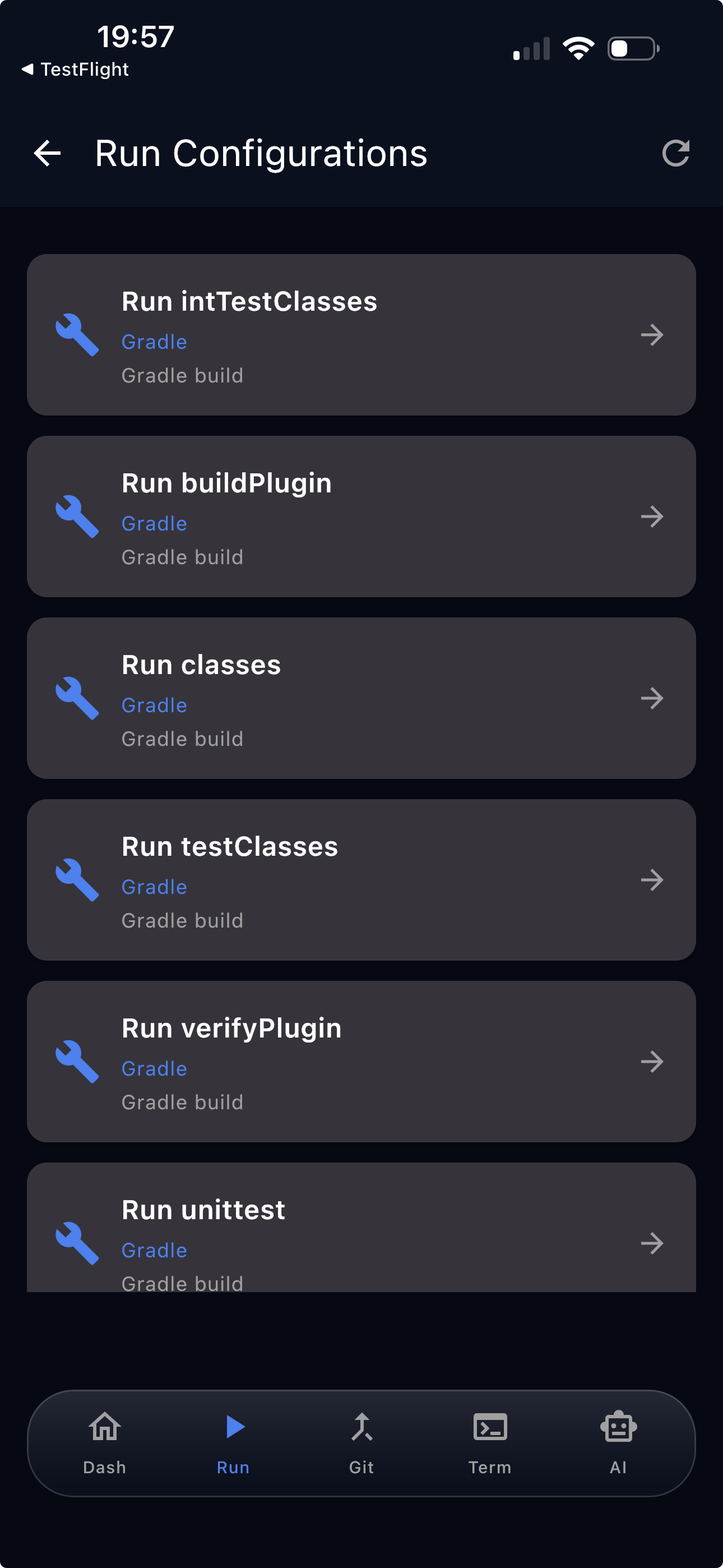
Available Configurations
The screen shows all run configurations defined in your IDE:
| Field | Description |
|---|---|
| Name | Configuration name (e.g., "Run Tests") |
| Type | Configuration type (e.g., "Gradle", "Application", "JUnit") |
| Description | Optional description if configured |
Executing a Configuration
- Tap any configuration card to open its detail view
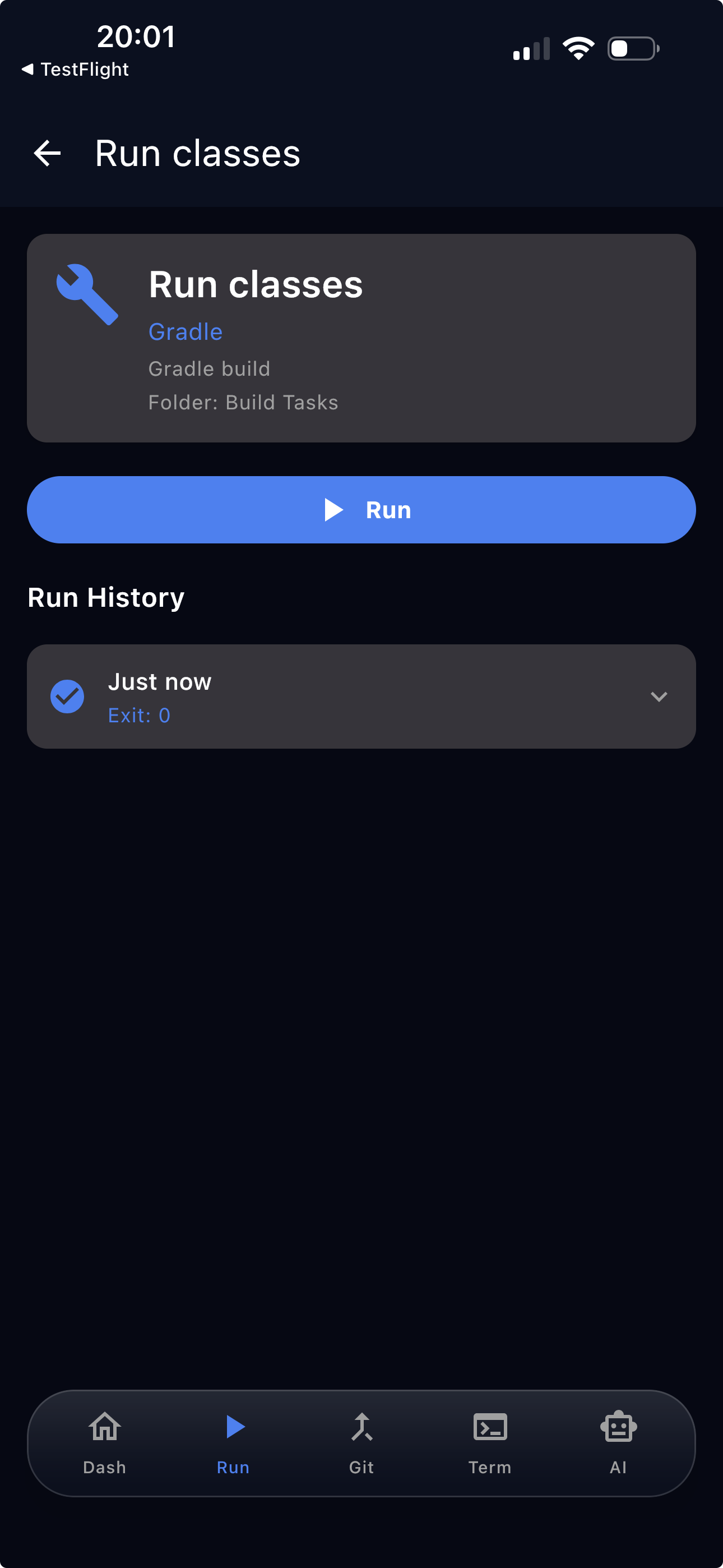
- The detail view shows the configuration name, type (e.g., "Gradle"), description (e.g., "Gradle build"), and folder
- Tap the Run button to execute the configuration in your IDE
- Output appears in real-time as the task runs
Output Screen
The output screen shows:
- Real-time output as the configuration runs
- Status indicator (running, success, or failed)
- Execution time when complete
Run History
After a run completes, it appears in the Run History section of the configuration's detail view.
Each history entry shows:
- Timestamp — relative time such as "Just now" or "2 min ago"
- Exit code — indicates whether the run succeeded or failed
Tap a history entry to expand it and review the output from that past execution.
Run history is session-based and resets when you disconnect from the IDE.
Refreshing the List
Tap the Refresh icon in the top bar to reload configurations from your IDE. Useful if you've added new configurations since connecting.
Tips
- Start long-running builds before stepping away
- Check test results while in meetings
- Use run configurations instead of terminal for repeatable tasks
Troubleshooting
No run configurations found:
- Ensure your IDE project has run configurations defined
- Try refreshing the list
- Check that you're connected to the correct IDE
Configuration won't start:
- Verify the IDE isn't already running another task
- Check connection status
- Ensure the configuration is valid in your IDE