Mobile Configuration
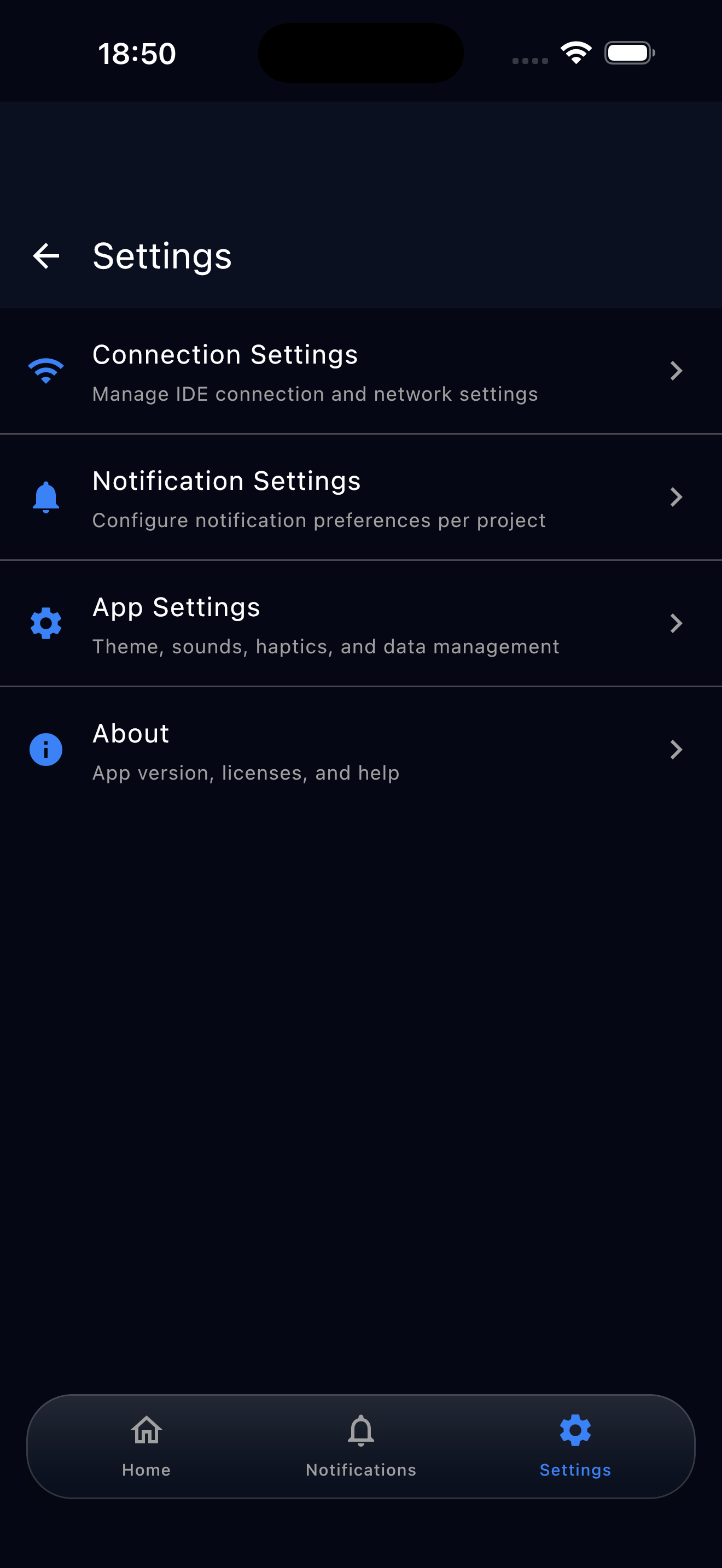
Customize the JetWings mobile app to suit your workflow. Tap the gear icon on the home screen to open Settings.
Connection
- Auto-reconnect — When you open the app, it automatically reconnects to the last IDE you were using. On by default.
- Network Timeout — How long to wait for a response from your IDE before giving up. Default: 30 seconds.
Notifications
Configure which IDE events trigger notifications on your phone. Each project can have its own preferences.
- Build Failures — Alert when a build fails.
- Build Successes — Alert when a build completes successfully.
- Test Failures — Alert when tests fail.
- Test Successes — Alert when tests pass. Can be noisy for large test suites.
- Git Operations — Alert for push, pull, and merge events.
- Plugin Errors — Alert when JetWings encounters an error.
tip
Use Apply to All Projects to copy one project's notification settings to all your other projects at once.
Quiet Hours
Schedule a time window where notifications are silenced. Useful for overnight builds or when you don't want to be disturbed.
App Settings
- Theme — Choose between System, Light, or Dark mode. Follows your device setting by default.
- Notification Sounds — Play a sound when receiving notifications. On by default.
- Haptic Feedback — Vibrate on button taps. On by default.