AZD: Boards and work items
The AZD Boards tool window lists the work items of your Azure DevOps projects. It uses the same connection as the pull request and pipeline tool windows, and appears in projects with an Azure DevOps Git remote.
Find work items
Filter and sort work items
Open the AZD Boards tool window.
Click the filter icon and select a quick filter: All, Assigned to me or Recent activity (the default).
All: work items of the project that the repository belongs to.
Assigned to me: work items assigned to you in all projects of the organization or collection.
Recent activity: work items you recently viewed or changed in all projects of the organization or collection.
The list leaves out work items in the Closed, Done and Removed states. A work item from another project shows the project name as a tag.
Narrow the list with the filter chips: Types, States, Created by, Area, Iteration and Assigned to. Assigned to also offers Unassigned.
To change the order, click the sort icon and select Default (newest first), Changed Date, ID or Priority. Select Descending to reverse it.
Right-click a work item to Open Work Item on Azure DevOps, Copy Work Item URL, Refresh the list, or delete the work item.
View and edit a work item
Edit a work item
Double-click a work item.
Its details open in a new tab of the tool window, and its timeline opens in the editor as Work Item #<id> timeline.
To change the title, click the pencil icon next to it (Edit title) and type the new title. Press Enter or click elsewhere to keep it, or press Esc to cancel.
The title is required and can have up to 255 characters. A title you cannot change has no pencil icon.
Change fields such as the state, area path, iteration path, priority or assignee. To see the other fields of the work item type, expand Show all fields.
To fill in a date field, such as Start Date or Target Date, type the date, or click the calendar icon at the right of the field and pick a day. You can also press Alt+Down (macOS: ⌥ ↓) in the field to open the calendar. To empty a date field that is not required, click Clear in the calendar. Date fields work the same way when you create a work item.
Rich-text fields, such as Repro Steps, System Info and Acceptance Criteria, show at the top of the work item in the order of the Azure DevOps web form, also when they are empty. They are read-only in the IDE: click Open in browser to edit one, or Open in scratch file to copy its content into a scratch file. Fields stored as Markdown display formatted, and images in them open when you click them.
Click Apply at the bottom of the tab, or click Revert to discard your edits. Title and date changes are saved with the other fields.
If someone else changed the work item in the meantime, the Work Item Changed dialog says who changed it and which fields you both changed.
Reapply My Changes saves only the fields you edited. Their changes to other fields are kept; for the fields you both changed, your values win.
Discard My Changes drops your edits and loads the latest version.
Cancel keeps your edits under a warning banner with the same two actions.
Right-click in the details tab to Refresh Work Item, Open Work Item on Azure DevOps or Copy Work Item URL.
Long titles, descriptions and field values wrap to the width of the tool window. To scroll sideways instead, clear Wrap long text in work items. The change applies right away, also to work items that are already open.
Delete a work item
Delete a work item
Right-click the work item in the AZD Boards list, or right-click in its details tab, and select Delete Work Item….
In the Delete Work Item dialog, click Delete.
The dialog names the project when the work item belongs to another project, and warns you when the details tab has unsaved changes, which are lost.
The work item moves to the Azure DevOps recycle bin, and its details and timeline tabs close. To restore it, use the recycle bin in the Azure DevOps web portal. You need the Delete and restore work items permission in the project.
Delete Work Item… is disabled while the work item's changes are being saved. You can also delete a work item from the Kanban board.
Custom fields
Fields that your process adds to a work item type show in the Custom fields group of the details tab. Edit them like the other fields and click Apply. Custom rich-text fields show at the top of the work item, after the system rich-text fields.
Hide custom fields
Click the eye button next to a custom field and select where to hide it: for this work item, in this project, or in all projects.
To hide several fields at once, right-click in the details tab and select Hide Fields….
Required fields and fields with a save error always show. To show a hidden field again, remove its rule in Field Visibility.
Attachments
The Attachments section of the details tab lists the files attached to the work item, with their size, date and comment. Switch between List view and Grid view to see rows or thumbnails.
To attach files, do one of the following:
Click Attach Files… and select one or more files.
Drag files from the Project tool window or from your file manager onto the section.
Copy a screenshot or files, click the section, and press Ctrl+V (macOS: ⌘ V).
Each file uploads on its own, and uploads continue when you close the tab. If the work item has unsaved changes, AZD links the file after you click Apply or Revert. Azure DevOps Services accepts files up to 60 MB; Azure DevOps Server allows 4 MB by default, and your administrator can change it.
Right-click an attachment for these actions:
- Open
Opens an image or a text file of up to 20 MB in an editor tab. Other files open with Save As….
- Save As…
Downloads the file to a folder you choose.
- Open in Browser
Opens the file in your browser.
- Copy Attachment Link
Copies a download link. Azure DevOps Services only.
- Edit Comment…
Changes the comment shown under the file name.
- Remove
Removes the file from the work item. Azure DevOps keeps the file for 28 days, and you can still delete it permanently in that time.
- Delete Permanently
Deletes the file from Azure DevOps. Every link to it, including images in descriptions and comments, stops working. Azure DevOps Services only.
Attachments in remote development
When AZD runs on a remote development host:
Attach Files… and Save As… show the files of the host, not of your computer.
Dragging files from your computer and pasting copied files are not supported. Paste a screenshot, or copy the file to the host first.
Open with System App is not offered after a download.
Open in Browser works when your browser can reach the Azure DevOps server, for example over the same VPN.
Links, timeline and comments
The lower part of the details tab lists linked work items under Related Work, with the link type, such as Parent or Child, and linked pull requests under Development. Click a link to open the work item or pull request. A pull request of the connected repository opens in the AZD Pull Requests tool window when Open AZD links in tool window is selected; otherwise, it opens in the browser.
The Work Item #<id> timeline editor tab shows the comments and the history of the work item. To open it again after you close it, click Timeline ↗ at the top of the details tab.
Comment on a work item
In the timeline tab, type in the comment box at the bottom. Type
@to mention a person.Optional: to attach files, click the paperclip icon above the comment box, or paste a screenshot or copied files. AZD uploads each file and inserts a link at the caret. A file that cannot be attached is named under the box with the reason.
Click Add Comment, or press Ctrl+Enter (macOS: ⌘ Enter).
Edit or delete your comment
You can edit and delete only your own comments.
In the timeline tab, hover over your comment. A pencil icon and a delete icon appear at the top right of the comment.
To edit the comment, click the pencil icon, change the text, and click Save Changes or press Ctrl+Enter (macOS: ⌘ Enter). Press Esc to cancel. Type
@to mention a person.If the comment changed after you started editing, click Reload to load the new text, or Overwrite to save yours anyway.
To delete the comment, click the delete icon, and click Yes in the Delete Comment dialog.
The IDE edits only comments stored in Markdown on Azure DevOps Services. For your other comments, such as older HTML comments and all comments on Azure DevOps Server, the pencil icon is disabled; edit them in the browser. You can still delete them in the IDE.
To show only some events, click the filter icon at the top right of the timeline and select one or more of Comments, State Changes, Field Changes, Link Changes and System Fields. Select All Events to show everything again.
Create a work item
Create a work item
In the AZD Boards title bar, click New Work Item.
Select the Type, enter the Title, and set the State. These three fields are required.
Optional: fill in Description, Assigned To, Area Path, Iteration Path, Priority and Tags. For a type with Repro Steps, such as Bug, a Repro Steps box shows above Description.
Click Create.
The new work item opens in its own tab.
Use the Kanban board
The Kanban board shows the columns and cards of an Azure Boards team board in an editor tab. You can open the board of any project in your organization.
Open the Kanban board
In the AZD Boards title bar, click Open Boards Views Hub.
The Kanban editor tab opens.
Select the Project, Team and Board.
Optional: filter the cards by Assigned to, Types, States, Tags or Iteration. Iteration includes
@CurrentIteration. In each filter popup, All and Clear select or clear every value.
Drag a card to another column to change its state. Click Refresh to reload the board.
Right-click a card for more actions:
- Open
Opens the work item details.
- Move to column
Moves the card to the column you select.
- Edit title…
Renames the work item.
- Delete…
Moves the work item to the Azure DevOps recycle bin after you confirm.
The board uses the IDE built-in browser (JCEF). If it shows a message instead of the board, see A view shows a message instead of content.
Add work items to a commit message
Reference work items in a commit message, from a template or with AI. The AZD button (the AZD logo) appears in the commit message toolbar when Enable AI assistance is selected and the Commit message prompt is enabled in ; see Configure prompts. The work item option also needs Enable work item commit message action, which is on by default.
Write a commit message from work items
In the Commit tool window, click the arrow next to the AZD button in the commit message toolbar and select Select Work Item....
In the Select Work Item for Commit Message dialog, select one or more work items. By default the list shows your own work items and hides those in the Done, Closed, Removed and Resolved states. Clear Only my work items or use the state filter to see more.
In Generate with AI, select None - Use template only to fill in the template, or select an AI provider to write the message from the work items and your changes.
Click Generate Message.
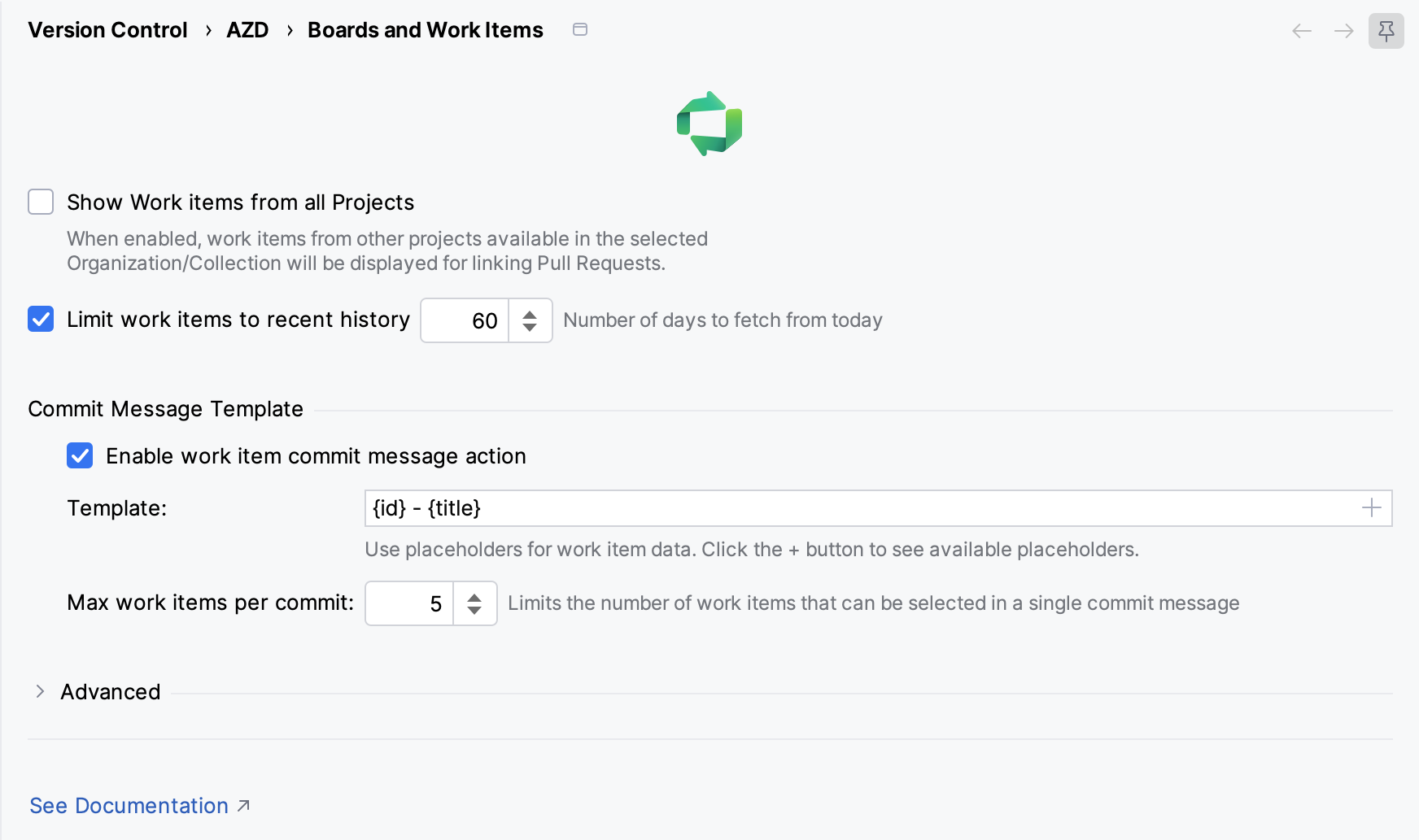
Change the template in , in the Commit Message Template group. The default template is {id} - {title}; the placeholders are {id}, {title}, {type} and {state}. Max work items per commit limits the selection (5 by default). These settings also control which work items you can link to a pull request or commit; see Boards and Work Items settings.
To generate a commit message from your changes only, see Generate commit messages.
Use work items as IDE tasks
With the Issue Trackers plugin (formerly Task Management), you can open Azure DevOps work items as IDE tasks and switch context between them. AZD adds an AzureDevOps server type to it. The Issue Trackers plugin is not bundled with every IDE; install it from JetBrains Marketplace if your IDE lacks it.
Add Azure DevOps as a task server
Open .
Click + and select AzureDevOps.
Fill in Host (
https://dev.azure.comby default), Organization and PAT token, and click Test.After a successful test, select the project in Project. Include issues not assigned to me is selected by default; clear it to list only the work items assigned to you.
Click OK.
Open a work item as a task with . To change its state in Azure DevOps at the same time, select Update issue state in the Open Task dialog.
While a work item is the active task, AI-generated commit messages refer to it. With the default prompt, they start with the work item ID. See Generate commit messages.