AZD: Work item timeline, children and attachments
Each open work item has an editor tab named Work Item #<id> timeline, with two tabs: Timeline, and Children or Related. To open it again after you close it, click Timeline ↗ at the top of the work item's details tab.
Timeline
The Timeline tab shows the comments and the history of the work item. Its top row says who last updated the work item and when.
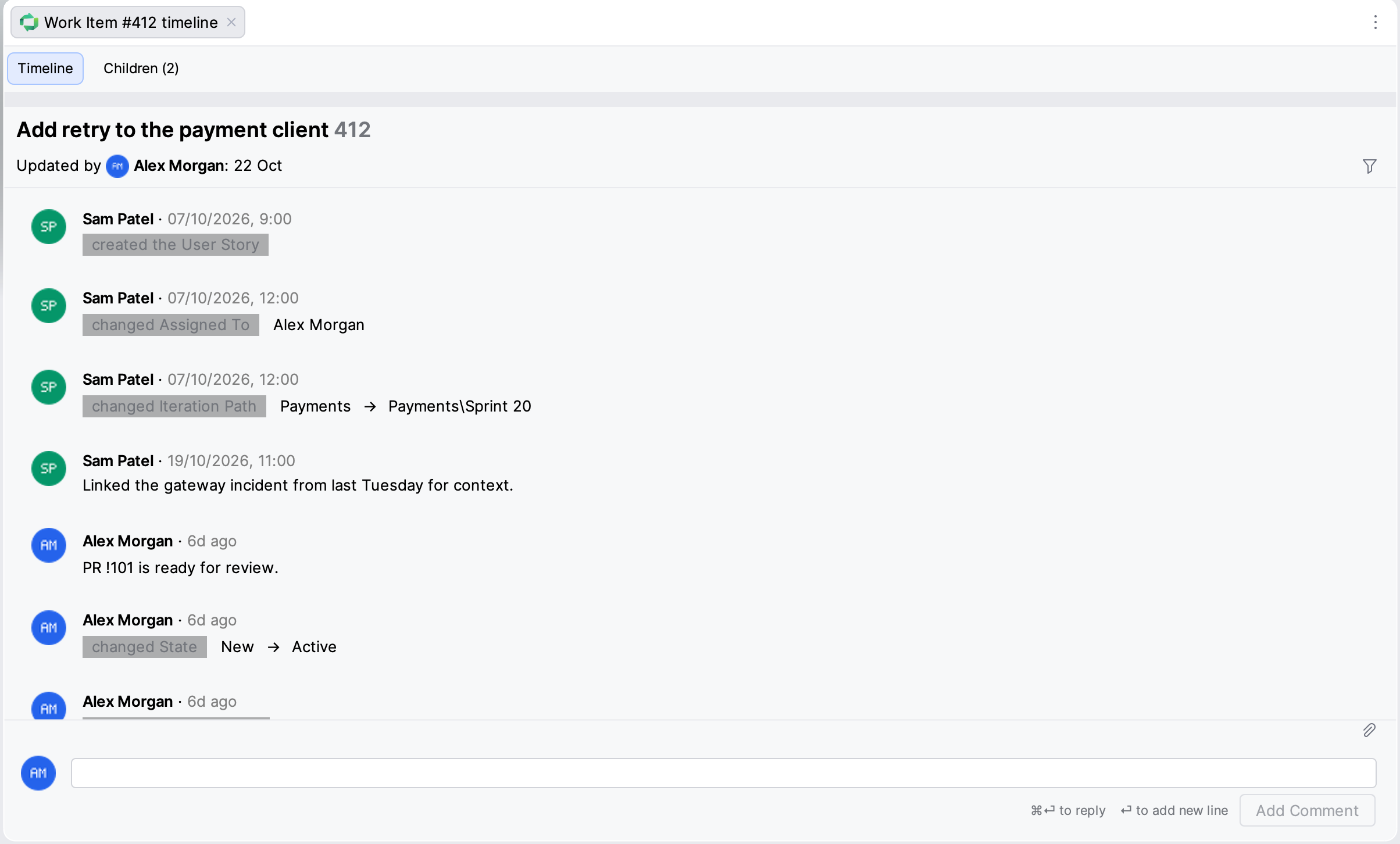
To show only some events, click the filter at the top right and select one or more of Comments, State Changes, Field Changes, Link Changes and System Fields. Select All Events to show everything again.
The top row stays visible while you scroll. To let it scroll away, clear Keep the timeline's top row visible while scrolling.
Comment on a work item
In the Timeline tab, type in the comment box at the bottom. Type
@to mention a person.Optional: to attach files, click the paperclip icon above the comment box, or paste a screenshot or copied files. AZD uploads each file and inserts a link at the caret. A file that cannot be attached is named under the box with the reason.
Click Add Comment, or press Ctrl+Enter (macOS: ⌘ Enter).
Edit or delete your comment
You can edit and delete only your own comments.
Hover over your comment. A pencil icon and a delete icon appear at the top right of the comment.
To edit the comment, click the pencil icon, change the text, and click Save Changes or press Ctrl+Enter (macOS: ⌘ Enter). Press Esc to cancel. Type
@to mention a person.If the comment changed after you started editing, click Reload to load the new text, or Overwrite to save yours anyway.
To delete the comment, click the delete icon, and click Yes in the Delete Comment dialog.
The IDE edits only comments stored in Markdown on Azure DevOps Services. For your other comments, such as older HTML comments and all comments on Azure DevOps Server, the pencil icon is disabled; edit them in the browser. You can still delete them in the IDE.
Children, related work and development
The second tab is Children for work item types that can have children, such as epics, features and stories, and Related for the others, such as tasks. The number in the tab name counts the linked items.
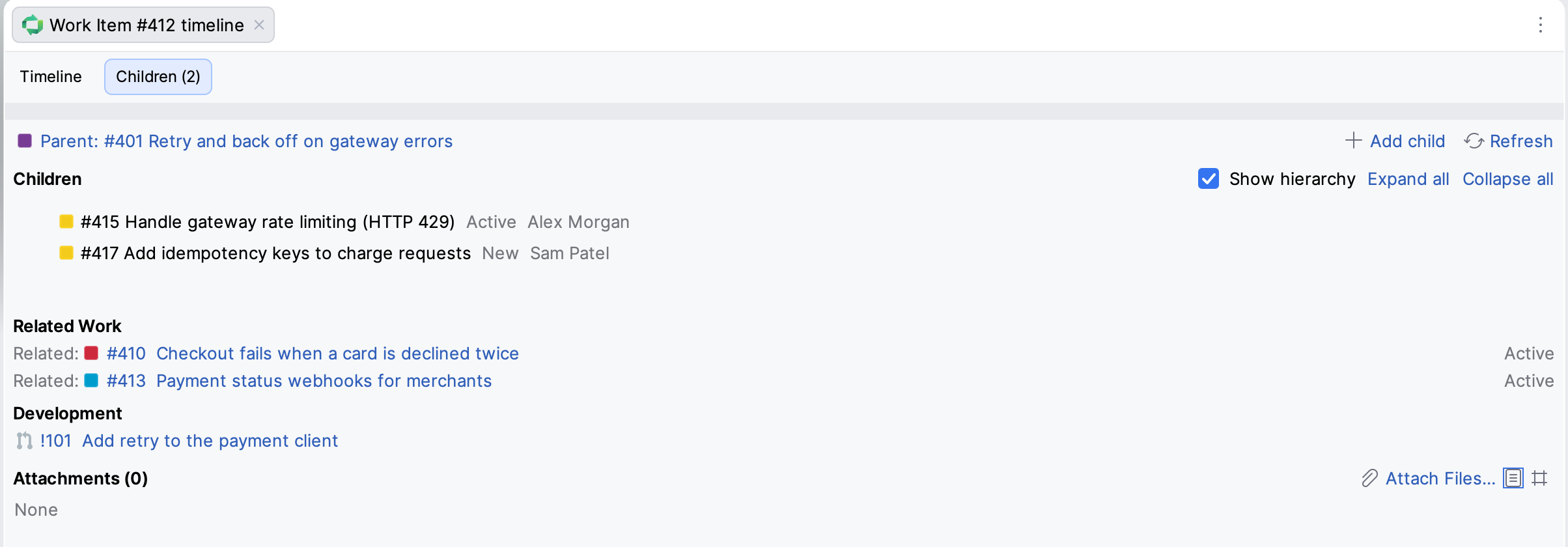
Parent links to the parent work item.
The children tree lists the child work items. Select Show hierarchy to see their children too, and use Expand all and Collapse all. Double-click a work item to open it. Click Add child to create a child; see Add a child work item.
Related Work lists the other links, such as Related, Predecessor, Successor and Duplicate.
Development lists the linked pull requests, commits and branches. A pull request of the connected repository opens in the AZD Pull Requests tool window when Open AZD links in tool window is selected; otherwise, it opens in the browser. You can open a link in the browser, copy a commit's SHA or a branch name, and check out a branch that exists in your local repository.
If you can't see some child work items, for example because they are in a project you can't access, the tab says how many are hidden.
Attachments
The Attachments section of the Children or Related tab lists the files attached to the work item, with their size, date and comment. Switch between List view and Grid view to see rows or thumbnails.
To attach files, do one of the following:
Click Attach Files… and select one or more files.
Drag files from the Project tool window or from your file manager onto the section.
Copy a screenshot or files, click the section, and press Ctrl+V (macOS: ⌘ V).
Each file uploads on its own, and uploads continue when you close the tab. While the details tab has unsaved changes, attaching is disabled: click Apply or Revert first. Azure DevOps Services accepts files up to 60 MB; Azure DevOps Server allows 4 MB by default, and your administrator can change it.
Right-click an attachment for these actions:
- Open
Opens an image or a text file of up to 20 MB in an editor tab. Other files open with Save As….
- Save As…
Downloads the file to a folder you choose.
- Open in Browser
Opens the file in your browser.
- Copy Attachment Link
Copies a download link. Azure DevOps Services only.
- Edit Comment…
Changes the comment shown under the file name.
- Remove
Removes the file from the work item. Azure DevOps keeps the file for 28 days, and you can still delete it permanently in that time.
- Delete Permanently
Deletes the file from Azure DevOps. Every link to it, including images in descriptions and comments, stops working. Azure DevOps Services only.
Attachments in remote development
When AZD runs on a remote development host:
Attach Files… and Save As… show the files of the host, not of your computer.
Dragging files from your computer and pasting copied files are not supported. Paste a screenshot, or copy the file to the host first.
Open with System App is not offered after a download.
Open in Browser works when your browser can reach the Azure DevOps server, for example over the same VPN.