AZD: Edit Azure Pipelines YAML
AZD recognizes Azure Pipelines YAML files and adds completion, validation and hover documentation to them. Pipeline files get the Azure Pipelines icon in the Project tool window.
Completion and validation
When you open a pipeline file, AZD starts the Azure Pipelines language server that ships with the plugin. The language server provides completion of keys such as stages, jobs and steps, hover documentation, and diagnostics for unknown or misplaced keys.
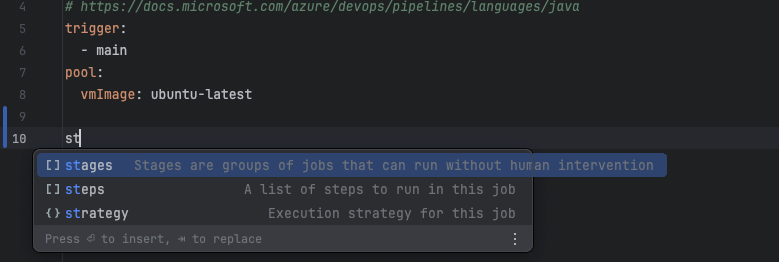
The language server runs on Node.js 14 or later. If AZD cannot find Node.js, pipeline files get no completion; see Set up Node.js for the language server.
To turn the language server off, clear Inject Azure DevOps YAML pipeline schema in .
Which files are pipeline files
AZD treats a .yml or .yaml file as a pipeline file when:
its name contains
azureorpipelines, for example azure-pipelines.yml or ci-pipelines.yaml;it is inside a folder named azure-pipelines, .azure-pipelines or .pipelines;
it matches an entry in Additional pipeline YAML locations.
Add pipeline file locations
Open .
In Additional pipeline YAML locations, enter folders or glob patterns relative to the project root, separated by semicolons. For example:
ci/pipelines;deploy/**/pipeline-*.yml.A folder makes every YAML file under it a pipeline file. A glob pattern matches specific files.
Click OK. The Project tool window updates the file icons.
This setting belongs to the current project.
Set up Node.js for the language server
AZD uses the first Node.js 14 or later that it finds, in this order:
The path in Node.js Path.
The Node.js interpreter configured in the IDE, in IDEs with JavaScript support.
The
PATH.On macOS and Linux: nvm installations, then your login shell.
If AZD does not find Node.js, or you want to use another installation, set the path yourself.
Configure Node.js
Open .
In the Node.js Configuration group, enter the Node.js executable in Node.js Path, or leave it empty to detect Node.js automatically.
Click Validate Node.js and check the status line below the field.
Open the YAML of a run
To open the pipeline definition file from a run, use Jump to YAML; see Inspect a run.