AZD: Edit work items
When you open a work item, its details open in a tab of the AZD Boards tool window named #<id>, and its timeline opens in the editor; see AZD: Work item timeline, children and attachments. Open a work item from the tool window list, a project page, a card, or the status bar.
Edit a work item
Edit a work item
Open the work item.
To change the title, click the pencil icon next to it (Edit title) and type the new title. Press Enter or click elsewhere to keep it, or press Esc to cancel.
The title is required and can have up to 255 characters. A title you cannot change has no pencil icon.
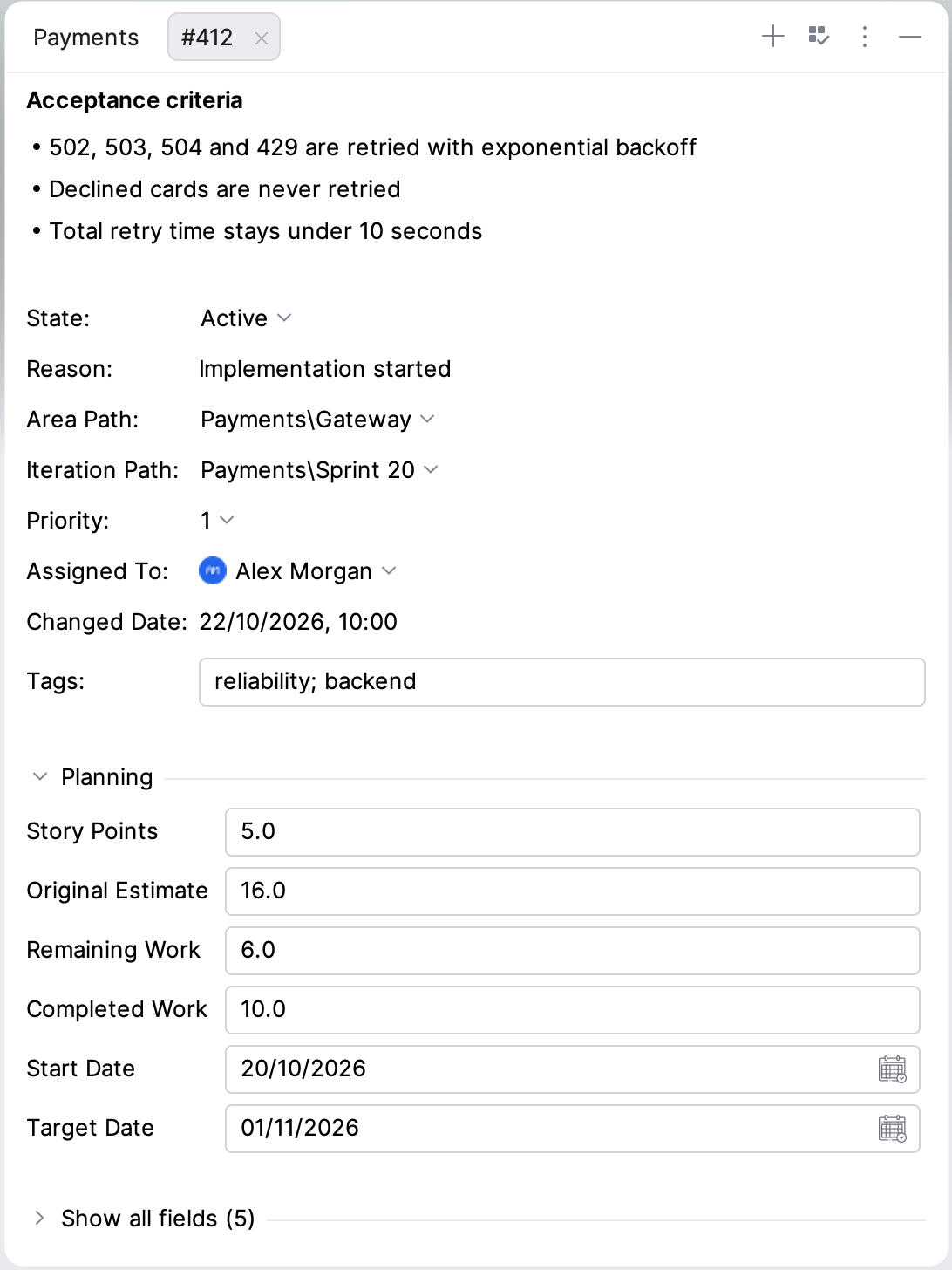
Change fields such as State, Area Path, Iteration Path, Priority, Assigned To and Tags.
To see more fields, expand a group:
Planning: estimates and dates, such as Story Points, Effort, Original Estimate, Remaining Work, Completed Work, Start Date, Target Date and Due Date, depending on the work item type. Numbers must be 0 or more.
Custom fields: fields your process adds; see Custom fields.
Show all fields: the other fields of the work item type.
The groups start collapsed. When you expand or collapse one, AZD remembers it for that work item type.
To fill in a date field, type the date, or click the calendar icon at the right of the field and pick a day. You can also press Alt+Down (macOS: ⌥ ↓) in the field to open the calendar. To empty a date field that is not required, click Clear in the calendar.
Click Apply at the bottom of the tab, or click Revert to discard your edits. Title and date changes are saved with the other fields.
Rich-text fields, such as Description, Repro Steps and Acceptance Criteria, show at the top of the work item in the order of the Azure DevOps web form, also when they are empty. They are read-only in the IDE: click Open in browser to edit one, or Open in scratch file to copy its content into a scratch file. Fields stored as Markdown display formatted, and images in them open when you click them.
The line under the title counts the work item's links, pull requests and attachments. Click one to open it in the work item's editor tab; see Children, related work and development.
Right-click in the details tab to Refresh Work Item, Open Work Item on Azure DevOps, Copy Work Item URL, Create Branch…, Hide Fields… or Delete Work Item….
Long titles, descriptions and field values wrap to the width of the tool window. To scroll sideways instead, clear Wrap long text in work items.
When someone else changed the work item
If someone else changed the work item while you were editing, the Work Item Changed dialog says who changed it and which fields you both changed.
Reapply My Changes saves only the fields you edited. Their changes to other fields are kept; for the fields you both changed, your values win.
Discard My Changes drops your edits and loads the latest version.
Cancel keeps your edits under a warning banner with the same two actions.
Custom fields
Fields that your process adds to a work item type show in the Custom fields group of the details tab. Edit them like the other fields and click Apply. Custom rich-text fields show at the top of the work item, after the system rich-text fields.
Hide custom fields
Click the eye button next to a custom field and select where to hide it: for this work item, in this project, or in all projects.
To hide several fields at once, right-click in the details tab and select Hide Fields….
Required fields and fields with a save error always show. To show a hidden field again, remove its rule in Field Visibility.
Delete a work item
Delete a work item
Right-click the work item in the AZD Boards list, in a project page, on a card, or in its details tab, and select Delete Work Item….
In the Delete Work Item dialog, click Delete.
The dialog names the project when the work item belongs to another project, and warns you when the details tab has unsaved changes, which are lost.
The work item moves to the Azure DevOps recycle bin, and its tabs close. To restore it, use the recycle bin in the Azure DevOps web portal. You need the Delete and restore work items permission in the project. Delete Work Item… is disabled while the work item's changes are being saved.