AZD: Project summary, board and list
A project page shows the work of one team in an editor tab, with three tabs: Summary, Board and List. You can open any project of your organization or collection.
Open a project
In the AZD Boards title bar, click Open Project….
Type to filter the list, then select a project under Starred or All projects, and press Enter or click it.
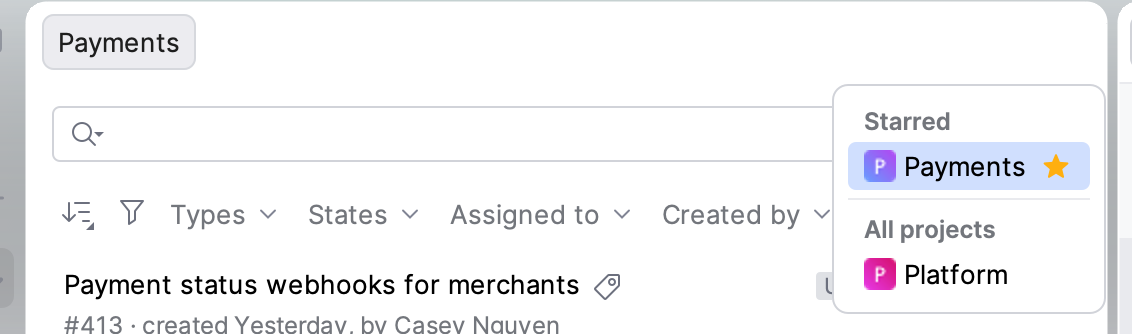
The project opens in an editor tab named after the project. Opening a project that is already open switches to its tab.
Click the star next to a project in the popup, or in the page header, to list it under Starred. Stars are kept in the IDE on this computer; they are not your Azure DevOps favorites.
The page opens on the tab you used last for that project, Summary the first time.
Project pages are not reopened after you restart the IDE.
The page header has Refresh and Open in Azure DevOps. On the Board tab, Open in Azure DevOps opens that team's board in the browser.
Choose the team and filters
The first filter of every tab is Team. It starts on the team you chose last for the project, otherwise on the project's default team. The Board tab also has a Board filter.
Each tab keeps its own filters, and AZD remembers them for each project and team. Changing the team clears the Iteration filter.
Summary and List show the backlog work items in the team's area paths. Completed work items are included only if they changed in the last 31 days, and removed ones are left out. The page loads up to 2,000 work items. If the team has no area paths, the page shows the whole project and says so.
Summary
The Summary tab gives an overview of the team's work.
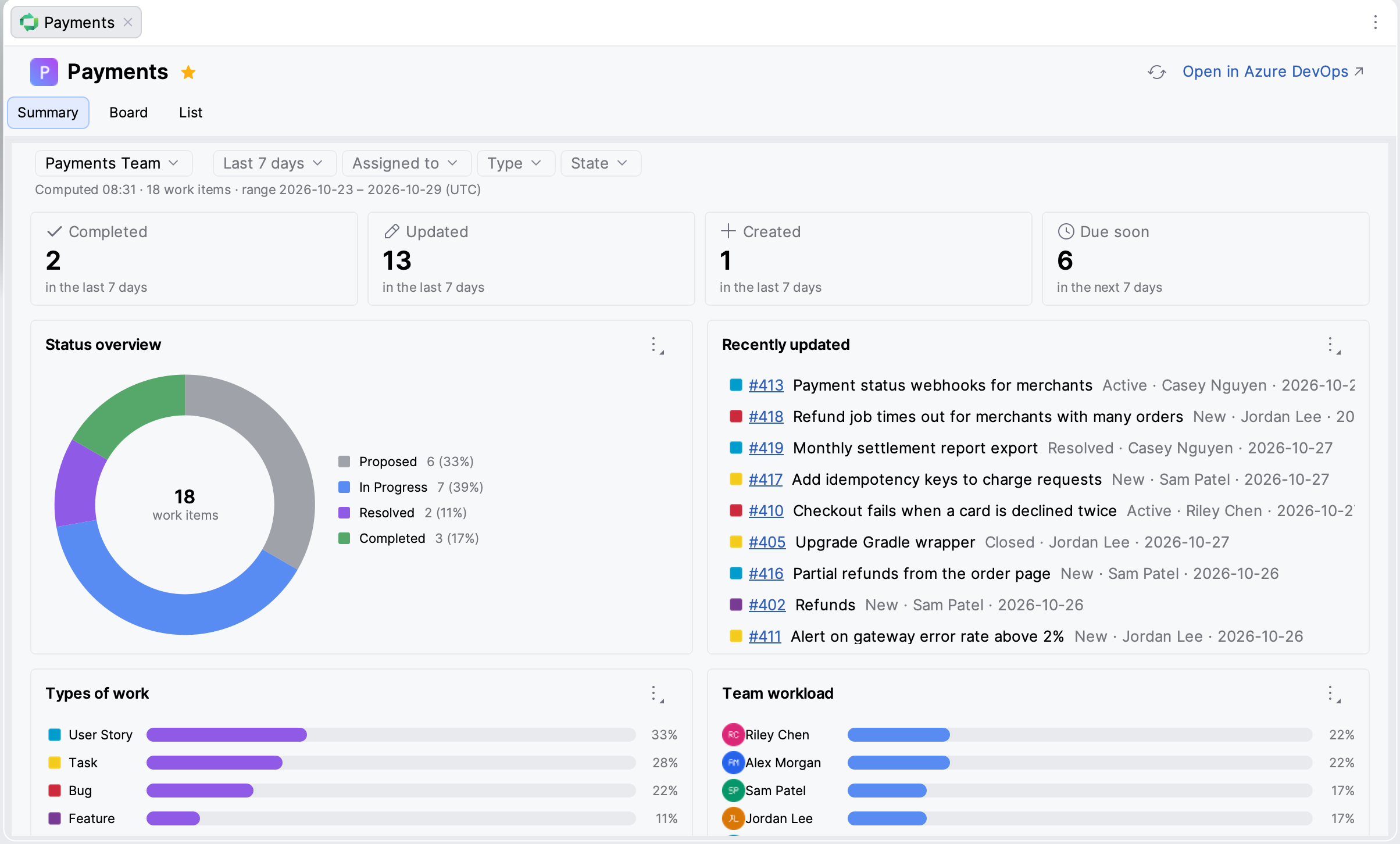
Four tiles count the work items Completed, Updated and Created in the last 7, 14 or 30 days, and the open ones Due soon in the next 7 days. Choose the period in the first filter; it changes only the tiles. Due soon uses the Due Date or Target Date field and does not show when the project has neither.
The widgets show Status overview, Recently updated, Types of work, Team workload and, when the project uses Priority, Priority breakdown. Click a work item in Recently updated to open it.
Filter by Assigned to, Type and State.
Click the More button (⋯) of a widget to select Show as table, Maximize or Hide. Hidden widgets are remembered for the project; click Show widget under the widgets to bring one back.
Board
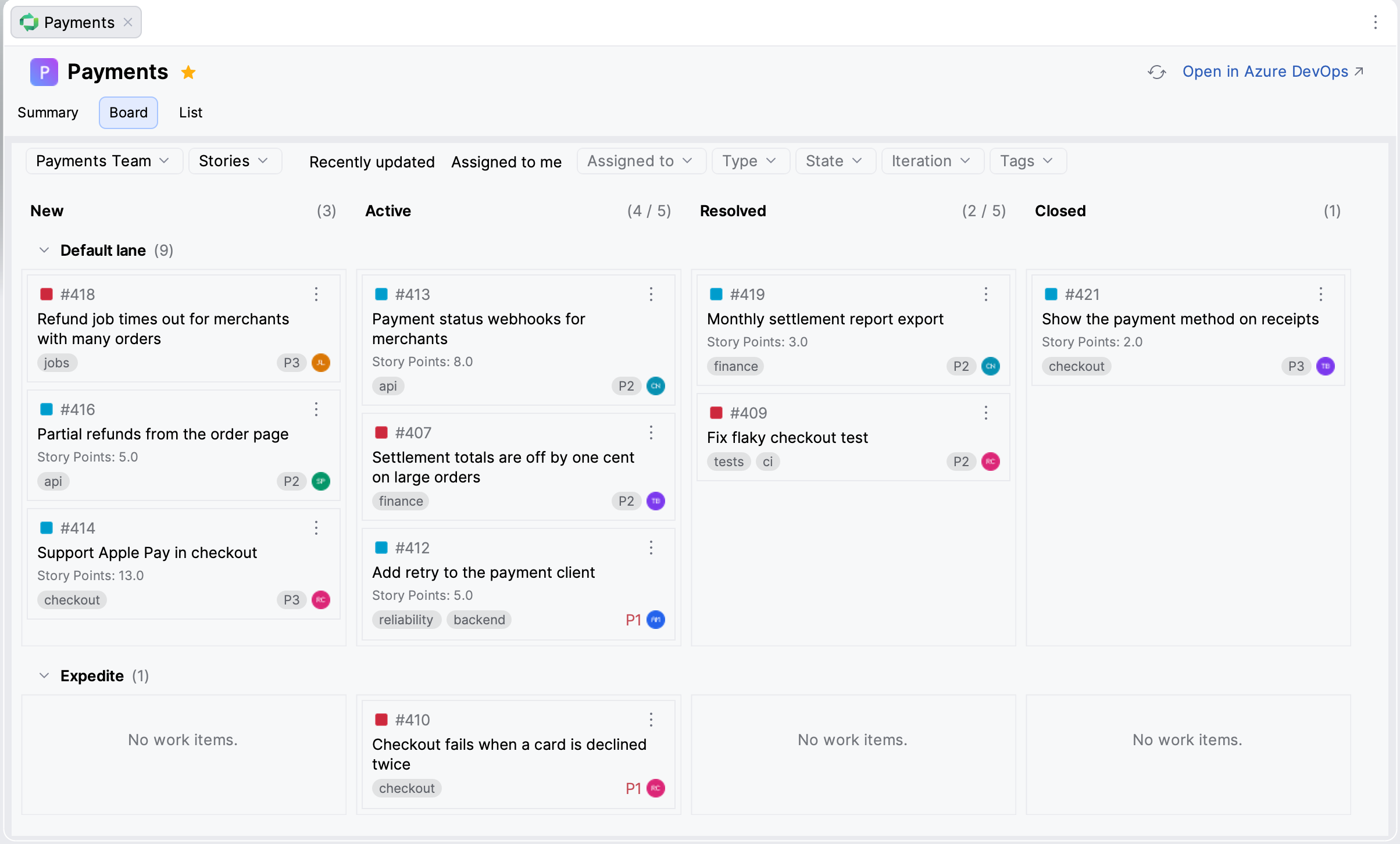
The Board tab shows the columns, swimlanes and cards of the selected team board. A column with a work-in-progress limit shows its count and limit, and its tooltip warns you when the column is over the limit. Cards show the fields chosen in the team's card settings, the tags, the state, the assignee and the priority.
Move a card
Drag the card to another column. AZD changes the work item's state in Azure DevOps.
Or right-click the card, select Move to Column and select the column.
A card can't move to a column that has no state for its work item type, or to another swimlane.
If someone else changed the work item in the meantime, the card does not move and the board refreshes.
The order of cards inside a column is not saved to Azure DevOps.
Filter the cards by Assigned to, Type, State, Iteration and Tags, or with Recently updated (the last 7 days) and Assigned to me. A column whose cards are all filtered out says how many are hidden.
The board shows up to 200 of the most recently changed work items, and up to 100 cards in a column.
Right-click a card, or click its More actions button (⋯), for these actions:
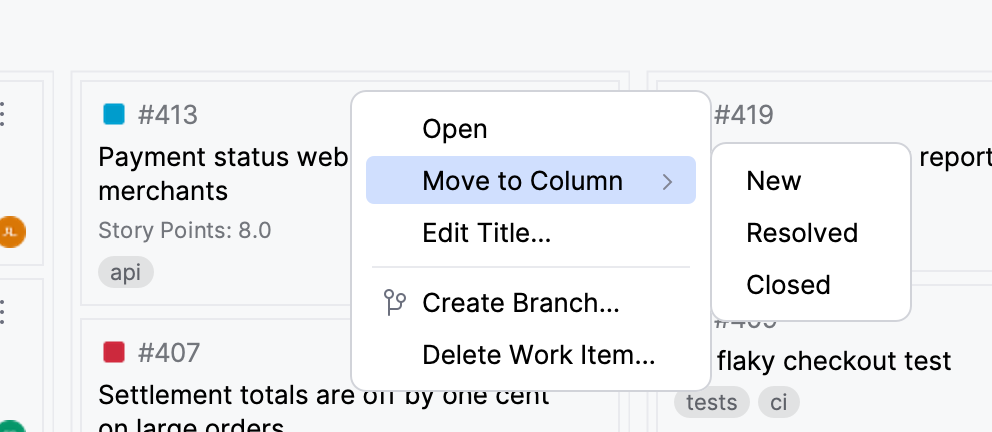
- Open
Opens the work item; see AZD: Edit work items.
- Move to Column
Moves the card to the column you select.
- Edit Title…
Renames the work item.
- Create Branch…
Creates a Git branch for the work item; see Create a branch from a work item.
- Delete Work Item…
Moves the work item to the Azure DevOps recycle bin after you confirm.
You can use the board from the keyboard: the arrow keys move between cards and columns, Enter opens a card, and Shift+Enter opens its menu.
List
The List tab shows the work items in a table with the type, ID, title, state, assignee, iteration and update date, and the priority when the project uses it. Click a column header to sort. Search by title or ID, and filter with the same filters as the Board tab.
Child work items are indented under their parents. Use Expand All and Collapse All in the toolbar, or click Show Hierarchy to turn the hierarchy off and show a flat list. AZD remembers the choice for the project. The hierarchy is not shown while a filter is active.
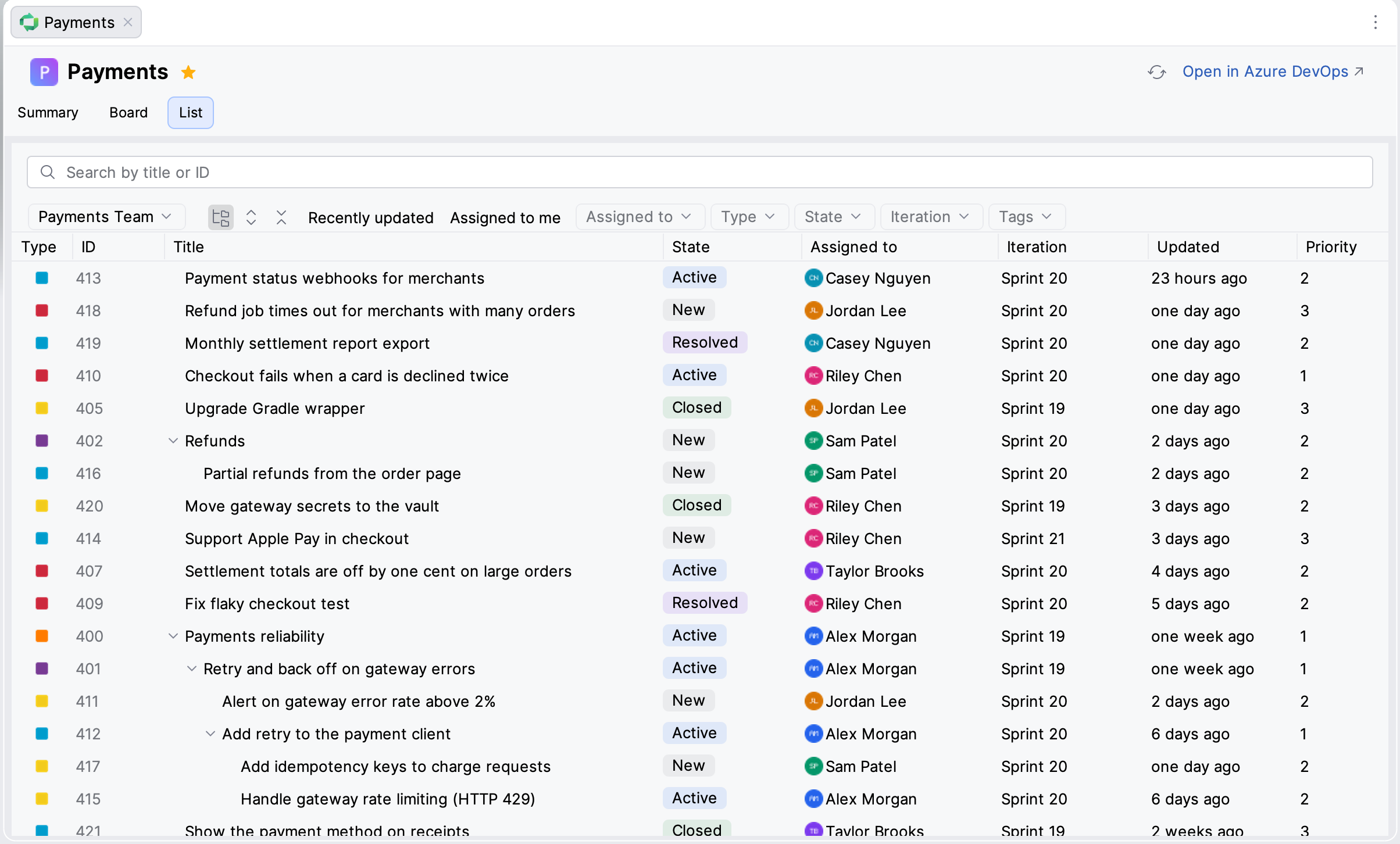
Double-click a work item or press Enter to open it. Right-click it to open it on Azure DevOps, copy its URL, create a branch, delete it or refresh the list.