Codecov: Settings reference
The plugin has two settings pages. Settings with "Scope: all projects" apply to every project in the IDE. All other settings are saved in the project, in .idea/codecov.xml. The dashboard filters and Show Coverage on Folders are saved in .idea/workspace.xml.
Codecov page
Path: .
Connection
Group: Codecov Connection.
- Server URL
The Codecov API server. Default:
https://api.codecov.io. For a self-hosted Codecov server, enter its base URL. Scope: all projects.- Service Provider
Where the repository is hosted: Github (default), Gitlab or Bitbucket. Scope: all projects.
- API Token
Your Codecov API token. It is stored in the IDE password safe, not in the project. Scope: all projects.
- Test Connection
Checks the token, detects the Codecov repository from the project's Git remote, and saves the token on success. Enabled when Server URL and API Token are filled in.
- Disconnect
Removes the connection of the current project. The stored API token is kept. Shown only while the project is connected.
- Connection status
"Not connected", or "Connected to Github: demo-org/demo-project". When connected, a second line shows "Detected Repository: demo-org/demo-project", or the warning "No repository detected. Please verify your project settings."
AI prompt templates
Group: AI Prompt Templates.
- Enable AI prompt generation from coverage gutters
Lets Generate AI Prompt in the coverage popup copy a prompt to the clipboard. Default: on.
- Prompt for covered code
Template for covered lines, inside the collapsible Prompt Templates section.
<CODE_TOKEN>marks where the code goes.- Prompt for uncovered code
Template for partially covered and not covered lines.
<CODE_TOKEN>marks where the code goes.
For the default templates, see Customize the prompt templates.
codecov.yml options
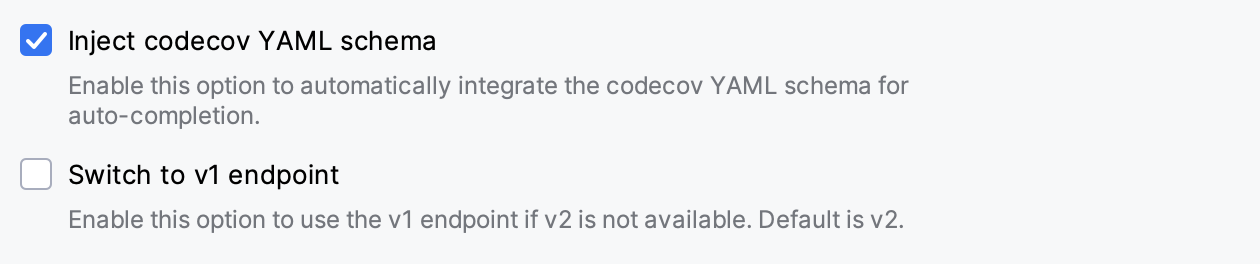
- Inject codecov YAML schema
Applies the bundled Codecov schema to YAML files whose name contains
codecov, for completion and quick documentation. It also limits Validate Codecov YAML to codecov.yml and codecov.yaml; when it is off, the action appears for every file. Default: on.- Switch to v1 endpoint
Intended to validate codecov.yml with the older v1 endpoint of the Codecov validation API. In the current version, validation always uses the v2 endpoint, whatever this option is set to. Default: off.
Folder Coverage page
Path: , group Folder Coverage Colors.
- Excellent
Lower bound and color of the top band. Default: 80%, green.
- Good
Lower bound and color. Default: 60%, yellow.
- Fair
Lower bound and color; must be greater than 0. Default: 40%, orange.
- Poor
Color for everything below the Fair bound. The bound follows Fair and cannot be edited. Default: red.
- Reset to Defaults
Restores the default bounds and colors. Click Apply or OK to save them.
For details, see Configure coverage bands and colors.
Settings outside the Codecov pages
- Shortcut
Show Codecov Coverage uses Ctrl+Shift+Alt+C (macOS: ⌥ ⇧ ⌘ C) by default. Change it in .
- Coverage colors
The editor gutter uses the IDE line coverage colors. Change them in , under Line Coverage.
- Notifications
Coverage drop, validation and connection messages belong to the Codecov notifications group in .
- Dashboard filters
The metric, branch and time range filters of the Codecov Metrics dashboard are saved per project.
- Folder coverage on or off
Show Coverage on Folders is saved per project. Default: off.
Actions
You can run every action from Find Action (Ctrl+Shift+A, macOS: ⌘ ⇧ A).
- Show Codecov Coverage / Hide Codecov Coverage
Location: editor context menu and gutter context menu. Shows or hides coverage in all editors of the project.
- Refresh Codecov Coverage
Location: editor context menu, while coverage is shown. Reloads the coverage of the current file.
- Codecov Metrics
Location: Project tool window toolbar. Opens the Codecov Metrics dashboard.
- Show Coverage on Folders
Location: Codecov Metrics toolbar. Turns folder coverage in the Project tool window on or off.
- Refresh Folder Coverage
Location: Find Action only, while folder coverage is on. Reloads folder coverage.
- Validate Codecov YAML
Location: editor and Project tool window context menus, for codecov.yml and codecov.yaml while Inject codecov YAML schema is on. Validates the file on the Codecov server.