Codecov: Folder coverage in the Project tool window
Folder coverage adds a colored dot to each folder icon in the Project tool window. The color shows the folder's coverage band, so packages with low coverage stand out. Folder coverage is off by default.
Turn on folder coverage
Show coverage on folders
Open the Codecov Metrics dashboard and click Show Coverage on Folders on its toolbar.
Press Ctrl+Shift+A (macOS: ⌘ ⇧ A), type
Show Coverage on Foldersand press Enter.
Use the same action to turn folder coverage off. The choice is saved per project.
Read folder coverage
Each folder with coverage data shows a dot in the color of its band: Excellent, Good, Fair or Poor. Hover over a folder to see its exact value, for example "Codecov coverage: 77.8%". If no tooltip appears, click the folder once and hover over it again. The dot keeps the folder's own icon, so source and test root markings stay visible.
Folder coverage uses the latest Codecov report for the current Git branch. When you switch branches, it reloads. While new data loads, the previous dots appear dimmed.
To reload folder coverage, click Refresh on the Codecov Metrics toolbar. You can also run Refresh Folder Coverage from Find Action (Ctrl+Shift+A, macOS: ⌘ ⇧ A).
If Codecov has no report for the current branch when you turn folder coverage on, the warning "Codecov: no coverage data for this branch" appears and names the branch. Push the branch and let your CI upload coverage, or switch to a branch with coverage.
Configure coverage bands and colors
Change the coverage bands and colors
Open (Ctrl+Alt+S, macOS: ⌘ ,).
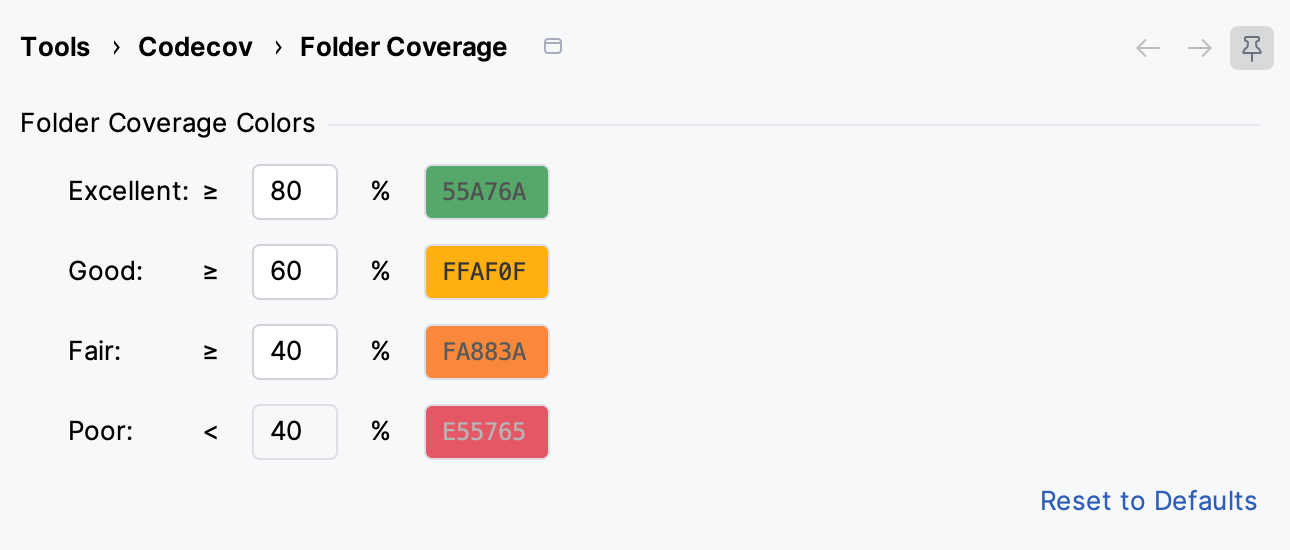
In the Folder Coverage Colors group, set the lower bound in percent for Excellent, Good and Fair. Poor covers everything below the Fair bound.
Optional: click a color to pick a different color for a band.
Click OK.
Band | Default range | Default color |
|---|---|---|
Excellent | 80% and above | Green |
Good | 60% to below 80% | Yellow |
Fair | 40% to below 60% | Orange |
Poor | Below 40% | Red |
The bounds must be between 0 and 100, with Excellent higher than Good and Good higher than Fair. Fair must be greater than 0. Each band needs its own color. To restore the defaults, click Reset to Defaults.
The default colors adapt to light and dark themes. A color you pick is used in every theme. The bands are saved per project.