Codecov: Generate AI prompts from coverage
From the coverage gutter, the plugin builds a prompt that contains the code of a line and copies it to the clipboard. Paste the prompt into the AI chat or coding agent you use. The plugin does not send the code to an AI service itself.
Generate a prompt
Copy a prompt for a line
In the editor, click the coverage bar next to a line.
In the popup, click Generate AI Prompt. A notification confirms that the prompt is on the clipboard, for example "AI prompt for uncovered code copied to clipboard!".
Paste the prompt into your AI assistant and review the tests it suggests.
What the prompt contains
The plugin picks the template and the code by the coverage status of the line you clicked:
- Covered line
The Prompt for covered code template, with the text of that line.
- Partially covered or not covered line
The Prompt for uncovered code template. If the block of missed lines around the line is inside a method or function, the prompt contains that whole method or function. Otherwise, it contains only the block of missed lines.
Customize the prompt templates
Edit a template
Open (Ctrl+Alt+S, macOS: ⌘ ,).
In the AI Prompt Templates group, expand Prompt Templates.
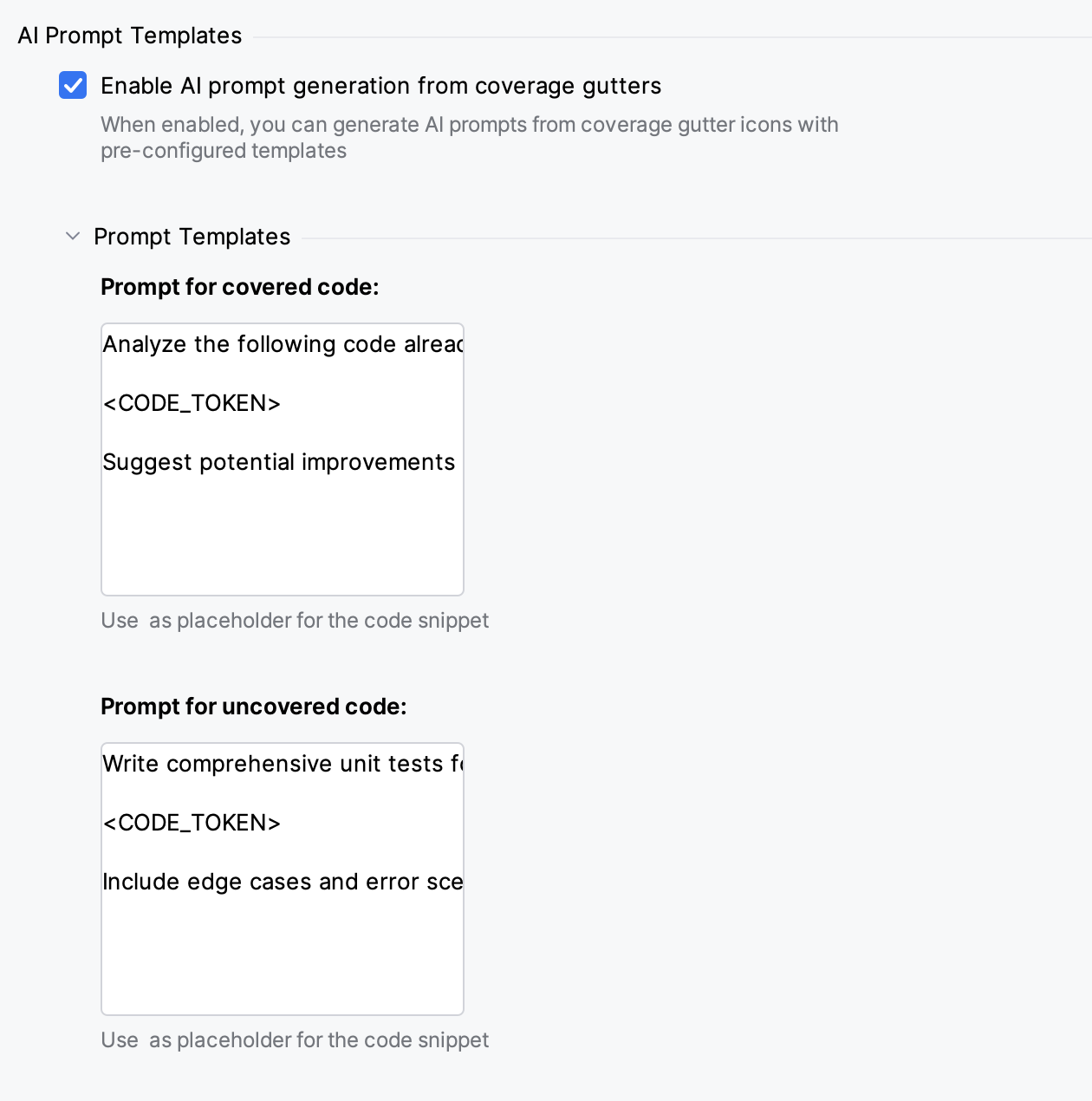
Edit Prompt for covered code or Prompt for uncovered code. Keep the
<CODE_TOKEN>placeholder where the code goes.Click OK.
The default template for uncovered code is:
The default template for covered code is:
The templates are saved per project.
Turn off AI prompts
Turn off prompt generation
Go to .
Clear Enable AI prompt generation from coverage gutters and click OK.
The Generate AI Prompt link stays in the coverage popup. When you click it, a notification reads "AI prompts are disabled. Enable them in Codecov settings."