JirAI: Space summary, list and reports
A space page shows one Jira space (project) in an editor tab named after the space.
It has the Summary, Timeline, Board, List and Reports tabs.
A space downloads once for all its tabs, so switching tabs, filters and date ranges does not download it again.
Open a space
Open a space
In the JirAI tool window title bar, click Space Summary (the chart icon).
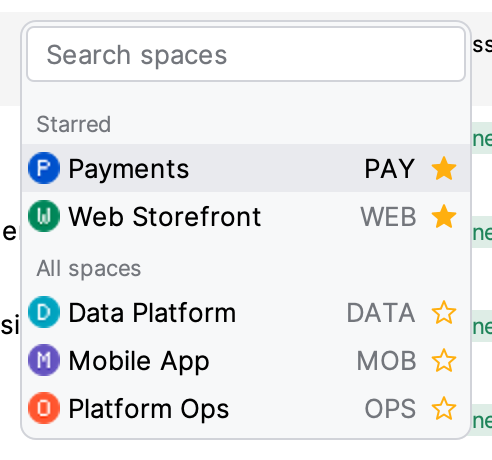
In the space chooser, pick a space from Starred or All spaces, or type in Search spaces.
The header of the space page shows the space avatar and name, and has these controls:
- Star
Stars or unstars the space in Jira.
- Refresh
Loads the space again from Jira.
- Open in Jira
Opens the space in the browser.
The Timeline tab is not available in the IDE; it offers Open in Jira instead.
For the Board tab, see Board.
Summary tab
The Summary tab follows the layout of Jira's own Summary page.
It opens on Last 7 days, unless you picked another range for the space before.
Four tiles sit at the top:
- Completed
Work items completed in the date range.
- Updated
Work items changed in the date range.
- Created
Work items created in the date range.
- Due soon
Work items not yet done that are due in the next 7 days, today included. The date range does not change this tile.
Below the tiles are six widgets, in Jira's order:
- Status overview
Work items by status category: To Do, In Progress and Done.
- Recently updated
The ten most recently updated work items. Click one, or select it and press Enter, to open it in the IDE.
- Priority breakdown
Work items by priority.
- Types of work
Work items by work type.
- Team workload
Work items by assignee, unassigned included.
- Epic progress
How much of each epic's child work is done, in progress and to do. It shows the ten epics with the most child work items; +N more counts the rest.
The date range sets only the tiles; the widgets count every work item that matches the filters.
Lead time, cycle time, throughput and work in progress are on the Reports tab.
Show, hide and enlarge widgets
Click More Actions (⋯) in a widget's title bar for these commands:
- Show as table, Show chart
Switches a chart to its table and back. Recently updated is a list, so it has no table.
- Maximize, Restore
Enlarges the widget to the full width of the tab, and puts it back.
- Hide
Removes the widget from the tab.
To bring a widget back, click Hidden widgets (N) at the right of the filter row and choose the widget.
The widget returns to its own place.
JirAI remembers the hidden widgets for each space.
List tab
The List tab lists the space's work items, with search, filter chips and sorting as in the issue list.
Search matches the work item key and summary.
Select a work item and press Enter, or double-click it, to open its details tab and its Timeline tab.
Right-click a work item for the same commands as in the issue list.
Show work items under their parent
When no filter is set, the list shows child work items indented under their parent, as a foldable tree.
Click the Show Hierarchy toggle to switch between the tree and a flat list.
Click the chevron of a parent to fold or unfold it.
Use Expand All and Collapse All to unfold or fold every parent.
While a filter is active, the list is flat.
Spaces with more than 10,000 work items always show a flat list.
Reports tab
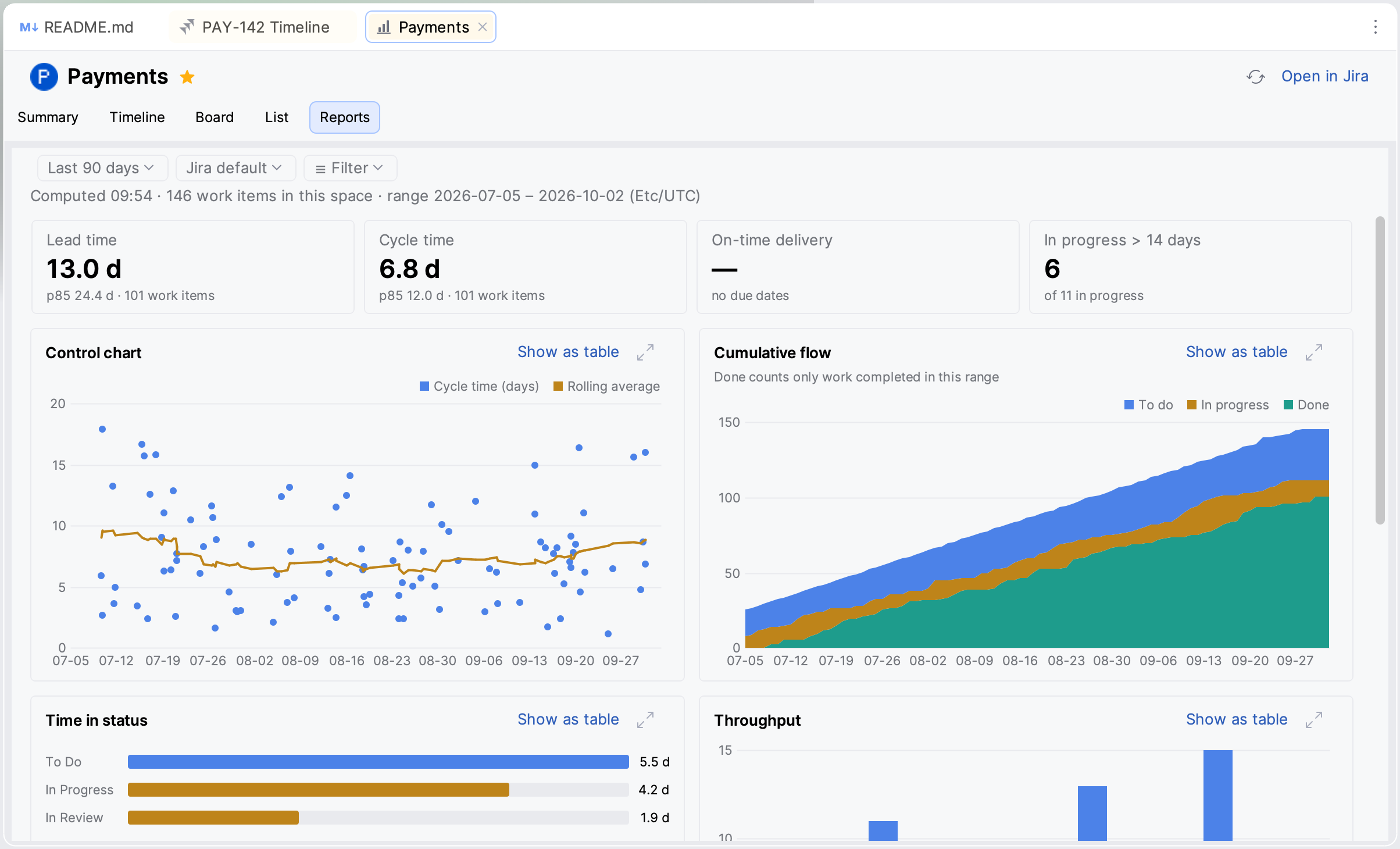
The Reports tab reads each work item's status history to measure how work flows through the space.
It opens on Last 90 days, unless you picked another range for the space before.
Tiles for Lead time, Cycle time, On-time delivery and In progress > 14 days.
Control chart, Cumulative flow, Time in status, Throughput, Created vs completed and Work in progress by age charts.
Each chart can be shown as a table with Show as table, or enlarged with Maximize.
A Jira default/First pass switch that sets how reopened work is counted: as Jira counts it, or by the first pass through each status.
How space metrics are measured
The tiles of the Summary and Reports tabs are measured as follows:
- Completed
Work items whose status category became Done in the date range. Jira gadgets count by resolution date, so their numbers can differ.
- Updated, Created
Work items changed, or created, in the date range.
- Due soon
Work items not yet done whose due date is today or in the next six days, whatever the date range.
- Lead time
The median time from creation to Done, over the work items completed in the range. The second line shows the 85th percentile.
- Cycle time
The median time spent in In Progress statuses before Done. A work item that never went through an In Progress status has no cycle time.
- On-time delivery
The share of work items completed in the range on or before their due date, out of those that have a due date.
- In progress > 14 days
The work items in an In Progress status now whose current In Progress stretch started more than 14 days ago.
Done means the status category Done, dated by when the work item entered it.
The date range selects work items by the date of the event, not by their creation date.
Days and weeks follow your Jira time zone.
Work items of every hierarchy level are counted.
Filter a space
The Summary and Reports tabs each have their own filter row.
Use the date range chip to change the period: the last 7, 30, 90, 180 or 365 days.
Click ☰ Filter to add a filter by Work type, Assignee, Status, Priority, Parent, Sprint, Fix version, Component or Label.
The Reports tab also offers Sprint status.
The Created, Updated and Due date filters take a date range: the last 7, 14, 30 or 90 days, or Between… two dates.
Click a value twice, or Shift+click it, to exclude it.
Use Clear at the top of a filter popup to clear the selection, and All, where offered, to select every value.
In the Assignee filter, you are listed first, under Unassigned.
JirAI remembers your filters and date range for each space, and shows the people in a restored Assignee filter by name.
A saved filter value that is no longer in the space stays in its list, greyed, with the tooltip No longer in this space, so you can still clear it.
Large spaces
For a space with more than 10,000 work items, JirAI loads a sample of 10,000.
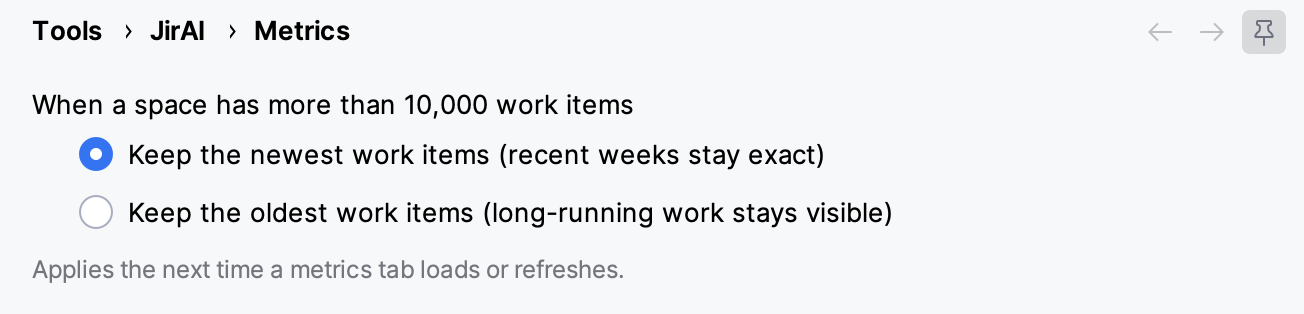
Choose which part to keep in :
- Keep the newest work items (recent weeks stay exact)
The default. Recent weeks are complete, and the oldest weeks under-count.
- Keep the oldest work items (long-running work stays visible)
Long-running work stays in the sample, and recent weeks under-count.
The change applies the next time a space tab loads or refreshes.