JirAI: Hide custom fields
Jira sites often carry many custom fields that do not matter for your work.
JirAI lets you hide custom fields from the details tab at three scopes:
- In All Projects
Hides the field for every project on the Jira site.
- In Project
Hides the field for one project.
- In Issue
Hides the field for one issue.
Hiding a field affects only what JirAI shows in the IDE; the field and its value stay in Jira.
Hide one field
Hide a custom field
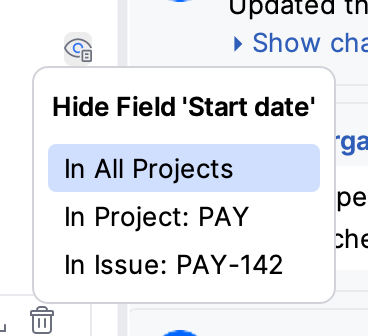
In the issue details tab, click the eye icon on the custom field row.
In the Hide Field popup, choose In All Projects, In Project: DEMO or In Issue: DEMO-123.
Hide several fields at once
Hide several custom fields
Right-click the issue details tab, on empty space or on a field name, and choose Hide Fields….
In the Hide Fields dialog, select the fields to hide.
Type in the Filter fields box to narrow the list, and use All or Clear to change the selection.
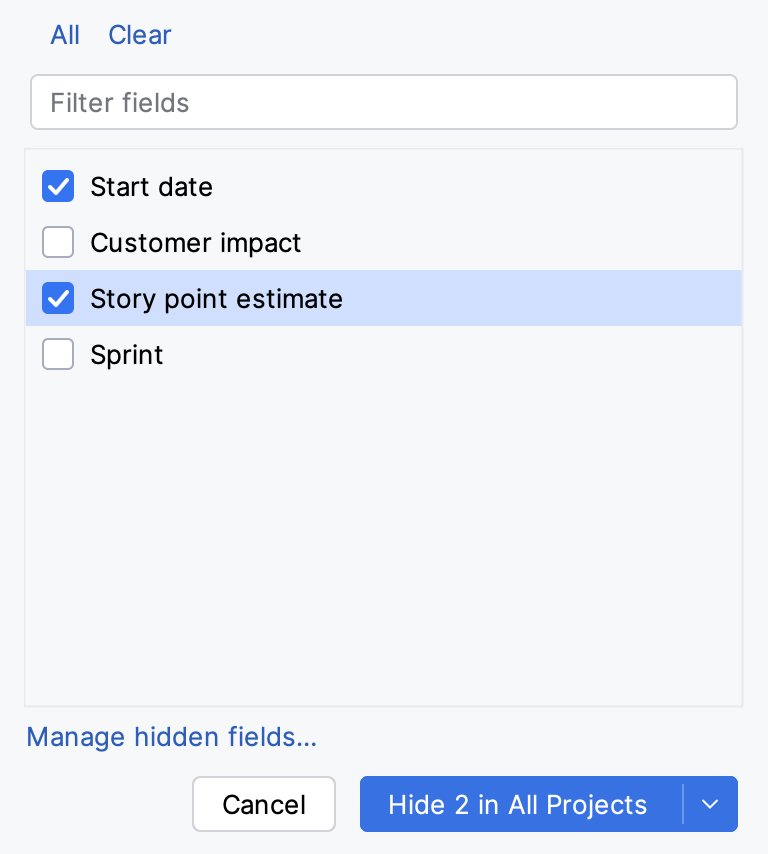
Click the button for the scope you want, for example Hide 2 in Project: DEMO.
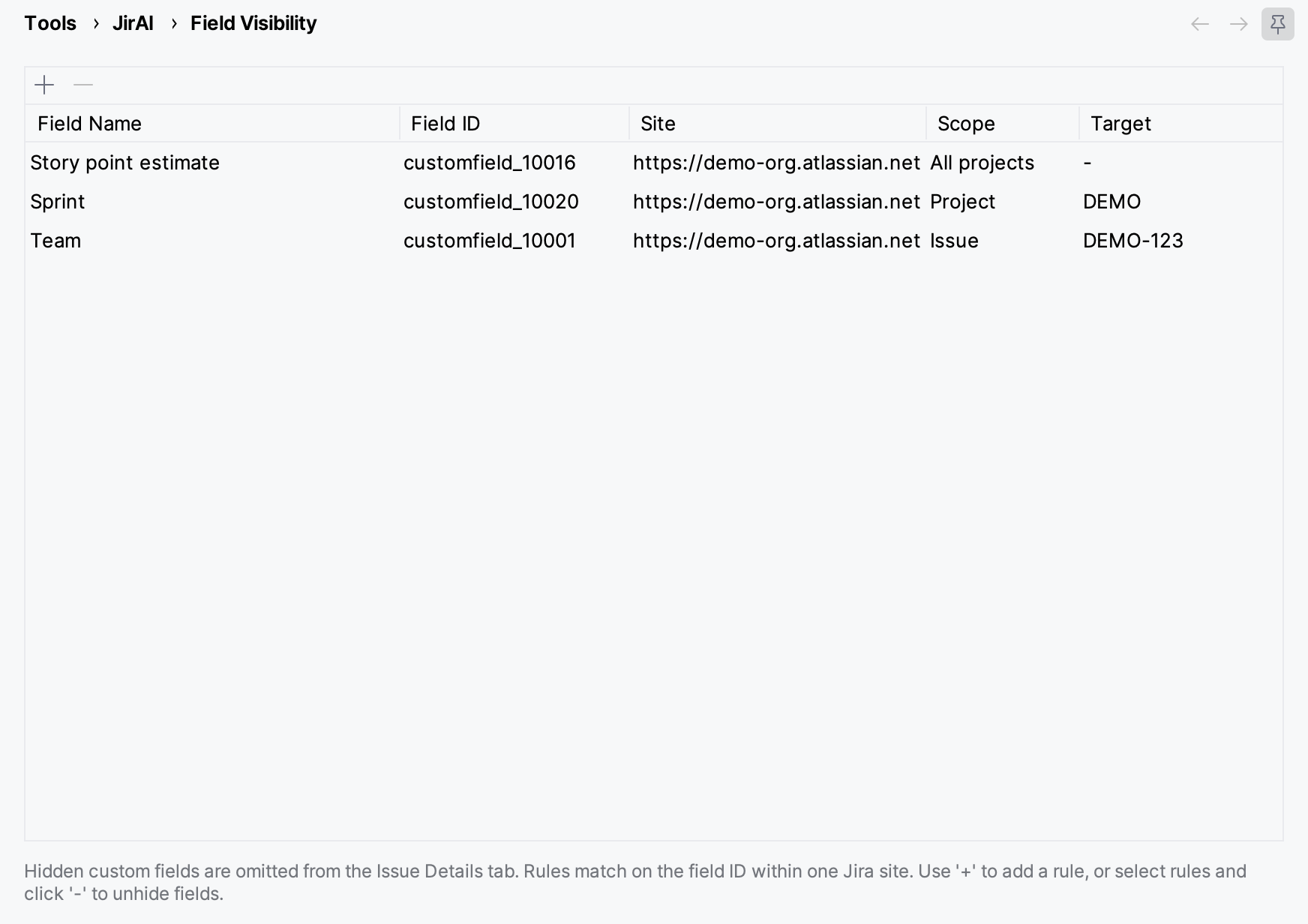
The Manage hidden fields… link in the dialog opens the Field Visibility settings page.
Review and unhide fields
The page lists every hidden-field rule, with its Field Name, Field ID, Site, Scope and Target.
Unhide a field
Open .
Select one or more rules and click −.
Click OK or Apply.
Add a rule by hand
On the Field Visibility page, click +.
In the Add Hidden Field Rule dialog, fill in the fields:
- Site
The Jira site address, for example
https://demo-org.atlassian.net.- Field name
A name shown in the table only.
- Field ID
The field ID the rule matches, for example
customfield_10020.- Scope
All projects, one project or one issue.
- Target
The project key or issue key; empty for all projects.
Click OK.
Rules match on the field ID within one Jira site.
Hidden-field rules are stored in the IDE, not in your project, so they apply to every project you open.