JirAI: Kanban and Scrum boards
The Board tab of a space page shows a Jira board with its columns and cards.
You can filter the board, drag cards between columns or within a column, and open a card's work item in the IDE.
JirAI applies every move in Jira.
Open a board
Open a board
Open the space as described in Open a space.
Select the Board tab.
If the space has more than one board, click the board picker and choose a board, or type in Search boards.
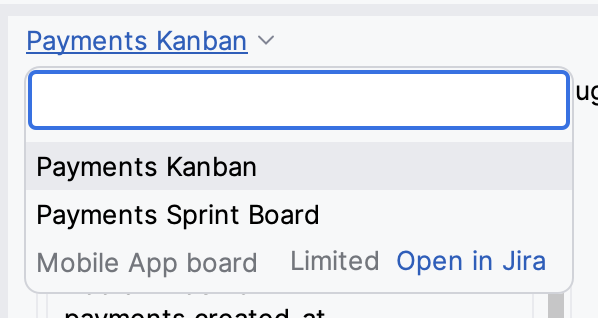
JirAI remembers the board you picked for each space.
Team-managed boards are marked Limited in the picker.
They do not open in the IDE; choosing one opens it in Jira.
Read the board
Each column shows its name and its number of cards, for example (4).
Each card shows the issue type icon, the key, the summary, labels and the assignee.
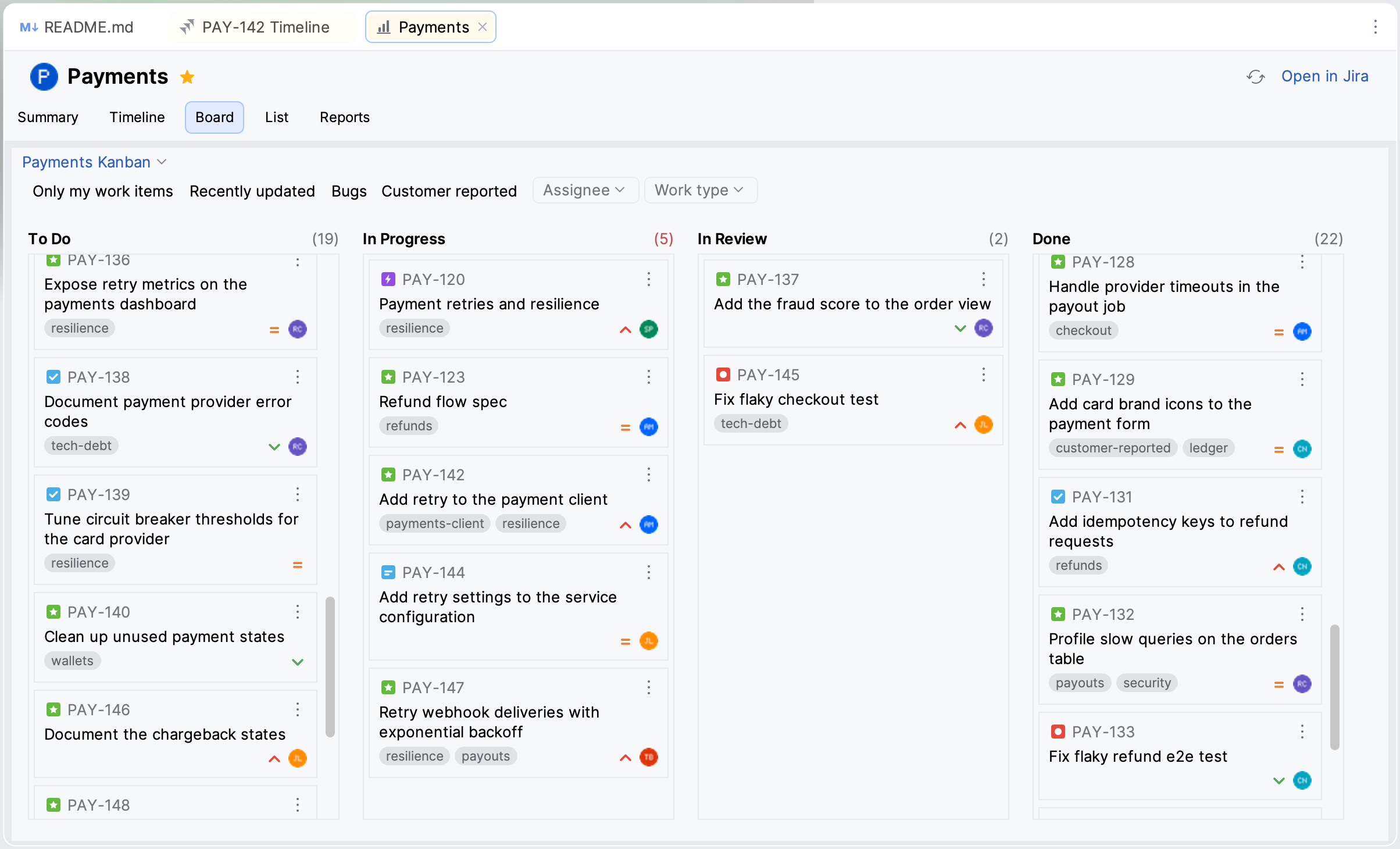
When a column has a WIP limit, a column above the maximum reads Over this column's limit of N, and a column below the minimum reads Below this column's minimum of N.
A long column shows a +N more footer; click it, or focus it and press Enter, to show the remaining cards.
A column that maps to no status reads No status — cards cannot move here.
Scrum boards
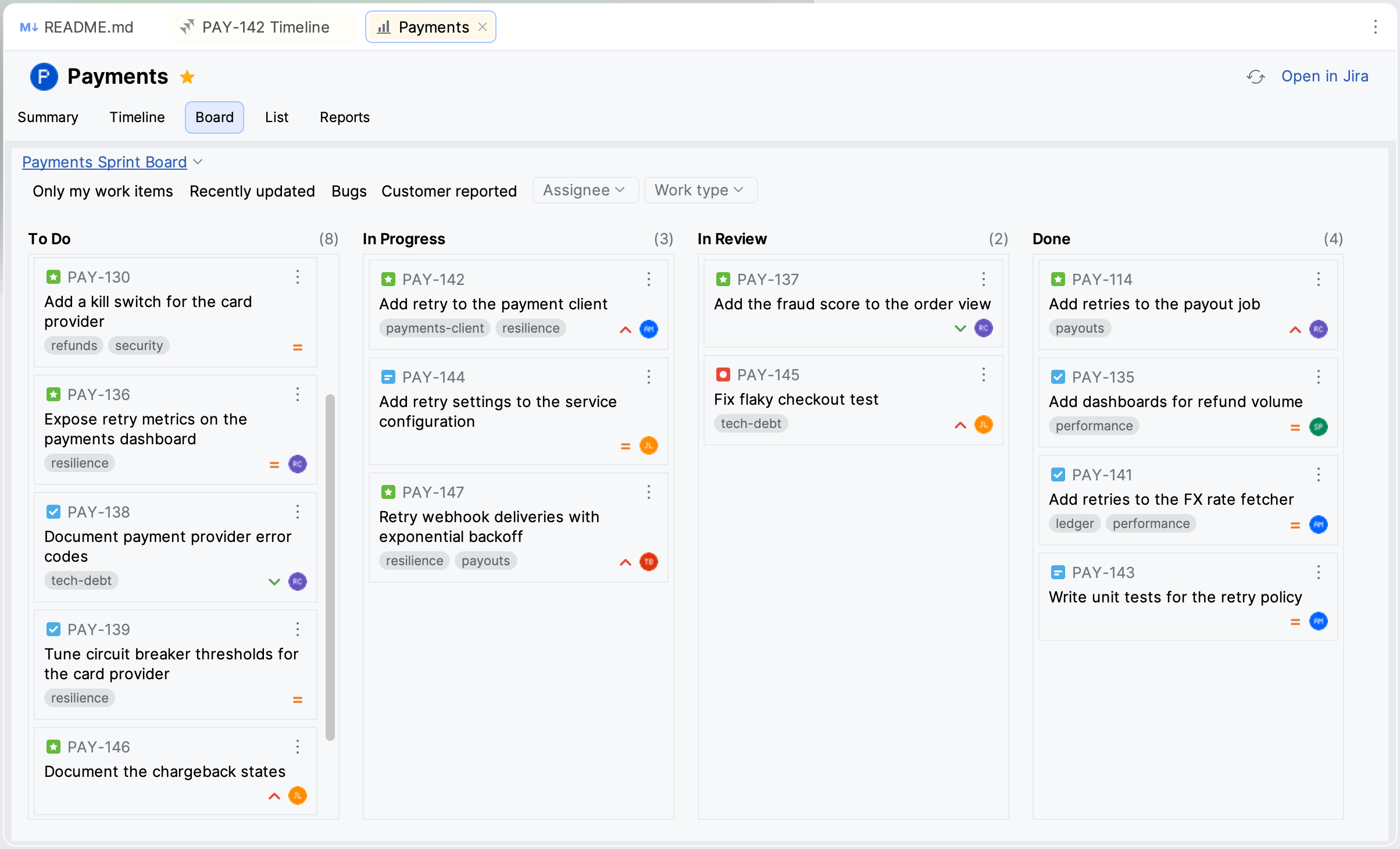
A Scrum board shows the cards of its active sprint only.
When no sprint is active, the tab says so, and there is nothing to show until a sprint starts in Jira.
When the board has more than one active sprint, it shows the first and names the others in a notice.
Board notices
A notice above the columns tells you when the board might differ from Jira's own view, for example:
The board configuration could not be read, so the columns were derived from the project statuses, without the board's sub-query, WIP limits or column order.
The board's sub-query could not be applied, so the board may show more work items than Jira does.
A quick filter could not be applied and was turned off.
The board holds more work items than JirAI read, so it shows only the first ones Jira returned.
Filter the board
The filter row above the columns has:
- Quick filters
The quick filters defined on the board in Jira. Click one to turn it on or off.
- Assignee
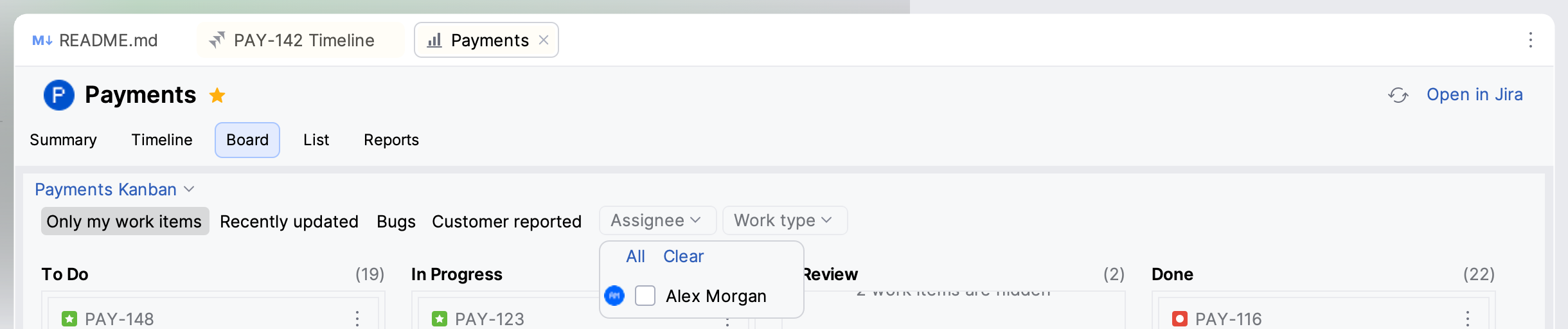
Show or exclude the cards of selected people, or unassigned cards. You are listed first, under Unassigned.
- Work type
Show or exclude issue types.
As in other JirAI filters, click a value twice or Shift+click it to exclude it.
An empty column tells you when its cards are hidden by the filters.
Open a card's work item in the IDE
Open a card's work item in one of these ways:
Double-click the card.
Focus the card and press Enter.
Choose Open in the card menu.
The work item opens in its details tab and its Timeline tab, as from the space's List tab.
Card menu
Open the card menu in one of these ways:
Click More (⋯) on the card.
Right-click the card.
Focus the card and press Shift+Enter, or the IDE's context menu key.
The menu has these commands:
- Open
Opens the work item in the IDE.
- Open in Jira
Opens the work item in the browser.
- Copy URL, Copy Key
Copies the work item's link or key.
- Create Branch…
Creates a Git branch for the work item.
- Move To, Move Up, Move Down, Move to Top, Move to Bottom
Moves the card; see Move a card.
Move a card
Move a card by dragging it, or from the card menu.
Drag a card
Drag the card to another column, or to a new place in its own column.
To reach a place that is out of view, hold the card near the top or bottom edge of the column; the column scrolls.
Drop the card.
If Jira offers more than one transition into that column, choose one; if Jira needs fields for the transition, fill them in on the transition screen and confirm.
Move a card from the card menu
Open the card menu.
Choose the move:
- Move To
Moves the card to the column you pick in the submenu.
- Move Up, Move Down
Moves the card one position within its column.
- Move to Top, Move to Bottom
Moves the card to the top or bottom of its column.
Choose a transition or fill in the transition screen, as for a drag.
A move into another column runs the Jira workflow transition that leads to that column's status.
A card moved to another column lands where Jira places it, not where you dropped it.
Jira keeps sub-tasks directly under their parent. Positions next to sub-tasks that Jira can't keep are not offered: a drag shows no drop line there, and the matching Move Up, Move Down, Move to Top or Move to Bottom item is disabled.
When no transition leads from the card's status to the target column, JirAI tells you and leaves the card where it is.
Changing a card's position within a column needs the Schedule and Edit permissions in Jira.
If Jira does not confirm a move, JirAI refreshes the board to show where the card is.
Use the board from the keyboard
Action | Keys |
|---|---|
Move to the next or previous column | Tab, Shift+Tab |
Move between cards | Arrow keys |
Open the card's work item in the IDE | Enter |
Open the card menu | Shift+Enter |
Show more cards in a column | Enter on the +N more footer |
A screen reader announces each card with its key, summary, status and assignee, and each column with its name and number of work items.
Limitations
Team-managed boards do not open in the IDE; choosing one in the board picker opens it in Jira.
A Scrum board shows only its first active sprint. Other active sprints are named in a notice.