JirAI: Timeline, comments and breakdown
Each issue you open gets an editor tab named after its key, for example DEMO-123 Timeline.
The tab has two inner tabs: Timeline for activity and discussion, and Breakdown for child work items.
For a work item whose type cannot have child work items, such as a sub-task, only the Timeline tab is shown.
Read the activity feed
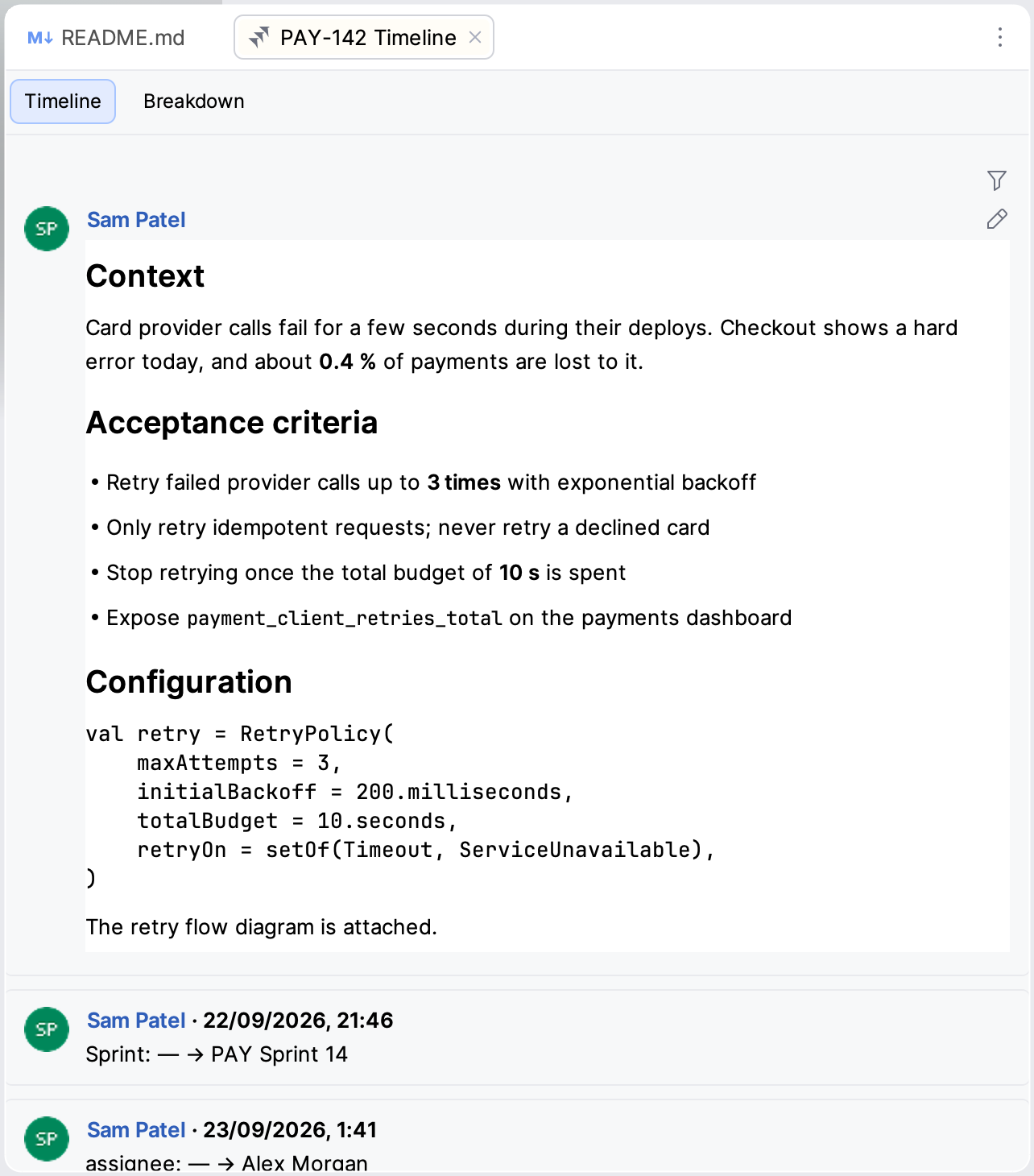
The Timeline tab shows the description, comments, status changes and field changes in one feed.
To show only one kind of entry, click the filter icon and choose All, Comments, Status changes or Field changes.
To load the latest activity, right-click the feed and choose Refresh, or press the IDE's Refresh shortcut.
The same right-click menu also has these items:
- Open in Jira
Opens the issue on your Jira site.
- Copy Issue URL
Copies the issue's Jira link to the clipboard.
- Copy Issue Key
Copies the issue key, for example
DEMO-123, to the clipboard.
Comment on an issue
Post a comment
Click the Add a comment… field at the bottom of the timeline.
Type your comment.
Optional: type
@and choose a person to mention them.Optional: click the paperclip to attach files.
Click Post, or press Ctrl+Enter (macOS: ⌘ ⏎).
Press Enter to start a new line in the comment.
Files you attach to a comment are added to the issue's attachments and shown in the comment.
To delete one of your comments, click the delete icon on it and confirm.
Jira has no undo for deleted comments, and you can delete only the comments that Jira permissions allow.
Edit a comment
You can edit a comment in place when Jira lets you edit it.
Edit a comment
Hover over the comment and click the pencil icon (Edit comment).
Edit the text and its formatting in Markdown.
Click Save, or press Ctrl+Enter (macOS: ⌘ ⏎).
To discard your changes, click Cancel or press Escape.
Cancel and the highlighted Save button sit at the bottom right of the editor.
You can edit one comment at a time in each issue tab.
Locked pieces
Mentions, images, tables, panels and anything else the editor cannot show appear as locked pieces, for example 🔒 Table (3×2).
JirAI saves each locked piece exactly as it was.
You can move a locked piece or delete it, but you cannot change it.
A locked block must stay on a line of its own, outside lists, headings and code.
If an edit breaks a locked piece, the editor says what is wrong and does not save.
Comments you can edit only in Jira
A comment restricted to a role or group, and a service-desk comment, can be edited only in Jira.
For such a comment, the editor explains why and offers Open in browser.
When someone else changed the comment
If the comment changed in Jira while you were editing, the editor reads This comment was changed in Jira while you were editing.
Click Load theirs to replace your text with the version from Jira.
If you close the issue tab during an edit, JirAI keeps your text.
The comment then reads You have an unsaved edit of this comment. with Resume and Discard.
Edit the description
You edit the description in place, on the description card at the top of the timeline.
JirAI converts Jira's description format to Markdown for editing and converts it back when you save.
Edit the description
On the description card, click the pencil icon (Edit description).
Edit the Markdown text.
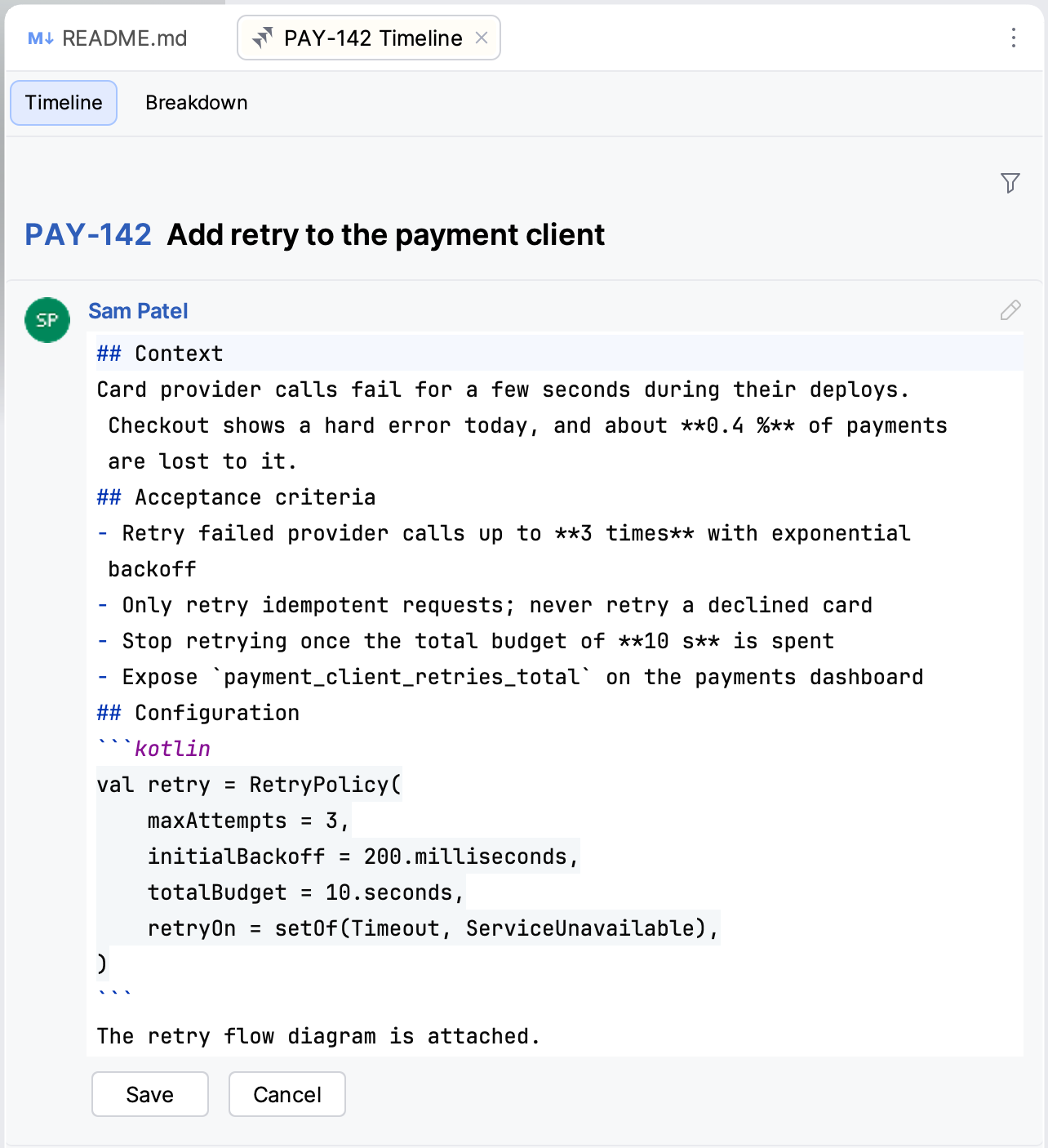
Click Save, or press Ctrl+Enter (macOS: ⌘ ⏎).
To discard your changes, click Cancel or press Escape.
Cancel and the highlighted Save button sit at the bottom right of the card.
If you close the issue tab while you edit, JirAI keeps your unsaved description.
The next time you open the issue, the card offers Resume and Discard.
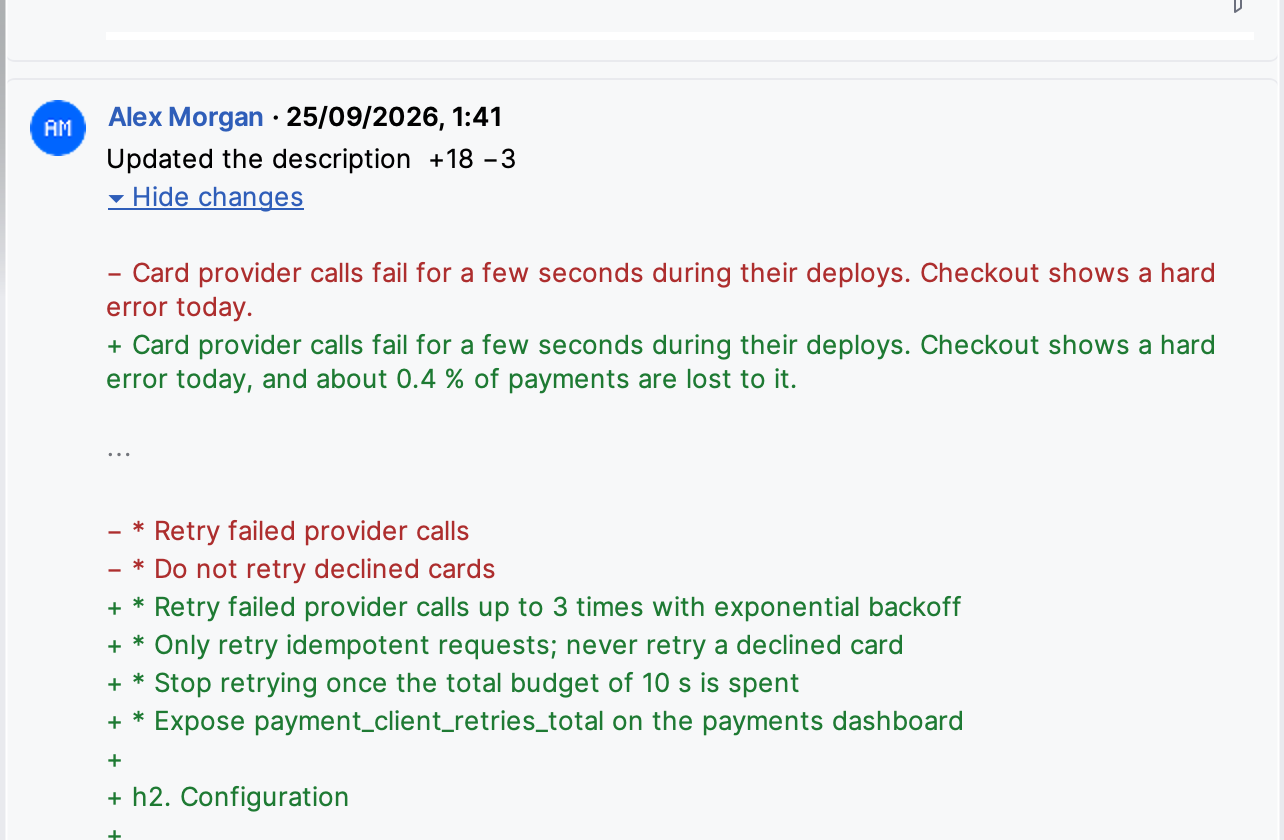
After you save, the timeline shows an Updated the description entry.
Click Show changes on it to see what changed as a diff.
When someone else changed the description
Before saving, JirAI checks whether the description changed in Jira since you started editing.
If it did, the card reads The description was changed in Jira while you were editing.
Click Load theirs to replace your text with the version from Jira.
If the new version can no longer be edited in the IDE, click Copy my text and close to keep your text on the clipboard.
The check catches a change made between loading and saving; it is not a lock.
Descriptions you can edit only in Jira
Some Jira content has no Markdown equivalent, and saving it from the IDE would lose it.
A description that contains such content is shown but cannot be edited in the IDE.
The card explains why, for example This description contains a table, so it can only be edited in Jira., and offers Open in browser.
This applies, among others, to descriptions with:
tables and panels
images and attachments
smart links
@mentions and emoji
checklists and decision lists
quotes and dividers
expandable sections
status lozenges and dates
column layouts and synced blocks
app extensions
underline, text color, subscript and superscript
inline comments
The Breakdown tab
The Breakdown tab lists the issue's child work items, sub-tasks included.
Its title shows the count, for example Breakdown (6).
More children load as you scroll.
Click a child to open it.
Right-click a child for the same menu as in the issue list, including Copy Issue URL and Create Branch…. See Issue actions.
Click Parent: KEY ↗ at the top to open the parent of the current issue.
Click Add child to create a child work item with this issue as its parent. See Create a child work item.
An issue without children shows No child work items.
Show the whole hierarchy
Show Hierarchy on the filter bar is on by default.
It shows the whole tree under the issue, with each child indented under its parent.
Click the chevron on a row to fold or unfold its children.
Click Expand All or Collapse All to unfold or fold every row.
Turn Show Hierarchy off to list only the direct children.
While a filter is active, the list is flat, and the tooltip of Show Hierarchy says so.
The tree is not available for a work item with more than 1,000 descendants; the list then shows the direct children.
Filter and sort the children
The Breakdown tab has the filter bar of the JirAI tool window, without the Project and Epic chips.
Type in Search issues to match the children's text.
Use the Status, Type, Priority, Assignee and Reporter chips. The Status popup also offers Unresolved.
Click Sort By to sort by Updated, Created or Priority. The list starts sorted by creation date, oldest first.
When nothing matches, the tab shows a Clear filters link.
Filters and sort apply while the issue tab is open; they are not saved.
See Filter the list for how the chips work.