JirAI: Issue details and editing
The details tab shows one issue's fields and lets you change most of them without opening Jira.
Open the issue details
In the JirAI tool window, select an issue and press Enter, double-click it, or right-click it and choose Open Details.
The details tab opens in the tool window, named after the issue key, and the issue's Timeline tab opens in the editor.
The header shows the key and summary, with a Timeline ↗ link that opens the issue timeline.
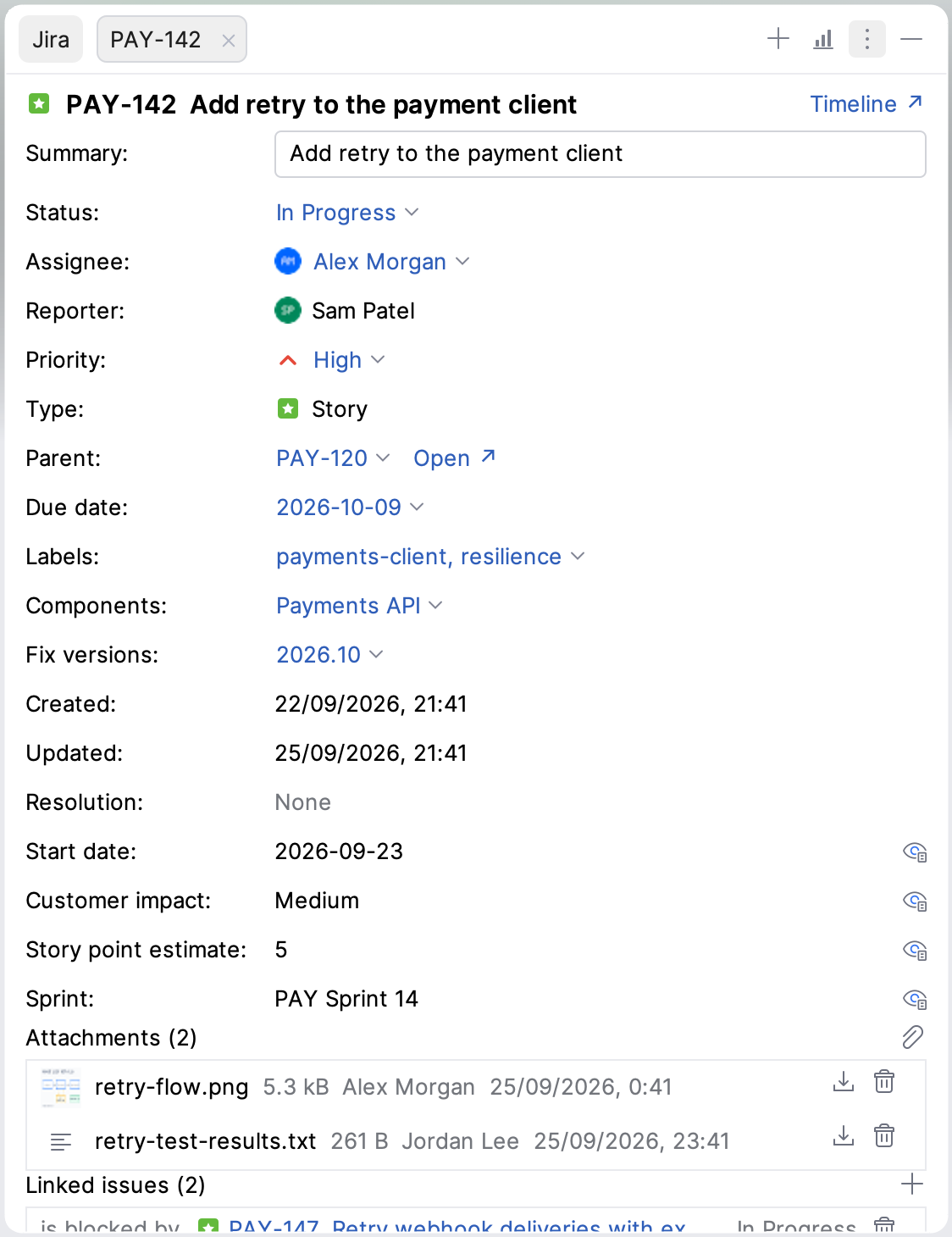
The tab lists the standard fields, such as Status, Assignee, Reporter, Priority, Type, Parent, Due date, Labels, Components and Fix versions, followed by the custom fields.
Each field is shown according to the type Jira declares for it.
The Type row shows the issue type icon.
A field of a type JirAI cannot show yet reads Not shown here, with an Open in Jira link.
Fields that Jira declares without a specific type, such as Rank, are left out.
To hide custom fields you do not need, see Hide custom fields.
Edit fields in place
Click a field value to change it.
Except for Summary, the fields below save to Jira as soon as you pick a value.
Reporter, Type and the custom fields can be changed only in Jira.
A field such as Priority or Labels is also read-only when Jira does not let you edit it.
- Summary
Edit the text in the Summary field.
Click Apply at the bottom of the details tab to save the new summary, or Revert to discard it.
- Priority
Choose a priority from the list.
- Assignee
Search for a person, choose Unassigned to remove the assignee, or click Assign to me.
You are pinned under Unassigned, above a divider, when Jira lets you be assigned to the issue.
The list opens on the current assignee; choosing that person again changes nothing.
- Labels, Components, Fix versions
Add or remove values; you can filter the list or type a new label.
- Due date
Pick a date, or clear it.
- Parent
Search the issue's project by summary for a work item one level up in the hierarchy, or choose Clear parent.
To open the parent work item, click Open ↗ beside the Parent field.
Change the status
Move an issue through its workflow
Click the Status value.
The list shows the transitions your Jira workflow allows from the current status.
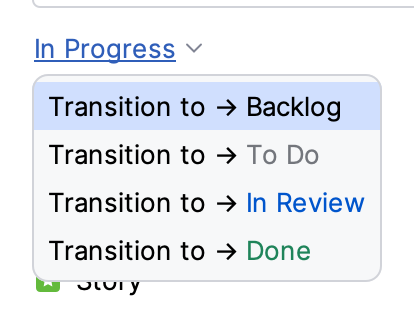
Choose a transition.
If the transition has a screen with fields, such as Resolution, fill them in the dialog that opens.
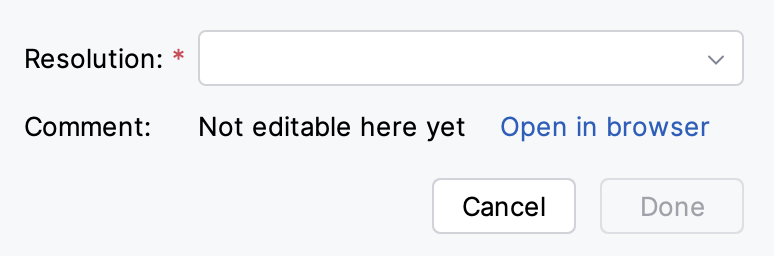
Click the button named after the transition, for example Done.
The button stays disabled while a required field is empty.
In a person field on the transition screen, you are pinned near the top, above a divider, when Jira lets you be chosen for that field.
The list opens on the field's current value.
A transition field JirAI cannot edit shows an Open in browser link, so that you can complete the transition in Jira.
Attachments
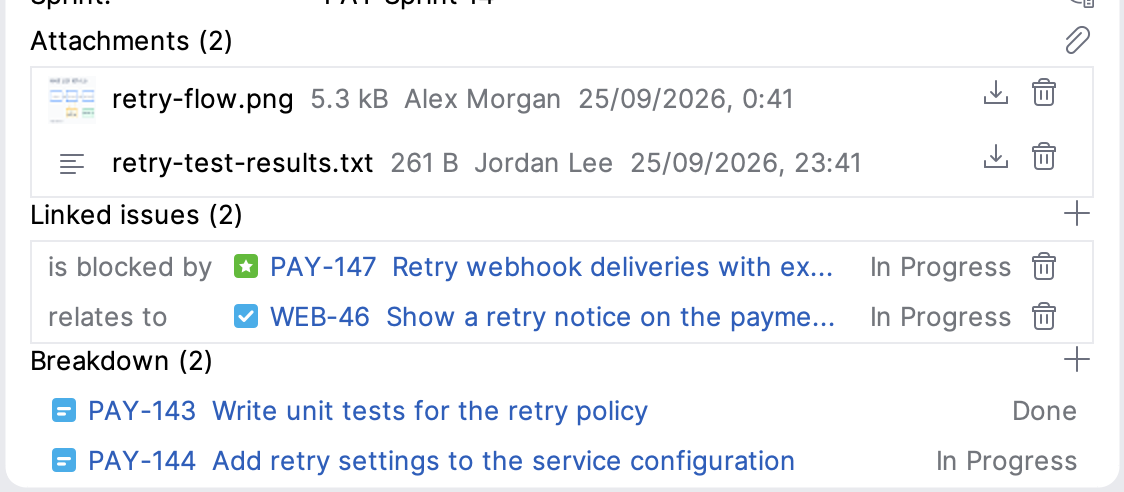
To attach files, click the paperclip (Attach files…) and choose the files, or drag files onto the Attachments section.
Each file can be up to 25 MB, or up to your site's attachment limit if that is lower.
Image attachments show a thumbnail when Jira provides one.
To download an attachment, click the download icon (Download) on its row and choose where to save the file.
When the download finishes, a notification offers Open and Copy Path.
JirAI does not download attachments over 250 MB.
For such an attachment, the notification offers Open in Browser.
To delete an attachment, click the delete icon (Delete) on its row and confirm; the icon appears only when Jira lets you delete that attachment.
If the file is shown inline in the description or in a comment, the confirmation says so, because that image stops rendering there.
On macOS and Windows, JirAI uses the operating system file dialog; on Linux, it uses the IDE file chooser.
Issue links
Link two issues
In the Linked issues section, click + (Add link).
In the Link DEMO-123 dialog, choose the Link type:, for example blocks or relates to.
In the Search: field, search all projects for the other issue by key or summary, and select it.
Click Link.
Click a linked issue to open its details tab and its Timeline tab.
To remove a link, click the delete icon (Remove link) on its row and confirm.
Child work items (Breakdown)
The Breakdown section lists up to five child work items of the issue, sub-tasks included.
It is hidden for a work item whose type cannot have child work items, such as a sub-task.
Click a child to open it in its own details tab.
When there are more children, click +N more ↗ or More ↗ to open the full list in the editor's Breakdown tab.
Click Add child to create a child work item. See Create a child work item.
The details menu
Right-click anywhere in the details tab, including on a field name, to open its menu: