GBrowser: Bookmarks and history
GBrowser keeps bookmarks and a short browsing history for each project. Both are stored with the GBrowser settings in .idea/gbrowsers.xml.
The default shortcuts in this topic are for Windows and Linux. On macOS, GBrowser shortcuts use ⌘ instead of Ctrl and ⌥ instead of Alt; see Default shortcuts on macOS.
Bookmark a page
Bookmark the current page
Click the bookmark button to the right of the address field. Its tooltip reads Add to Bookmarks or Remove from Bookmarks.
Press Ctrl+D, or select Add to Bookmarks in the More Options menu.
Right-click the page and select Add to Bookmarks.
GBrowser uses the page title as the bookmark name.
To remove the bookmark, click the bookmark button again, or right-click its icon on the bookmarks bar and select Remove Bookmark.
Use the bookmarks bar
The bookmarks bar under the address field shows one site icon for each bookmark. Hover over an icon to see the URL, and click it to open the page in the current tab.
To remove a bookmark, right-click its icon and select Remove Bookmark.
To hide the bar, clear Show bookmarks toolbar in Tool Window Settings.

Open a bookmark from the menu
Open a saved bookmark
Click More Options at the right end of the browser toolbar.
Select Bookmarks and then the bookmark.
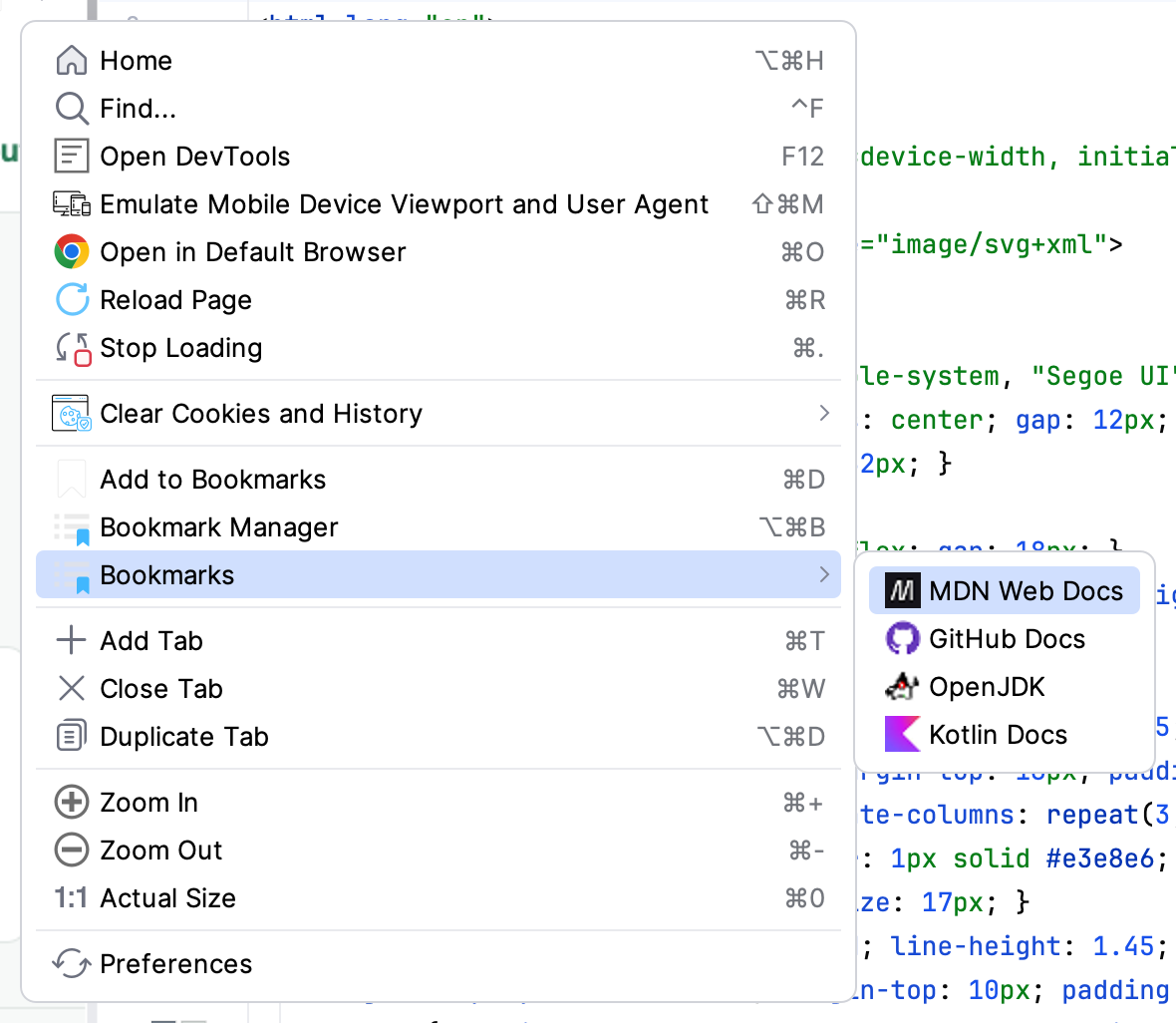
If the current tab shows the home page, the bookmark opens in it. Otherwise, it opens in a new tab.
Edit bookmarks
Rename, add or remove bookmarks
The Bookmark Manager action is available when you have at least one bookmark.
Press Ctrl+Alt+B, or select Bookmark Manager in the More Options menu. The GBrowser settings open with the Bookmark Management group expanded.
Make your changes in the bookmarks table:
To rename or change a bookmark, edit its Name or URL cell.
To add a bookmark, click the add button.
To remove a bookmark, select it and click the remove button. GBrowser deletes it right away, even if you then click Cancel.
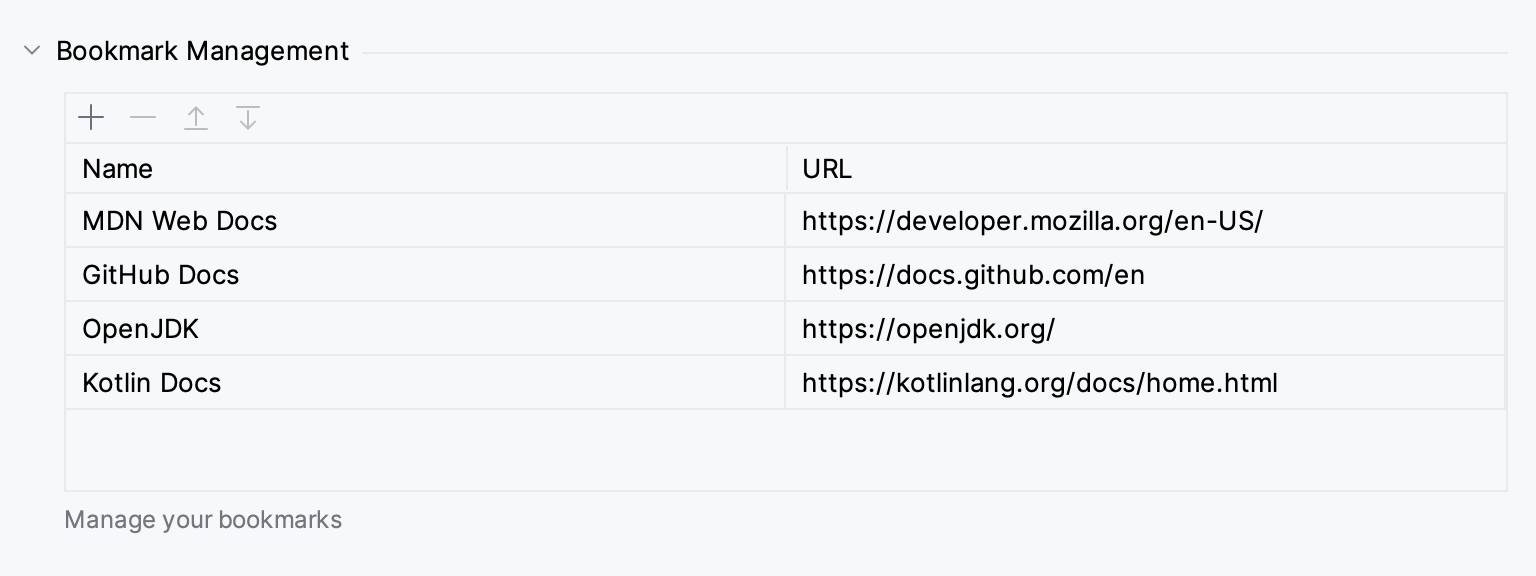
Click OK. A bookmark must have a URL; otherwise the dialog shows URL cannot be empty.
Browsing history
When History enabled is on, which is the default, GBrowser remembers the pages you visit. It keeps the 20 most recent pages by default; you can change the number, up to 60, in Search Settings.
GBrowser uses the history only for the suggestions in the address field. There is no separate history list.
Clear history and cookies
Clear the browsing history
Click More Options and select , or press Ctrl+Shift+7.
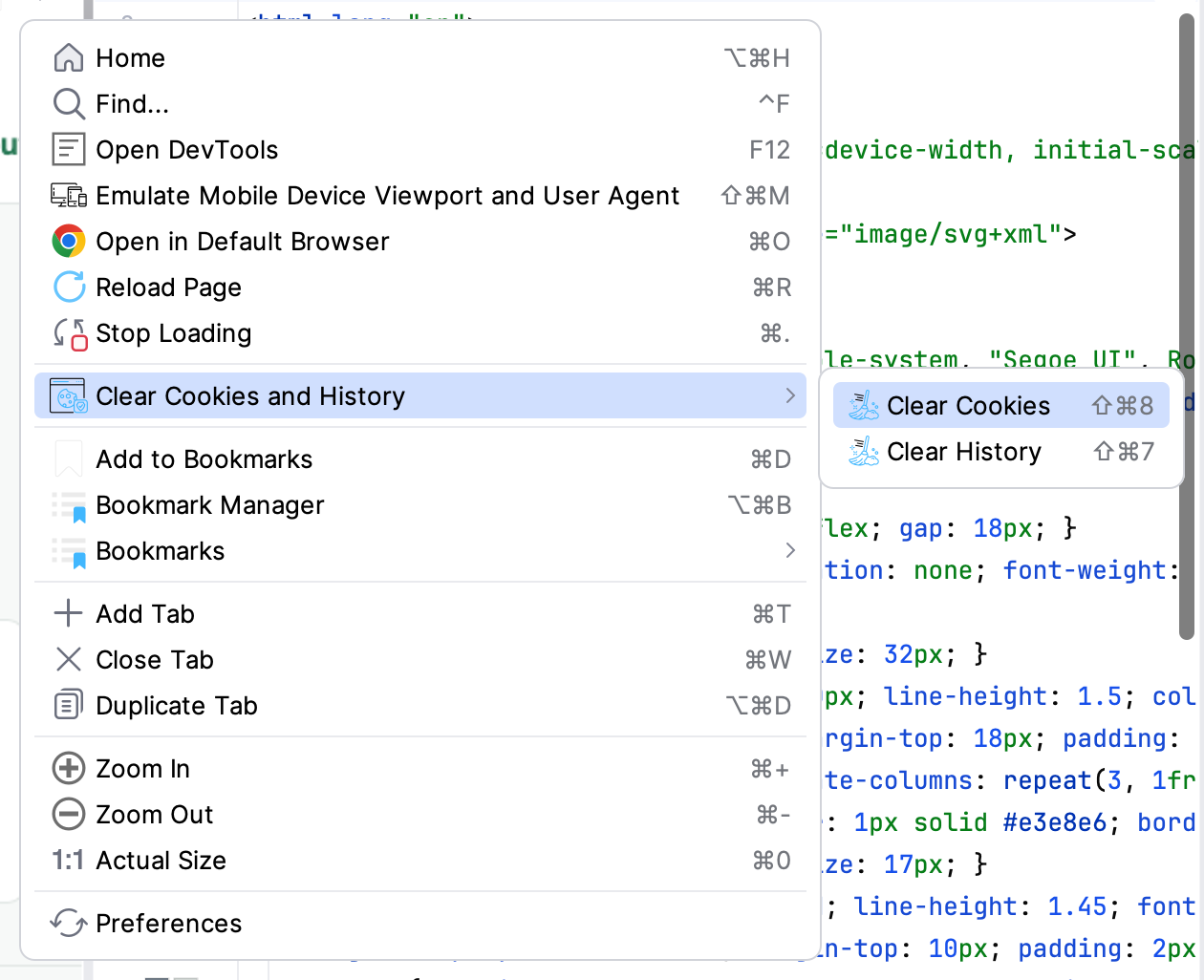
The action is available only when the history has entries.
Clear cookies
Click More Options and select , or press Ctrl+Shift+8.