GBrowser: Open project files and links
GBrowser can open files from your project and URLs from your code without copying them into the address field. Each file or link opens in a new GBrowser tab.
Open a file in GBrowser
Open in GBrowser is available for files with the extensions html, htm, xhtml, xml, svg, md and markdown. For other files, the action is hidden.
Open the current file
In the editor, right-click and select Open in GBrowser.
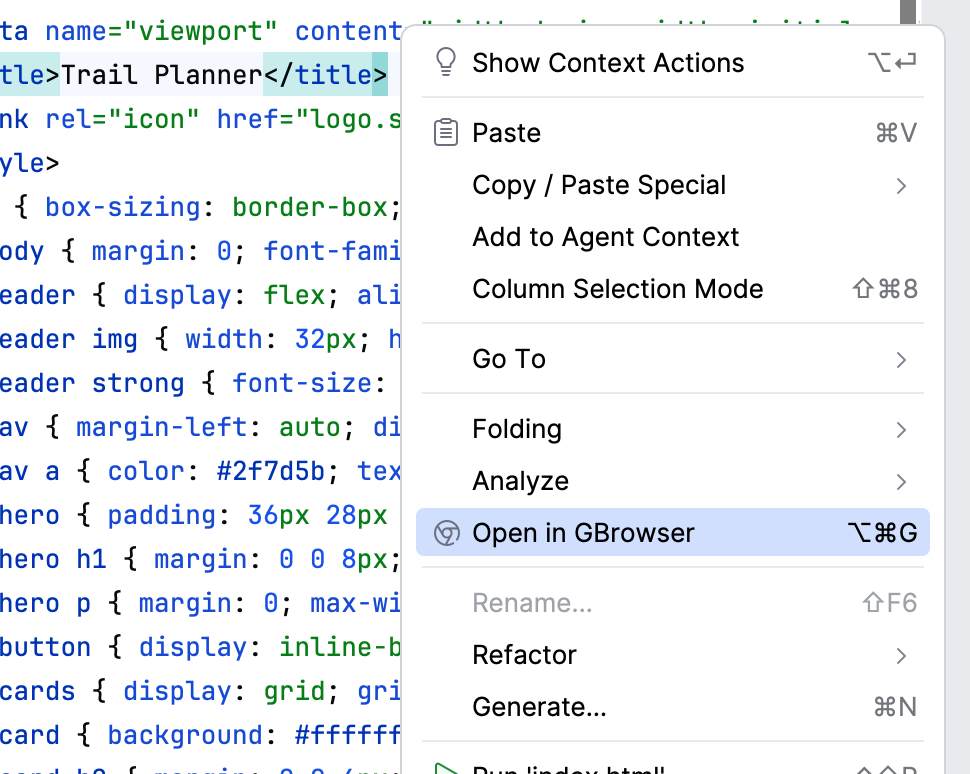
In the Project tool window, right-click the file and select Open in GBrowser.
Press Ctrl+Alt+G (macOS: ⌥ ⌘ G).
GBrowser opens the file as a file:// URL in a new tab and shows the tool window. The page shows the file as it is saved on disk; after you change the file, click Reload Page to see the changes. Chromium renders HTML, XHTML and SVG files. It does not render Markdown, so a Markdown file is not shown as formatted text.
Open a URL from the editor
Open selected text as a URL
The item appears only when the selected text looks like a URL or contains localhost.
In the editor, select a URL, for example
http://localhost:8080/.Right-click the selection and select Open Selected Text in GBrowser.
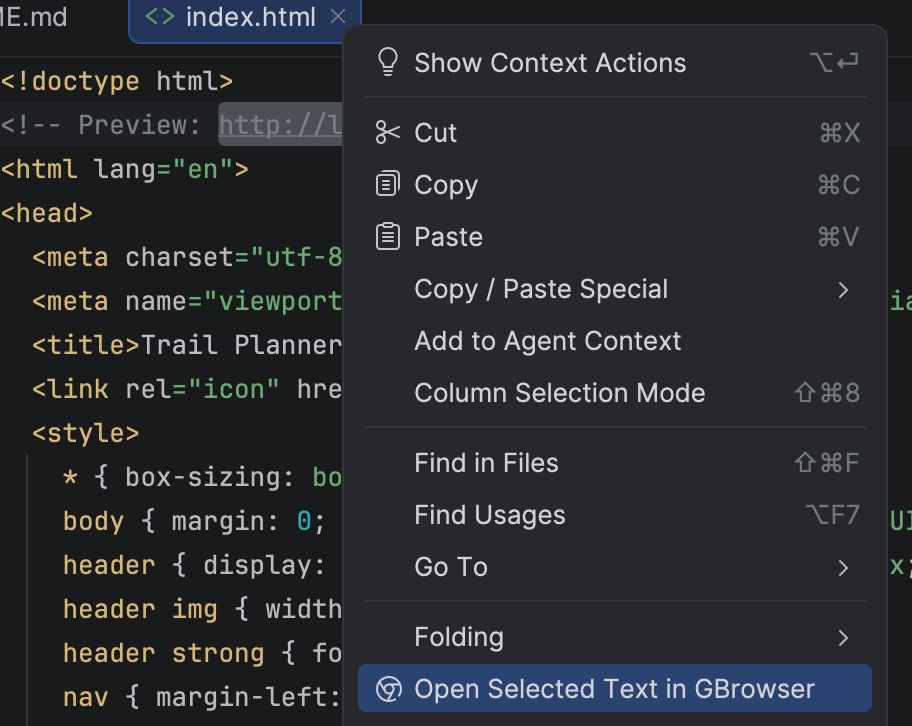
Use it to open the address of a local development server that you have in a README or configuration file.