GBrowser: Keyboard shortcuts
The first table lists the default shortcuts that GBrowser defines for Windows and Linux keymaps. For the default macOS keymap, see Default shortcuts on macOS. To see the shortcut in your current keymap, search for the action name in .
Default shortcuts
Action | Windows and Linux |
|---|---|
Backward | Alt+Left |
Forward | Alt+Right |
Home | Ctrl+Alt+H |
Reload Page | Ctrl+R |
Stop Loading | Ctrl+. |
Find... | Ctrl+F or Alt+F3 |
Zoom In | Ctrl+Plus |
Zoom Out | Ctrl+Minus |
Actual Size | Ctrl+0 |
Open in Default Browser | Ctrl+O |
Open DevTools | F12 |
Toggle Device Emulation (menu: Emulate Mobile Device Viewport and User Agent) | Ctrl+Shift+M |
Add to Bookmarks | Ctrl+D |
Bookmark Manager | Ctrl+Alt+B |
Clear History | Ctrl+Shift+7 |
Clear Cookies | Ctrl+Shift+8 |
Add Tab | Ctrl+T |
Close Tab | Ctrl+W |
Duplicate Tab | Ctrl+Alt+D |
Toggle Toolbar Visibility | Alt+T |
Open in GBrowser | Ctrl+Alt+G |
Open Selected Text in GBrowser, Preferences and the Bookmarks menu have no default shortcut.
Default shortcuts on macOS
For GBrowser actions, the default macOS keymap uses ⌘ where Windows and Linux use Ctrl. Alt is the ⌥ key.
Action | macOS |
|---|---|
Backward | ⌥ ← |
Forward | ⌥ → |
Home | ⌥ ⌘ H |
Reload Page | ⌘ R |
Stop Loading | ⌘ . |
Find... | ⌘ F, ⌃ F or ⌥ F3 |
Zoom In | ⌘ + |
Zoom Out | ⌘ - |
Actual Size | ⌘ 0 |
Open in Default Browser | ⌘ O |
Open DevTools | F12 |
Toggle Device Emulation | ⇧ ⌘ M |
Add to Bookmarks | ⌘ D |
Bookmark Manager | ⌥ ⌘ B |
Clear History | ⇧ ⌘ 7 |
Clear Cookies | ⇧ ⌘ 8 |
Add Tab | ⌘ T |
Close Tab | ⌘ W |
Duplicate Tab | ⌥ ⌘ D |
Toggle Toolbar Visibility | ⌥ T |
Open in GBrowser | ⌥ ⌘ G |
Some of these shortcuts, such as ⌥ ←, ⌘ D, ⌘ W, ⌘ O and ⇧ ⌘ 8, are also assigned to IDE actions. See Shortcut conflicts.
macOS uses ⌥ ⌘ H to hide other apps and ⌥ ⌘ D to show or hide the Dock. To run Home or Duplicate Tab from the keyboard, assign the action a different shortcut. See Change a shortcut.
Shortcut conflicts
GBrowser shortcuts are part of the IDE keymap, and most GBrowser actions are enabled whenever a GBrowser tab is open, not only when the browser has the focus. Several of them, such as Ctrl+D, Ctrl+W, Ctrl+R, Ctrl+F and F12, are also assigned to IDE actions. If a shortcut does not do what you expect, assign a different one to the GBrowser action or to the IDE action.
Change a shortcut
Assign a shortcut to a GBrowser action
Open the Settings dialog (Ctrl+Alt+S, macOS: ⌘ ,) and select Keymap.
Type the action name in the search field, for example
Toggle Device Emulation.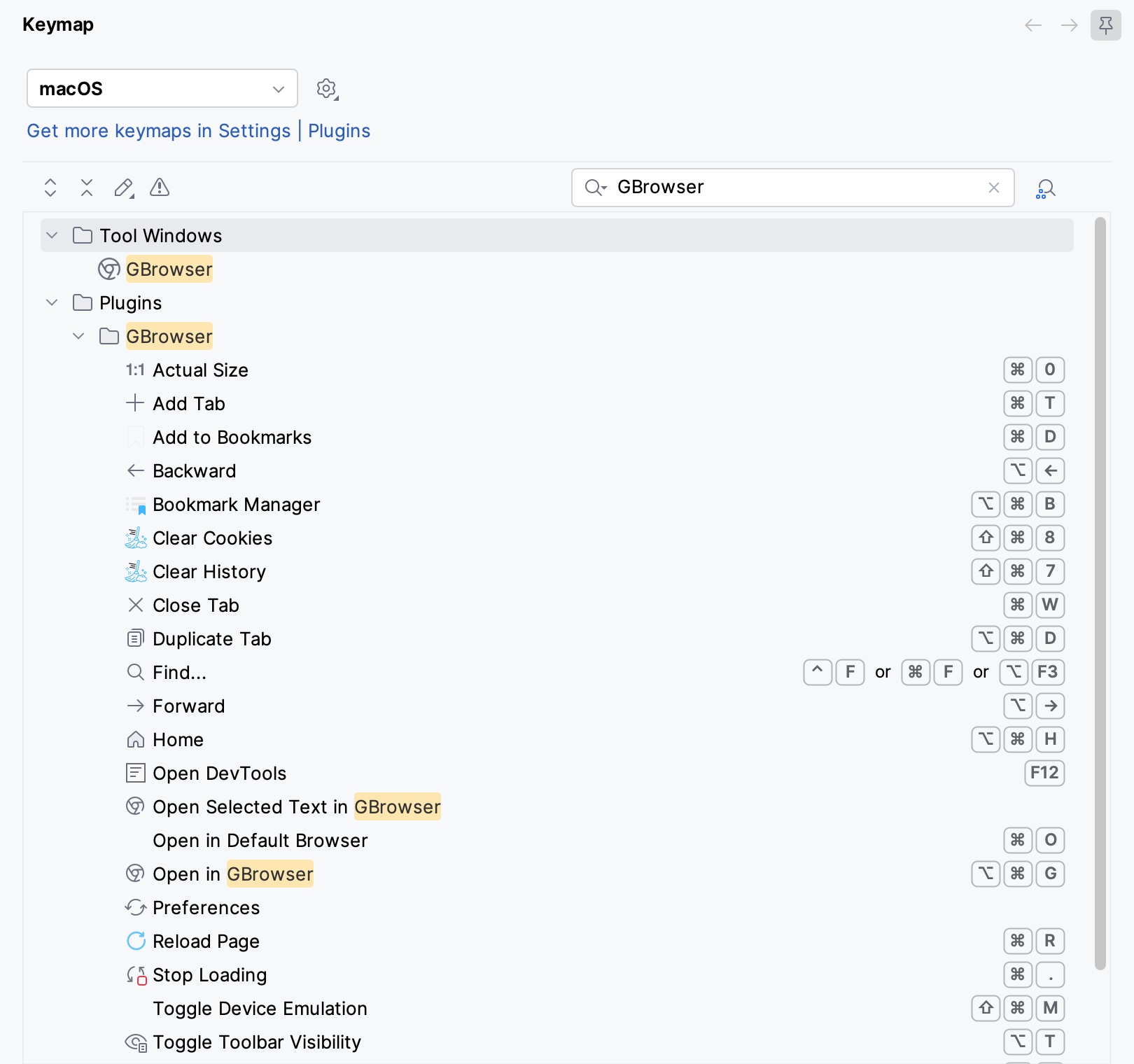
Right-click the action and select Add Keyboard Shortcut.
Press the new key combination and click OK. If the IDE reports a conflict, decide whether to remove the shortcut from the other action.