JirAI: AI agent tools and house standard
When an AI coding assistant files a Jira issue through a generic Jira API, Jira rejects the draft only when a required field is missing.
Optional fields that your team relies on, such as acceptance criteria, story points or components, stay empty without any error.
JirAI gives the assistant two tools through the IDE's MCP server, so that it can see the real create screen and check a draft before it files anything.
What the tools do
- jirai_describe_target
Takes a project key and an issue type.
Returns the real Jira create screen for them: every field, which fields are required, the values Jira accepts, the defaults and the help text your Jira administrator wrote.
- jirai_validate_draft
Takes a project key, an issue type, a summary, a description and other field values.
Checks the draft against the create screen and your house standard, and returns findings without creating anything.
jirai_validate_draft reports three kinds of finding:
- BLOCKS_CREATE
Jira would reject the draft, for example because a required field is missing, or because the draft sets a description that the create screen does not carry.
- HOUSE_RULE
Jira would accept the draft, but it breaks a rule of your house standard.
- NOTE
A field on the create screen that the draft leaves empty.
Both tools only read from Jira; they never create or change an issue.
They use the Jira site you are signed in to in JirAI.
The tools tell your assistant to call them before it creates any Jira issue, whether through the Atlassian MCP server or any other Jira API.
When a tool call fails
A failed call tells the assistant what to do next, so it can act instead of guessing:
Ask you to sign in under .
Wait and retry, for example when Jira limits the request rate or the site cannot be reached.
Fix its input. When a project key is wrong, the reply lists the projects your account can create issues in; when an issue type is wrong, it lists the types the project offers.
When jirai_validate_draft fails, the reply says that the draft was not checked, so the assistant does not treat it as a clean draft.
Turn on the agent tools
The tools are offered through the IDE's MCP server, which is off by default.
Make the JirAI tools available to your assistant
Before you start, sign in to Jira Cloud in JirAI.
Open and select Enable MCP Server.
In the IDE's consent dialog, read what a connected assistant can do in the IDE, which goes beyond JirAI, and confirm.
Under Clients Auto-Configuration, click Auto-Configure for each assistant you use.
Most assistants need a restart afterwards.
Check that your assistant offers
jirai_describe_targetandjirai_validate_draft.If it does not, open and make sure the two tools are enabled.
The tools are available only while the IDE is running with a project open.
They need the bundled MCP Server plugin; if you disable it, you lose only these two tools, and the rest of JirAI keeps working.
The first-run notification
The first time the JirAI tool window shows you signed in while the MCP server is off, JirAI shows the notification JirAI agent tools are not reachable yet.
Click Open MCP Server settings to go to the MCP server page.
Click Don't show again to dismiss it for good.
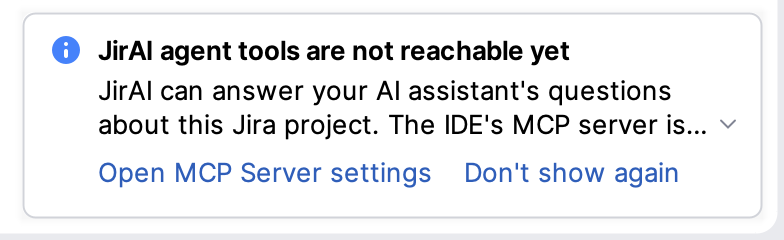
JirAI shows this notification at most once per IDE installation.
It does not appear while the MCP server is on, or when the MCP Server plugin is disabled.
Check a draft with your assistant
To be sure the assistant uses the tools, ask it to read the create screen before it drafts an issue and to validate the draft before it files it, for example:
Draft a bug in DEMO for the login timeout. Call jirai_describe_target for DEMO and Bug first, then check the draft with jirai_validate_draft and fix what it reports before you show it to me.
To file the issue, the assistant needs a separate Jira tool.
You can also have the assistant save the draft as a Markdown file in the project and create the issue from that file with Push to Jira.
Define a house standard
A house standard lists what your team expects on an issue beyond what Jira requires.
When an assistant validates a draft that breaks a rule, it receives a HOUSE_RULE finding.
House rules never block a create; they inform the assistant, like a review comment.
Add house standard rules
Sign in to your Jira site in JirAI.
Open .
Click + to add a row for each rule, and fill in the columns:
- Project
The project key, or
*for any project.- Issue type
The issue type, or
*for any type.- Rule
The kind of rule:
FIELD_SET,DESCRIPTION_HEADINGorFIELD_MATCHES.- Target
The field name, or the heading text for
DESCRIPTION_HEADING.- Pattern
A regular expression; used only by
FIELD_MATCHES.- Note
Optional. Your own explanation, which the assistant receives instead of the generated message.
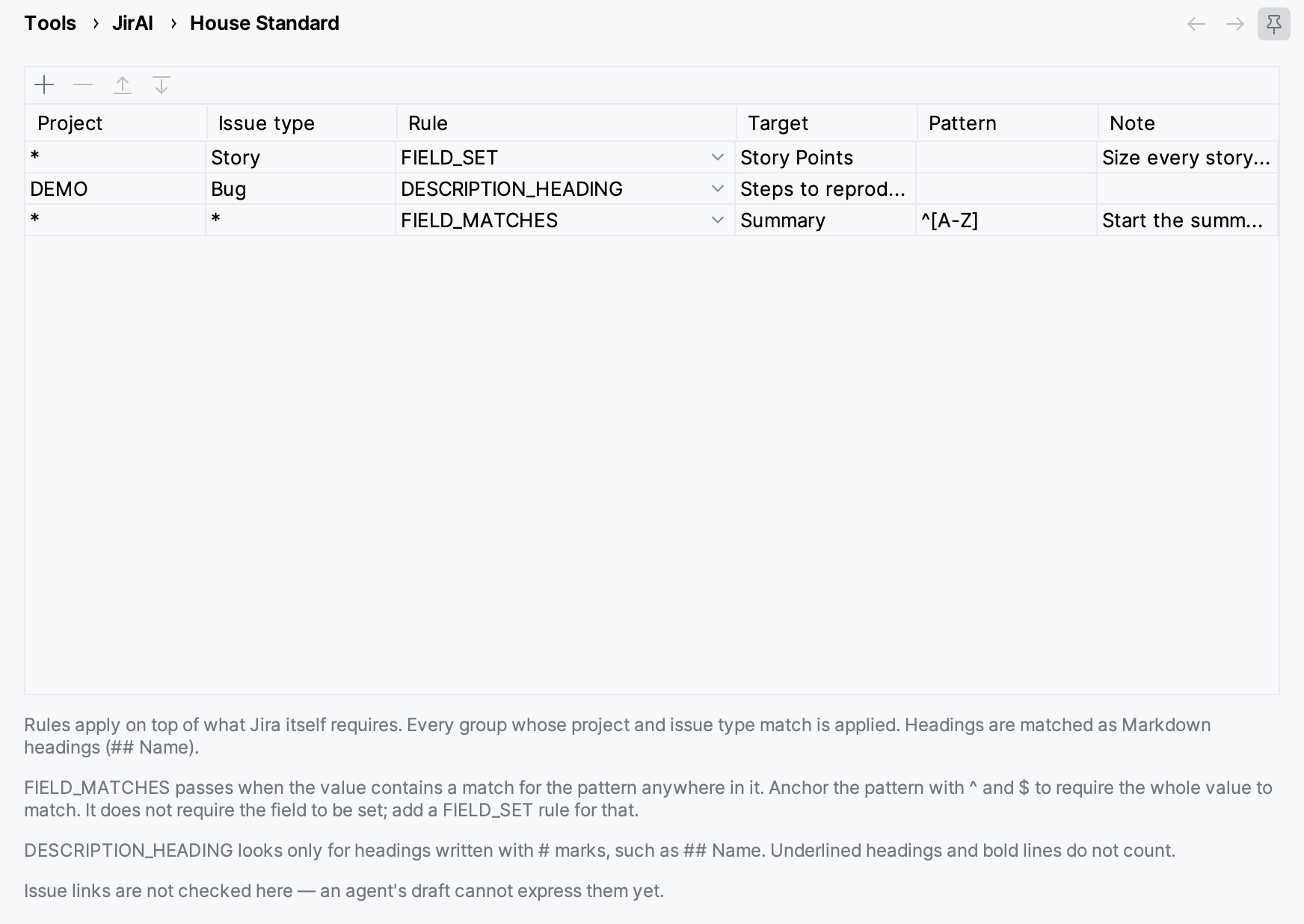
Click OK or Apply.
To remove a rule, select its row, click − and apply the change.
Rule kinds
- FIELD_SET
The field named in Target must have a value.
If the project's create screen has no such field, the assistant is told once that the rule cannot be met.
- DESCRIPTION_HEADING
The description must contain a Markdown heading with the text in Target, for example
## Steps to reproduce.Only headings written with
#marks count; underlined headings and bold lines do not.- FIELD_MATCHES
If the field in Target has a value, the value must contain a match for the Pattern.
Anchor the pattern with
^and$to require the whole value to match.This rule does not require the field to be set; add a
FIELD_SETrule for that.
Every row whose project and issue type match the draft applies.
Refer to fields by name, as Jira shows them; field IDs also work, for example when two fields share a name.
Issue links cannot be checked by house rules.
Where the house standard is stored
The house standard is saved in your IDE for the Jira site you are signed in to.
It is not shared: each teammate sets up their own.
When you are not signed in, the page asks you to sign in under first.
Example
A team requires story points on stories and a Steps to reproduce section in bug reports.
Project | Issue type | Rule | Target | Pattern |
|---|---|---|---|---|
| Story |
| Story Points | |
DEMO | Bug |
| Steps to reproduce | |
|
|
| Summary |
|
An assistant that drafts a story without story points and calls jirai_validate_draft receives a HOUSE_RULE finding, adds the points and validates again before it files the issue.