JirAI: Push Markdown docs to Jira
AI-assisted development produces many Markdown documents, such as design specs and implementation plans written with Superpowers or spec-kit.
JirAI turns such a document into a Jira issue and keeps the issue description up to date.
How it works
You or your AI tool write a spec or plan as a .md file in the project.
Push to Jira creates an issue from the document, or updates the issue the document is already linked to.
A preset recognizes the kind of document and fills in the project, issue type, labels and components you use for it.
A one-line marker links the document to its issue, and JirAI warns you before it overwrites edits someone made in Jira.
JirAI changes your document only to add the link marker.
It never truncates, summarizes or attaches a document that is too large for Jira.
Open the Push to Jira dialog
While you are signed in, a Push to Jira button appears at the top right of every Markdown editor.
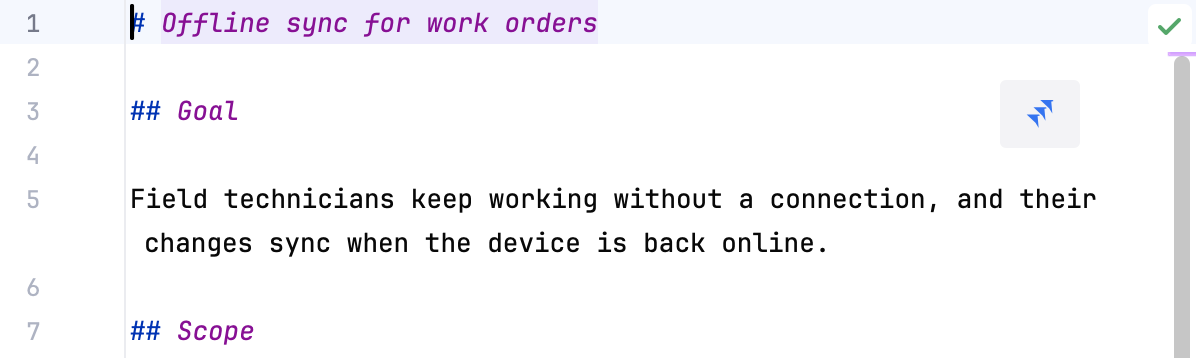
Click the button, or right-click in the editor and choose Push to Jira.
You can also right-click a Markdown file in the Project tool window and choose Push to Jira.
Select one file only: the command does not appear when several files are selected.
JirAI pushes the text currently in the editor, including unsaved changes.
The button and the menu commands appear only for files with the .md extension.
If the Markdown editor shows only the preview, the button does not appear; use the Project tool window, or switch the editor to a layout that shows the text.
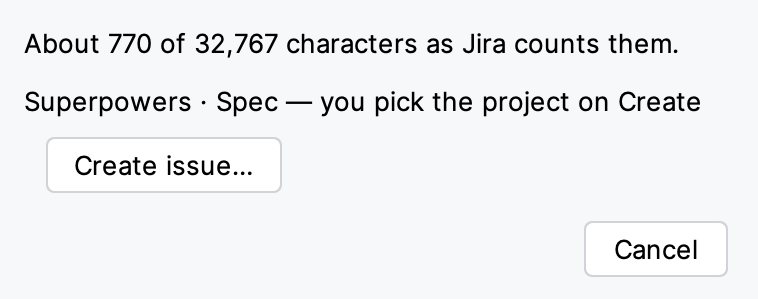
The Push to Jira dialog shows the kind of document it recognized, its size as Jira counts it, any conversion warnings and the action that fits the document.
Create an issue from a document
Create an issue from a document
Open the document and click Push to Jira.
In the dialog, click Create issue….
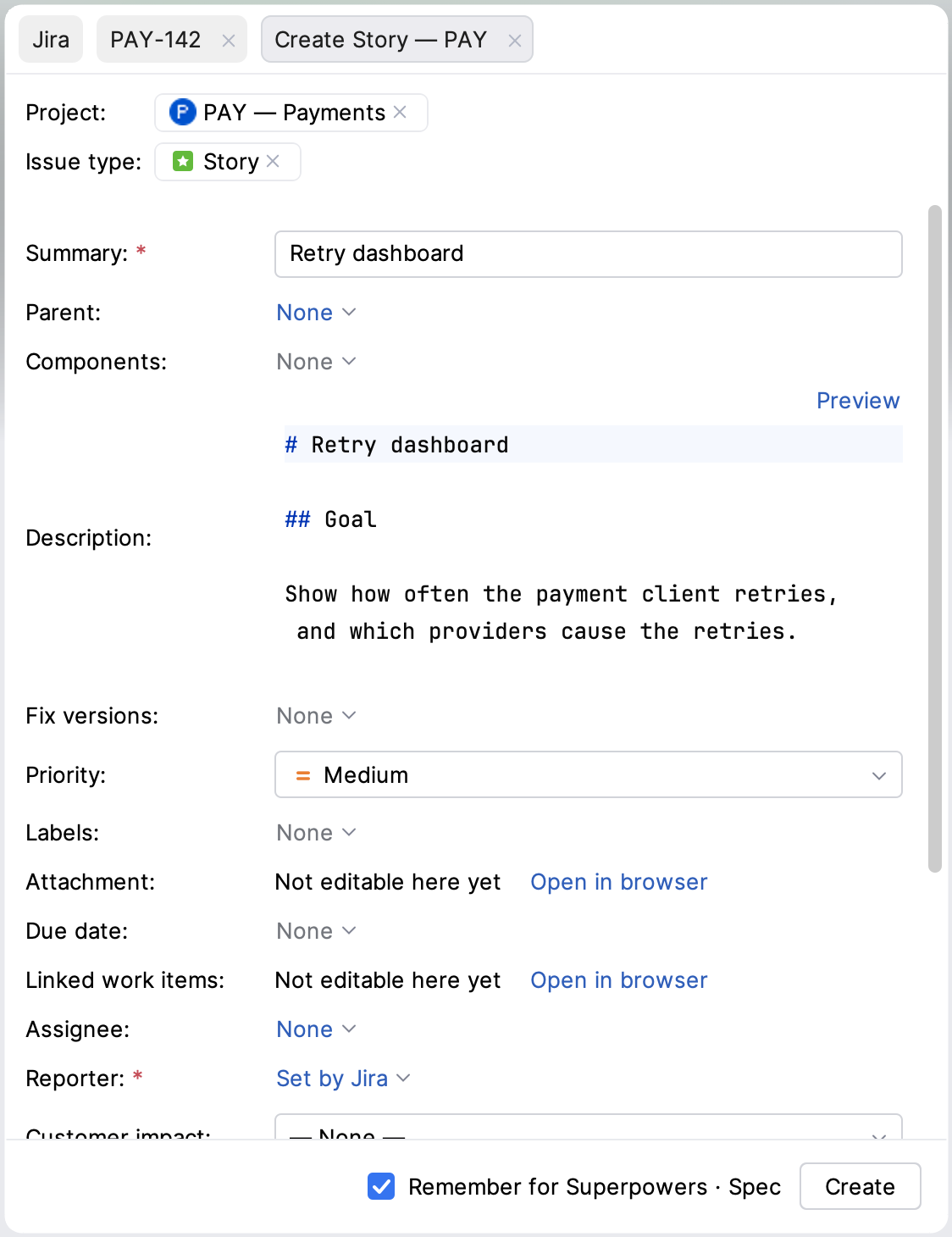
In the Create form, check the project, the issue type and the required fields.
The Summary holds the document's first heading, and the Description holds the document body; to review the description, click Preview.
Click Create.
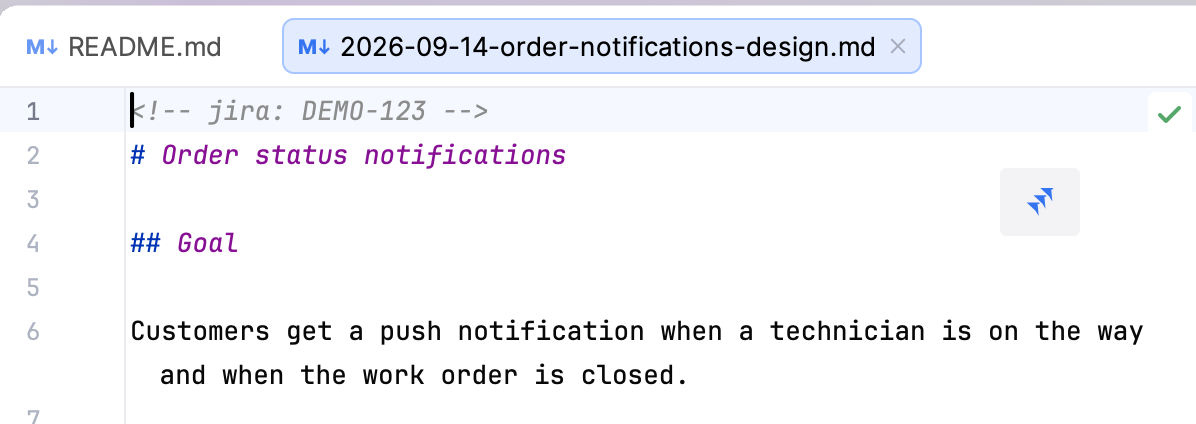
After the issue is created, JirAI adds a marker as the first line of the document, after the front matter if there is any: <!-- jira: DEMO-123 -->.
The marker is a Markdown comment, so it is invisible in rendered Markdown, and you can remove it with one undo step.
If an unsaved Create tab is already open, JirAI asks you to finish or close it first.
Update a linked issue
When the document has a marker, the dialog offers Update DEMO-123 instead of Create issue….
Update a linked issue
Open the linked document and click Push to Jira.
In the dialog, click Update DEMO-123.
Updating replaces the issue description with the current document.
Link a document to an existing issue
To push a document into an issue that already exists, add the link marker yourself.
At the top of the document, after the front matter if there is any, add the line
<!-- jira: DEMO-123 -->with the key of the issue.Click Push to Jira.
If JirAI has never pushed a document to that issue, the dialog says that it has no record of a push.
Click Update anyway to replace the issue description with the document, or Open in browser to check the issue first.
If the dialog shows another state, see When the issue was edited in Jira.
When the issue was edited in Jira
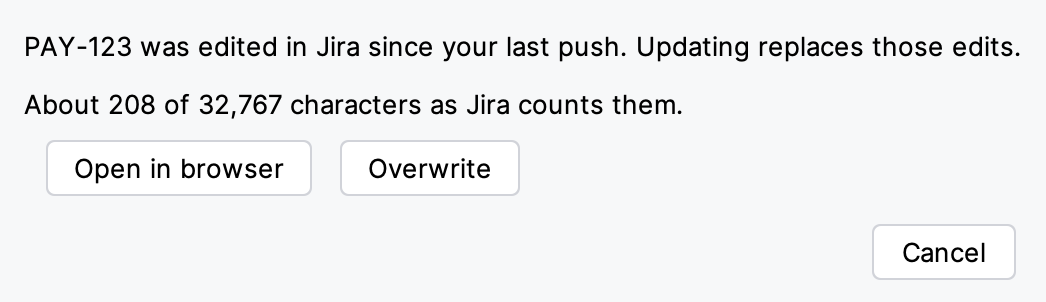
Each push stores a fingerprint of the description in a Jira issue property, so the Markdown file does not change.
On the next push, JirAI compares the fingerprint with the description Jira holds now.
Dialog state | What it means | Your options |
|---|---|---|
Update DEMO-123 | The issue has not changed since your last push. | Update DEMO-123, Cancel |
Edited in Jira | The issue changed in Jira since your last push, and updating replaces those edits. | Open in browser, Overwrite, Cancel |
No record of a push | The document is linked, but JirAI has no record of pushing it, so it cannot tell whether the issue was edited. | Open in browser, Update anyway, Cancel |
Issue missing | The linked issue does not exist, or you cannot see it. | Link a different issue…, Cancel |
Several markers | The document links to more than one issue. | Keep one marker line and push again. |
JirAI never creates a second issue for a linked document on its own.
The check detects an edit made in Jira between two of your pushes; it is not a lock.
Documents that are too big
Jira limits a description to 32,767 characters, and long specs and plans can exceed it.
The dialog reads About N of 32,767 characters as Jira counts them and lists the largest sections.
The dialog offers no Create issue…, Update, Overwrite or Update anyway button until the document fits.
If Jira rejects a document that the estimate accepted, the dialog reads Jira says this doc is too long as Jira counts it — shorten or split. and offers no write button.
Shorten the document, or split it into several documents.

Doc presets
A preset recognizes the kind of document by its path and pre-fills the Create form for that kind.
One document still creates exactly one issue.
Preset | Kind | Path pattern |
|---|---|---|
Superpowers | Spec |
|
Superpowers | Plan |
|
spec-kit | Spec |
|
spec-kit | Plan |
|
spec-kit | Tasks |
|
The first time you push a document in a project, JirAI picks the preset: a docs/superpowers/ folder selects Superpowers, a specs/*/spec.md file selects spec-kit, and otherwise no preset is used.
The dialog names the kind it recognized, for example Superpowers · Spec, and the target once one is known, for example Superpowers · Spec → DEMO · Task.
The Create form opens with the project and issue type selected and the labels and components for that kind applied.
If something cannot be applied, for example because the issue type does not exist in the project, a note under the pickers says so and you choose by hand.
A document that matches no kind is pushed like any other Markdown document.
If it is not linked to an issue yet, the dialog reads No doc kind matched this file and offers Settings…, where you can add your own kind.
Remember the target for a kind
When the Create form opens from a recognized document, the Remember for Superpowers · Spec checkbox (named after the kind) is selected by default.
When you create the issue, JirAI stores the project, issue type, labels and components you used.
The next document of that kind opens the Create form already set up, and the dialog names the target.
Configure presets in Settings
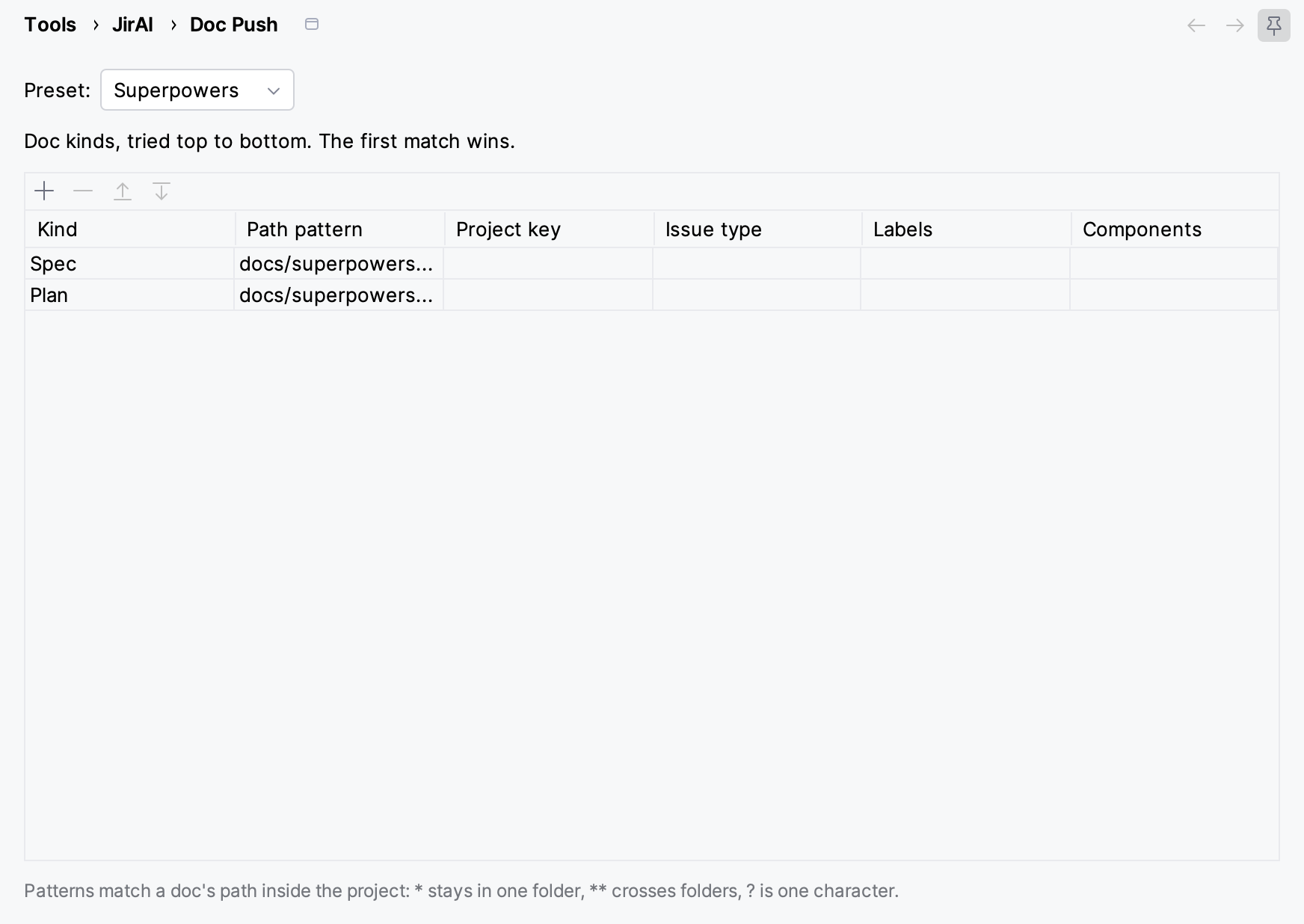
Open to change what JirAI does for each kind of document.
- Preset
Choose Superpowers, spec-kit or None.
- Doc kinds table
Lists your own kinds first, then the preset's kinds, with the Kind, Path pattern, Project key, Issue type, Labels and Components columns.
Kinds are tried from top to bottom, and the first match wins.
- Path pattern
Matches the document path inside the project:
*stays within one folder,**crosses folders, and?matches one character.- Targets
Set the project key, issue type, labels and components for each kind.
You can type names; JirAI resolves them when the Create form opens.
Add your own document kind
Add a kind for documents that no preset recognizes, for example architecture decision records in docs/adr/.
In , click +.
In the new row, enter a Kind name, for example
ADR, and a Path pattern, for exampledocs/adr/*.md.Enter a Project key and an Issue type, or leave both empty to choose them in the Create form.
Separate several Labels or Components with commas.
Labels and components are saved only for a kind that has a project key and an issue type.
Click OK or Apply.
To change the order in which your own kinds are tried, select a kind and use the up and down arrows on the table toolbar.
Only your own kinds can be renamed or removed.
For the preset's kinds, you can change only the targets.
Presets and targets are stored for each IDE project in your local workspace settings, not in the repository, and targets are kept separately for each Jira site.
Remote Development
Push to Jira works the same under Remote Development, except that the Project tool window does not offer it; use the button or the context menu in the editor.
The document text is read in the editor on the client, while converting, measuring and writing to Jira happen on the host.
The preset and the document path are resolved on the host, so they match the project you opened.
Limitations
One document creates one issue: sections of a plan are not split into child issues.
Front matter is not sent to Jira and is not mapped to Jira fields; the link marker goes after it.
Changes made in Jira are detected and reported, but not written back into the Markdown file.