AZD: Review pipeline test results
When a pipeline publishes test results, AZD shows them on the Tests tab of the run's pipeline diagram. From a failed test you can open its source, read the stack trace or associate it with a manual test case.
Open the test results
Open the test results of a run
In the AZD Pipelines tool window, open a run.
Click View Pipeline Diagram.
In the Pipeline !<id> editor tab, select the Tests tab.
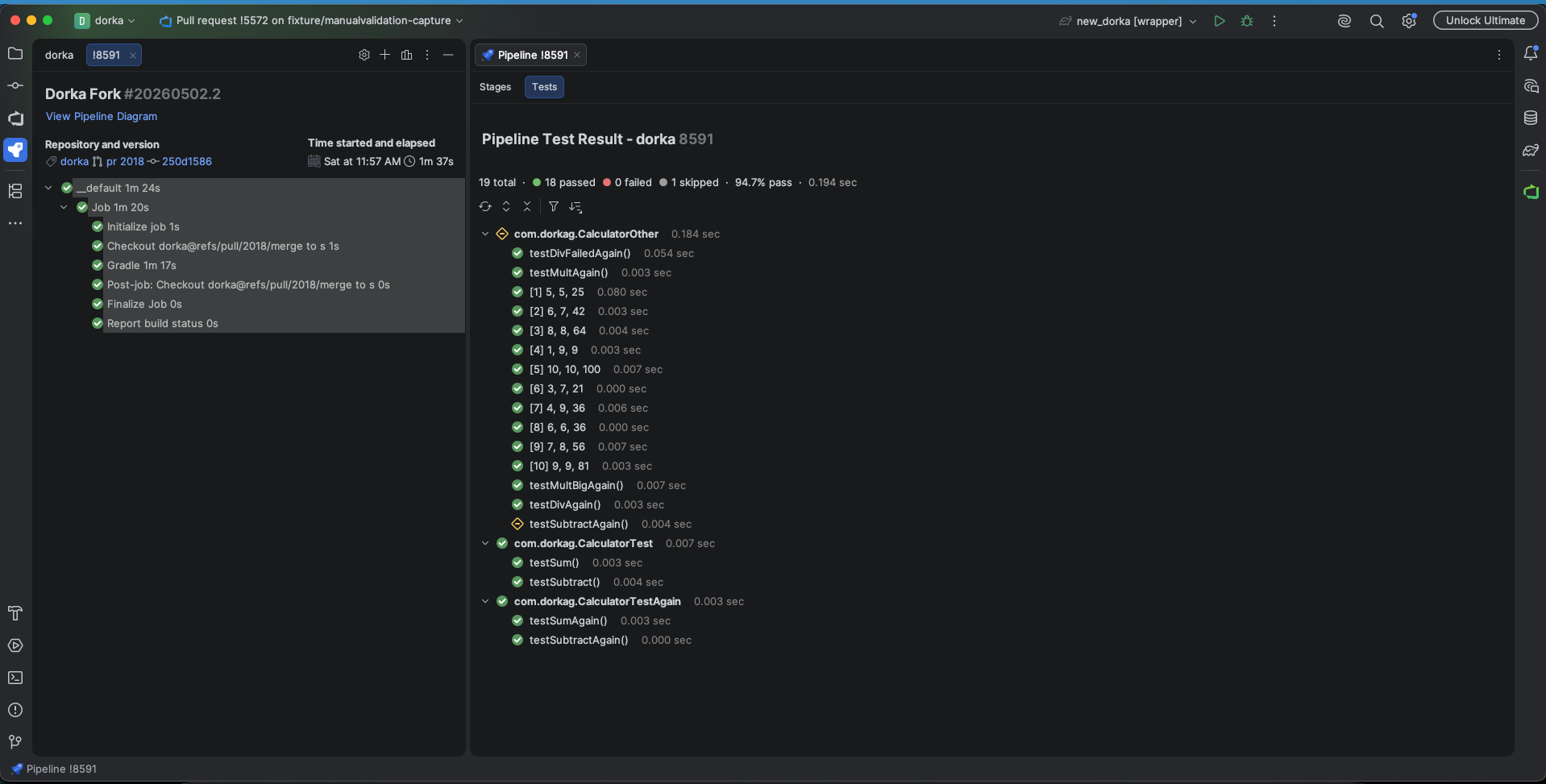
The summary row shows the total, passed, failed, skipped and other tests, the pass rate and the duration. Tests are grouped by class.
Sort and filter tests
Use the toolbar above the tree:
Click Filter by Outcome (the filter icon) and select the outcomes to show. Each outcome shows its number of tests; Clear shows all tests again.
Click the sort icon and select Default, By Name or By Duration. Select Descending to reverse the order.
Work with a test
Right-click a test or a test class:
- Jump to Test
Opens the test method, or the test class for a group, in the editor.
- Copy Test Name
Copies the full test name.
- Associate to a Test Case
Associates the automated test with a manual test case. See Associate tests with test cases.
- Open in Browser
Opens the test result on Azure DevOps.
- Analyze Test Stack Trace
Opens the stack trace of a failed test in a <Stacktrace> tab with links to your code.
- Expand All, Collapse All
Expands or collapses the tree.
Associate tests with test cases
Associating an automated test with a manual test case in Azure Test Plans lets Azure DevOps track that test case through your pipeline.
Associate a test with a test case
Right-click the test and select Associate to a Test Case.
In the Associate Pipeline Test to Test Case dialog, type the test case ID or title in Test case and select it from the list.
The list marks test cases that are already associated with another test.
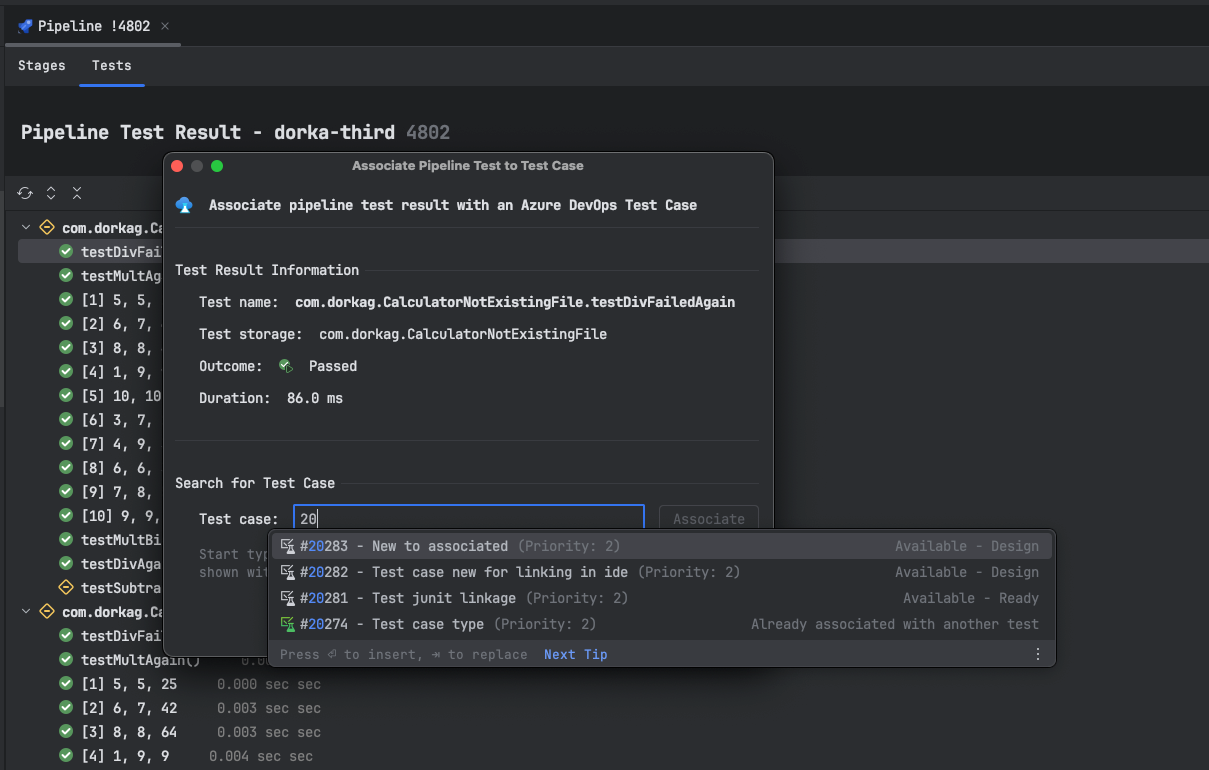
Click Associate.
If the test case was associated with another test, the new association replaces the old one.
When a test already has associations, the dialog lists them under Existing Test Cases Associations. To remove one, click its delete icon and confirm.