AZD: Approve pipeline runs
When a run waits for an environment approval or a ManualValidation@1 task, AZD shows a banner in the run tab and can notify you. You can act on approvals that list you as an approver.
Approve or reject a run
Approve or reject a pending approval
Open the run in the AZD Pipelines tool window, or click Review in the approval notification.
At the bottom of the run tab, go to the Awaiting for approval banner.
To see how many approvers are needed, hover over its help icon.
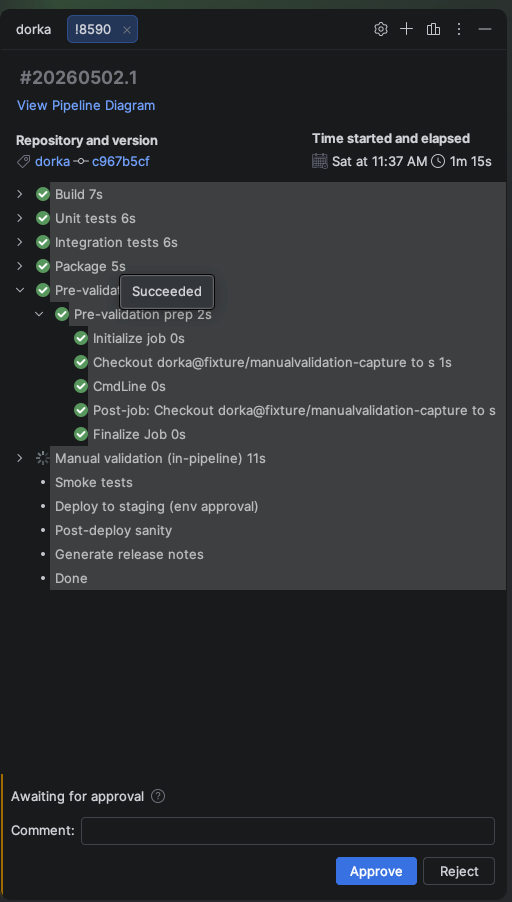
Optional: type a note in Comment.
Some environments require a comment to reject. If so, AZD shows A comment is required to reject this approval.
Click Approve or Reject.
After you approve, the banner shows You approved and the progress of the other approvers: who approved, who is still waiting, and whether approvers must approve in sequence or in any order.
Defer an approval
If the approval check allows deferring, the banner shows Defer....
Defer an approval
In the banner, click Defer....
Select In 1 hour, In 4 hours, Tomorrow 9:00 or Next Monday 9:00. To pick another time, select Custom date/time and enter a time in the future.
Click Defer.
When you cannot approve
If you cannot act on an approval, the banner shows Awaiting approval with the reason:
- You are the requester; cannot self-approve
The approval check does not let the person who started the run approve it.
- You are not on the approvers list for this run
Ask one of the listed approvers.
- You do not have permission
Your Azure DevOps permissions do not allow this approval.
- Not signed in to Azure DevOps
Sign in again from the tool window.
- Custom check — open in Azure DevOps
The check is not an approval AZD can handle. Open the run on Azure DevOps.
Approval notifications
AZD checks for approvals that wait for you when you open the AZD Pipelines or AZD Pull Requests tool window, at most once every 30 seconds. Each new approval shows a Pipeline approval requested notification with the pipeline and stage.
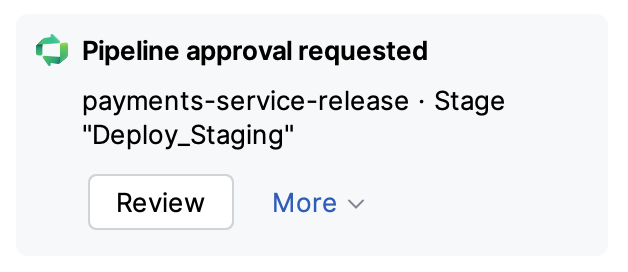
- Review
Opens the run in the AZD Pipelines tool window.
- Open in Azure DevOps
Opens the run in the browser.
- Don't show for "<pipeline>"
Mutes approval notifications for that pipeline.
When more than five new approvals arrive at once, AZD shows one Pipeline approvals requested notification with Show pipelines instead.
Mute approval notifications
Mute approvals for a pipeline
Open .
In the Approval Notifications group, click + and select the pipeline.
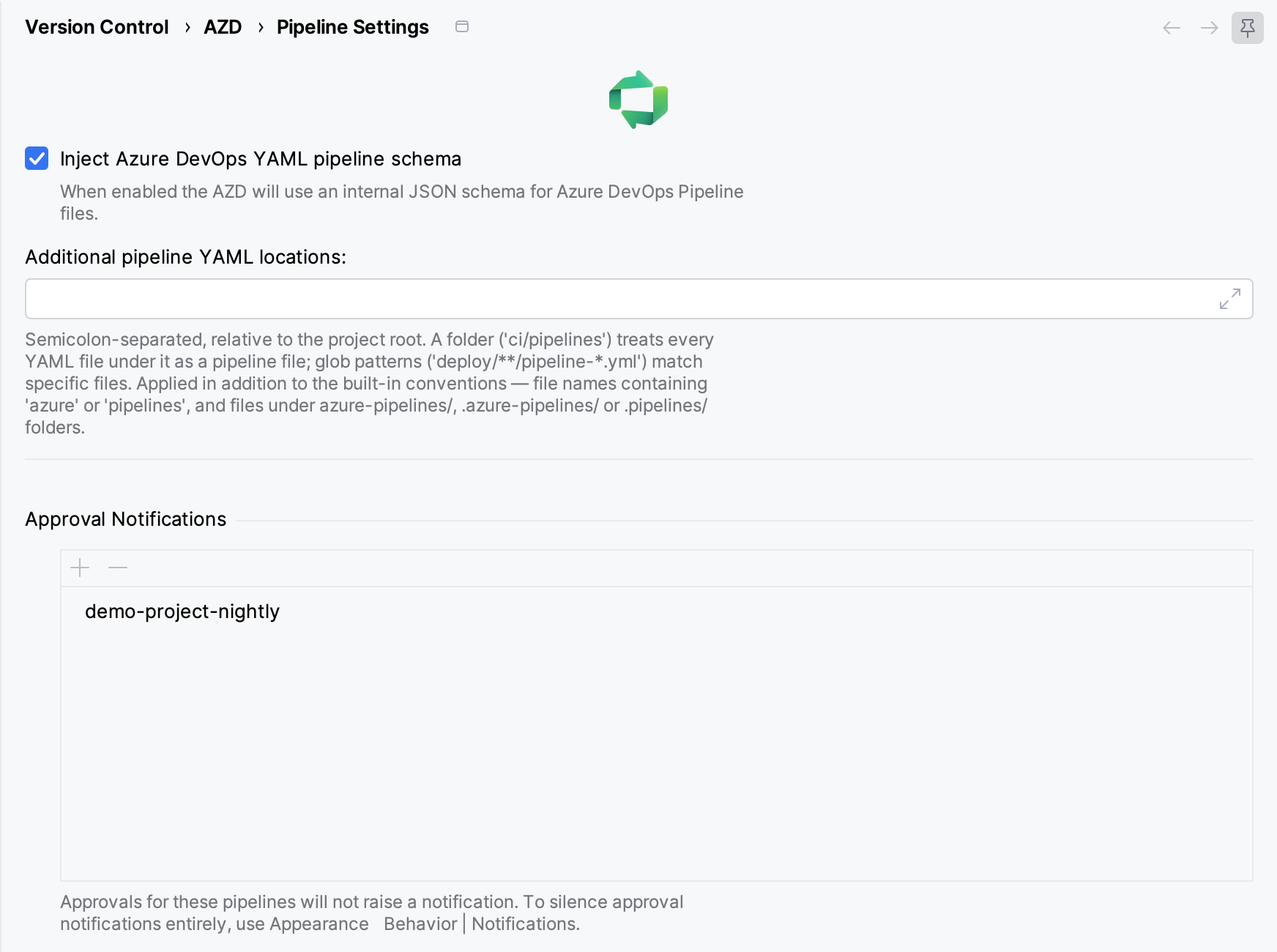
The change applies immediately. To unmute a pipeline, select it and click −. The list belongs to the current project.
To turn off approval popups for all pipelines, open , select the AZD Pipeline Approvals group, and set Popup type to No popup.