AZD: AI assistant
AZD uses AI to write pull request text and commit messages, review pull requests and explain pipeline logs. It works right after installation with the built-in AZD provider. You can add your own providers and edit the prompts.
- Write
Pull request titles and descriptions, updated descriptions and commit messages; see AZD: Generate titles, descriptions and commit messages.
- Review
AI Chat about a pull request, the guided AI Auto Review and AI draft comments; see AZD: Review pull requests with AI. To polish a comment, see Polish a comment with AI.
- Act
With MCP tools, AI Chat can read and change work items, pull requests and pipelines; see Let AI act on Azure DevOps with MCP tools.
- Explain pipelines
Chat about a pipeline log; see Analyze a stage log with AI.
Data and privacy
AI features send the text they work on, such as commit messages, diffs, pull request descriptions and comments, to the AI provider you select.
The built-in AZD provider runs a GPT model deployed on the plugin author's Azure subscription. No data is stored or collected; the endpoint only serves each request and response.
With OpenAI, Claude or Gemini, the data goes to that service under your own API key and its terms.
With GitHub Copilot, the data goes to GitHub through the Copilot CLI, under your Copilot plan and its terms.
With Ollama or another server on your machine or local network, the data stays on that server.
While the AZD provider is active, AZD shows the notification AZD AI uses a cloud model by default once per IDE session. Click Open AI settings to change the provider, or Don't show again to hide the notification. For details, see the privacy policy.
To stop sending data to the AZD provider, add and enable another provider, or turn AI off; see Turn AI features on or off.
Turn AI features on or off
Turn AI assistance on or off
Open the Settings dialog (Ctrl+Alt+S, macOS: ⌘ ,) and select .
Select or clear Enable AI assistance. AI is on by default.
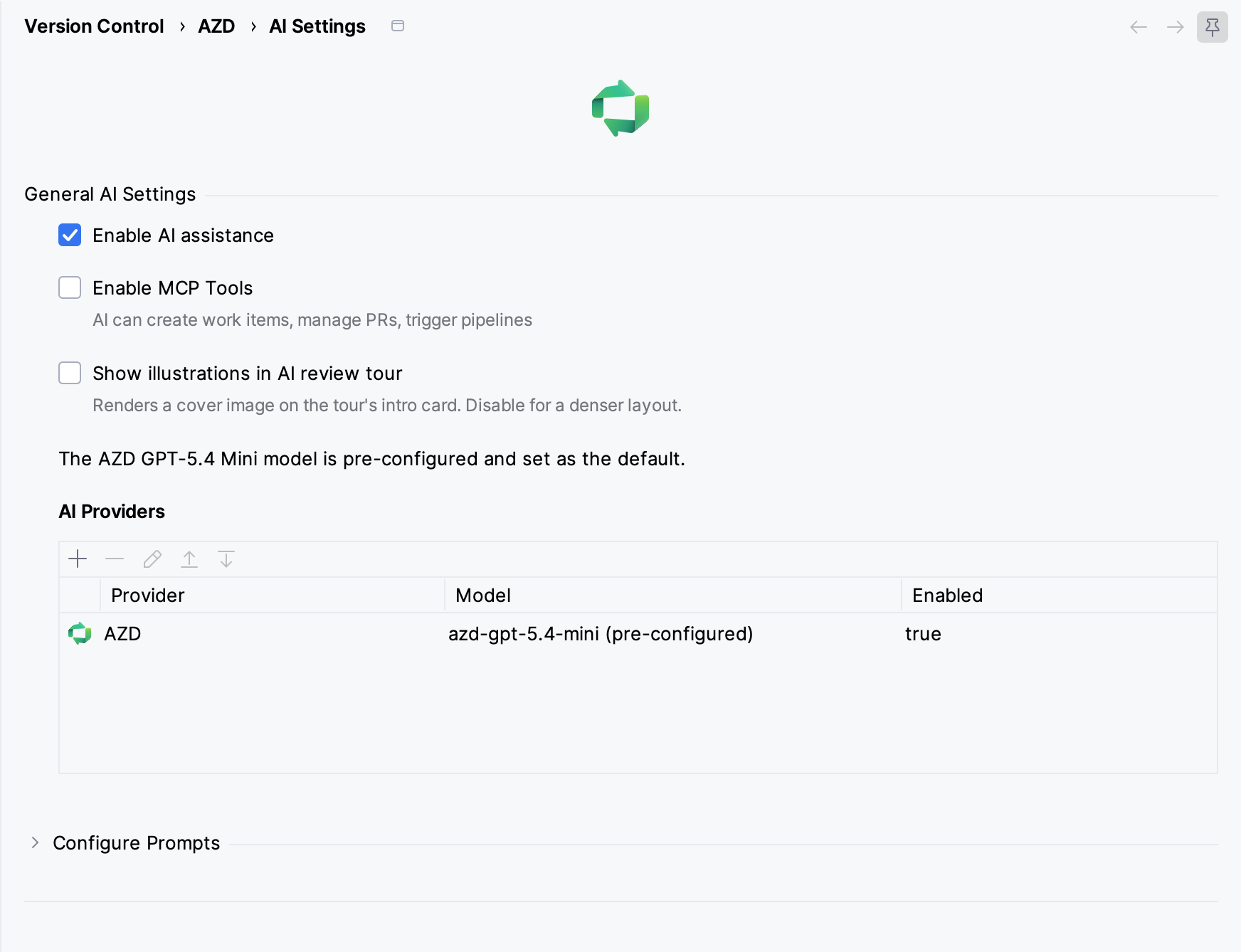
Click OK.
When AI is off, AZD hides the AI generation buttons and the Review with AI item of the right-click menus. The Pull Request Actions (⋮) menu still lists Review with AI, but its AI Chat items are disabled. The page also has these options:
- Enable MCP Tools
Lets AI Chat act on Azure DevOps through MCP tools. Off by default; see Let AI act on Azure DevOps with MCP tools.
- Show illustrations in AI review tour
Shows a cover image on the first card of AI Auto Review; see Run AI Auto Review.
Configure AI providers
The AI Providers table on the AI Settings page lists the configured providers with their Provider, Model and Enabled state. On first start, the table has one row: the AZD provider with the AZD GPT-5.4 Mini model, enabled and active.
Enabled providers appear in the provider lists of the AI buttons and menus. The provider you select there becomes the active one. Selecting the Enabled checkbox in the table also makes that provider active.
Add an AI provider
In , click + above the AI Providers table.
In the Add AI Provider dialog, select the Provider and the Model, and fill in the fields that the provider needs; see AZD: AI assistant.
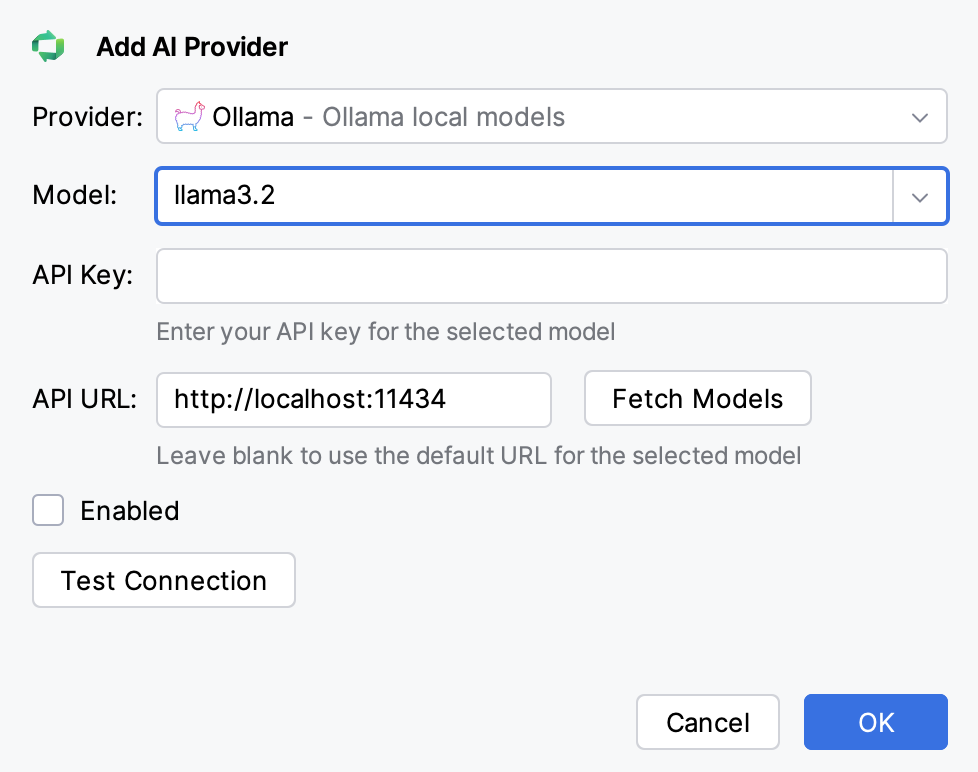
Click Test Connection.
Select Enabled and click OK. If you enable a provider without a successful test, AZD asks whether to continue; click Test First or Continue.
The Add AI Provider and Edit AI Provider dialogs have these fields:
- Provider
AZD, OpenAI, Claude, Gemini, Ollama or GitHub Copilot.
- Model
The models that AZD knows for the provider, newest first; see Available models. You can also type a model name. For Ollama, click Fetch Models to list the models installed on the server. For GitHub Copilot, the list shows the models of your Copilot plan.
- API Key
Your key for the provider. The AZD and Ollama providers do not need one. For GitHub Copilot, the field is hidden; you sign in with GitHub instead. OpenAI, Claude and Gemini need one for their official endpoints, but not for a custom URL on
localhostor a private network. AZD stores keys in the IDE password safe.- API URL
Leave it blank to use the provider's default URL. Enter a URL to use a proxy or a compatible server, for example
http://localhost:11434for Ollama. For an OpenAI-compatible server, select the OpenAI provider. You can enter the URL with or without/v1at the end, for examplehttp://localhost:1234/v1for LM Studio. For GitHub Copilot, the field is hidden.- Enabled
Makes the provider available in the AI buttons and menus.
- Test Connection
Sends a test request with the current values. If the test fails, the message names the cause, for example Authentication failed. Please check your API key. or Your API key's plan has no quota for this model.
To edit, remove or reorder providers, select a row and use the buttons above the table.
Available models
The Model list shows the newest models first. When you add a provider, AZD selects the first one, marked selected below.
Provider | Models |
|---|---|
AZD |
|
OpenAI |
|
Claude |
|
Gemini |
|
Ollama | Common open models, with |
GitHub Copilot | The models of your Copilot plan, each with its usage multiplier, for example |
Use GitHub Copilot
The GitHub Copilot provider uses your existing Copilot plan, so you need no API key. AZD sends requests through the GitHub Copilot CLI, which runs in the background. Each request counts toward the usage of your Copilot plan.
Before you start, make sure that:
Your GitHub account has a Copilot plan.
If your Copilot plan comes from an organization, the organization allows the Copilot CLI.
The Copilot CLI is installed on the machine that runs the IDE, for example with
brew install copilot-clion macOS,winget install GitHub.Copiloton Windows, ornpm install -g @github/copilot.
Add GitHub Copilot as a provider
In , click + above the AI Providers table.
In the Add AI Provider dialog, select GitHub Copilot in Provider. AZD looks for the CLI and checks your sign-in.
Check the Copilot CLI row. If it says that the CLI was not found, it lists install commands with Copy links. Install the CLI, then click Check Again.
If the Account row shows Not signed in, click Sign in with GitHub. The Sign in to GitHub Copilot dialog shows a code and a page. Click Copy Code and Open Browser, paste the code on the GitHub page and authorize the CLI. The dialog closes when you are signed in, and the Account row shows Signed in.
Select a Model. Models that your plan or organization has not enabled are listed below the Account row, after Not enabled for your account or organization.
Click Test Connection. On success, AZD shows Connected to GitHub Copilot with the model name.
Select Enabled and click OK.
If AZD cannot start the sign-in, it shows a command to run in a terminal. Copy it, run it, and then click Refresh.
In AI Chat with MCP tools turned on, Copilot can use only the Azure DevOps MCP tools that AZD provides; see Let AI act on Azure DevOps with MCP tools.
- Copilot sign-in expired
Edit the GitHub Copilot provider in the AI Providers table and sign in again.
- Copilot request limit reached
Your plan has used up its requests for the selected model. Edit the provider and select a model with a lower multiplier.
- Copilot CLI is disabled for your account or organization
Ask your organization to allow the Copilot CLI. A policy change can take up to 30 minutes to apply.
- Your GitHub account has no Copilot access
Sign in with a GitHub account that has a Copilot plan.
Configure prompts
Expand Configure Prompts on the AI Settings page. Select a prompt on the left to edit its text on the right. Clearing the checkbox of a prompt makes its text read-only. For some prompts it also turns off the features that use them, as listed below.
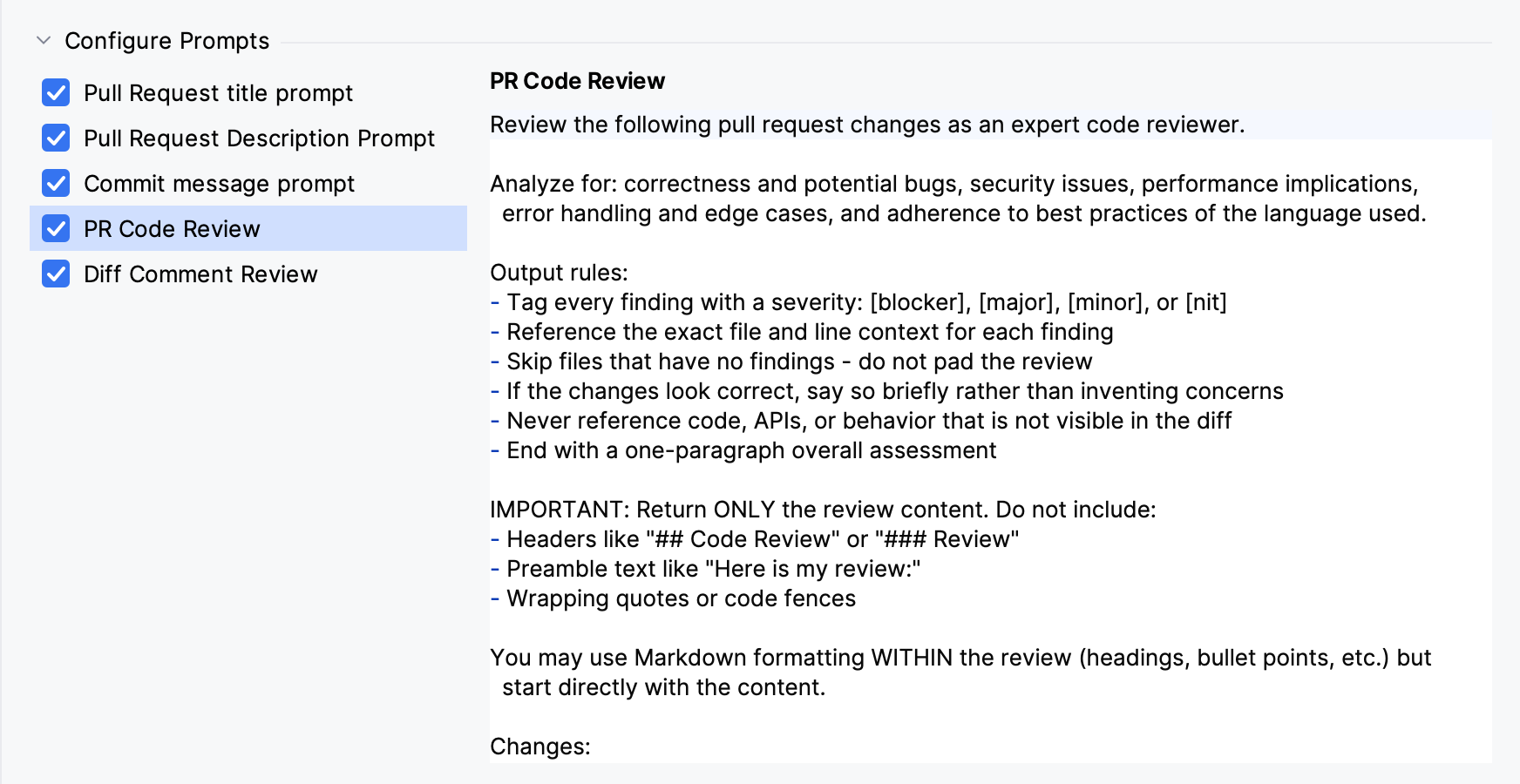
- Pull Request title prompt
Generates pull request titles. Placeholders:
{commits},{diffs}. Clearing the checkbox only makes the prompt read-only; title generation stays available.- Pull Request Description Prompt
Generates and updates pull request descriptions. Placeholders:
{existingDescription},{commits},{diffs}. Clearing the checkbox hides the description AI buttons.- Commit message prompt
Generates commit messages. Placeholders:
{workItem},{diffs}. Clearing the checkbox hides the commit message AI button.- PR Code Review
Not used by the current AI features. AI Chat and AI Auto Review use built-in review instructions.
- Diff Comment Review
The default prompt of the Generate AI Code Review dialog. Placeholder:
{diff}. Clearing the checkbox removes AI Auto Review from the right-click menu, and turns off the AI draft comments button and the AI button in comment editors.
Keep the placeholders in your text; AZD replaces them with the data of the current pull request or commit.